
কীভাবে QR TIGER vCard প্ল্যাটফর্মে কাস্টম ইমেইল সাইনেচার তৈরি করবেন
 দ্বারা Regie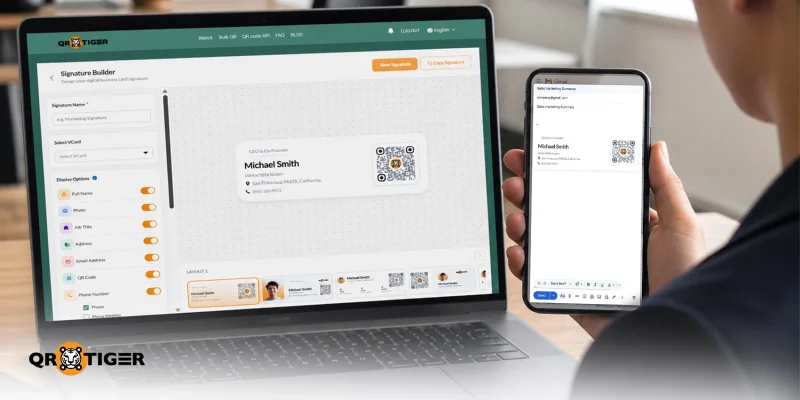
ভাল খবর, কিউআর টাইগারের ভিকার্ড এন্টারপ্রাইজ ব্যবহারকারীরা! আপনি এখন আপনার বিদ্যমান ভিকার্ড কিউআর কোড ব্যবহার করে Gmail এর জন্য কাস্টম ইমেইল সাইনেচার তৈরি করতে পারেন।
এই নতুন বৈশিষ্ট্যটি আপনাকে আপনার ডিজিটাল বিজনেস কার্ডকে একটি ব্র্যান্ডেড ইমেইল স্বাক্ষরে পরিণত করতে সাহায্য করে। আপনি নাম, চাকরির খাতা, যোগাযোগের বিবরণ, ওয়েবসাইট, ছবি, কোম্পানির লোগো, এবং একটি কিউআর কোড সহ একটি পরিষ্কৃত লেআউট পান।
দ্রুত স্বাক্ষরটি কপি করুন এবং এটি আপনার Gmail স্বাক্ষর সেটিংসে পেস্ট করুন। এটি প্রতিটি ইমেইলকে আপনার যোগাযোগের বিবরণ শেয়ার করার একটি স্পষ্ট, ব্র্যান্ডেড এবং পেশাদার উপায় দেয়।
সূচী
- কাস্টম vCard ইমেইল স্বাক্ষর কি?
- ভিকার্ড প্ল্যাটফর্মে কাস্টম ইমেইল সাইনেচার তৈরি করতে কীভাবে করবেন
- কিভাবে Gmail এর ইমেইল স্বাক্ষরে একটি vCard সংযুক্ত করবেন
- ইমেইলের জন্য কাস্টম সাইনেচার ব্যবহার কেন?
- ইমেইল স্বাক্ষর বৈশিষ্ট্যটি কে ব্যবহার করবে?
- ব্র্যান্ডেড ইমেইল সাইনেচার তৈরি করুন QR TIGER vCard দিয়ে
- প্রশ্নাবলী
কাস্টম vCard ইমেইল স্বাক্ষর কি?
একটি কাস্টম ইমেইল স্বাক্ষর ভিকার্ড প্ল্যাটফর্মে আপনার ভিকার্ড বিবরণ থেকে তৈরি একটি ব্র্যান্ডেড স্বাক্ষর ব্লক হল।
QR বাঘ ব্যবহারকারীদের সাহায্য করে ডিজিটাল ব্যবসায়িক কার্ড তৈরি এবং পরিচালনা করা, এরপর সেই বিবরণগুলি জিমেইল-এর জন্য ইমেইল স্বাক্ষর হিসেবে ব্যবহার করা যায়।
এটি আপনার মধ্যে যোগ করা হতে পারে:
- পুরো নাম
- প্রোফাইল ছবি
- কাজের খাতা
- ঠিকানা
- ইমেইল ঠিকানা
- কিউআর কোড
- ফোন নাম্বার
- ওয়েবসাইট
- কোম্পানি লোগো
- সোশ্যাল মিডিয়া লিঙ্কগুলি
তোমার ডিজিটাল বিজনেস কার্ড যা একটি কিউআর কোড সহ প্রাপকদের আপনার যোগাযোগের বিবরণে দ্রুত অ্যাক্সেস প্রদান করে, যাতে তারা সহজে আপনার বিবরণ দেখতে, সংরক্ষণ করতে এবং তাদের তালিকাতে আপনাকে যোগ করতে পারে।
ভিকার্ড প্ল্যাটফর্মে কাস্টম ইমেইল সাইনেচার তৈরি করতে কীভাবে করবেন
QR TIGER এর vCard প্ল্যাটফর্মটি Gmail ব্যবহারকারীদের জন্য কাস্টম ইমেইল সাইনেচার জেনারেটর হিসেবে কাজ করে। এখানে কীভাবে:
পদক্ষেপ 1: আপনার ডিজিটাল ব্যবসার কার্ড অ্যাকাউন্টে লগ ইন করুন
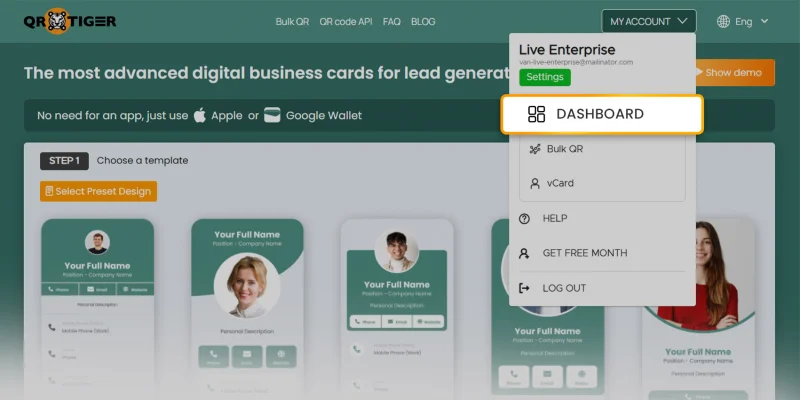
তোমার উপর QR টাইগার vCardঅ্যাকাউন্ট, "আমার অ্যাকাউন্ট" ক্লিক করুন, তারপর "ড্যাশবোর্ড" নির্বাচন করুন।
ধাপ 2: ইমেইল স্বাক্ষর খুলুন
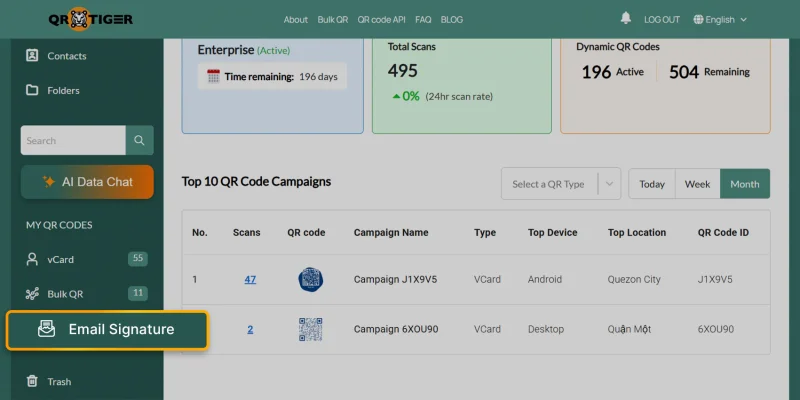
বাম পাশের মেনু থেকে "ইমেইল স্বাক্ষর" নির্বাচন করুন।
ধাপ 3: একটি নতুন ইমেইল স্বাক্ষর তৈরি করুন
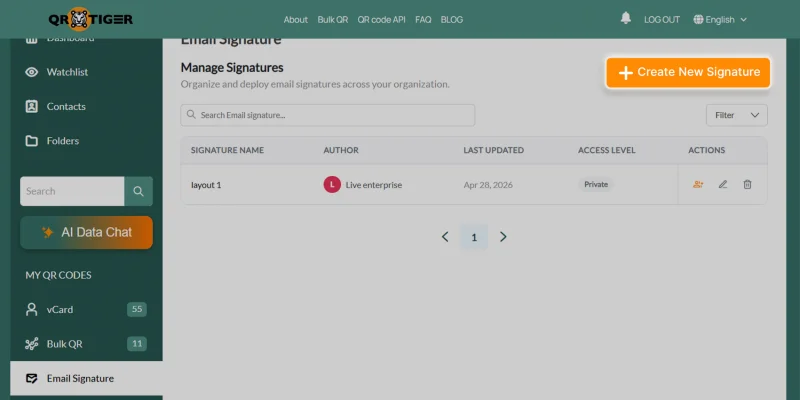
"ক্লিক করুন " + নতুন স্বাক্ষর তৈরি করুন"।
ধাপ 4: আপনার ইমেইল স্বাক্ষর ব্যানারটি কাস্টমাইজ করুন
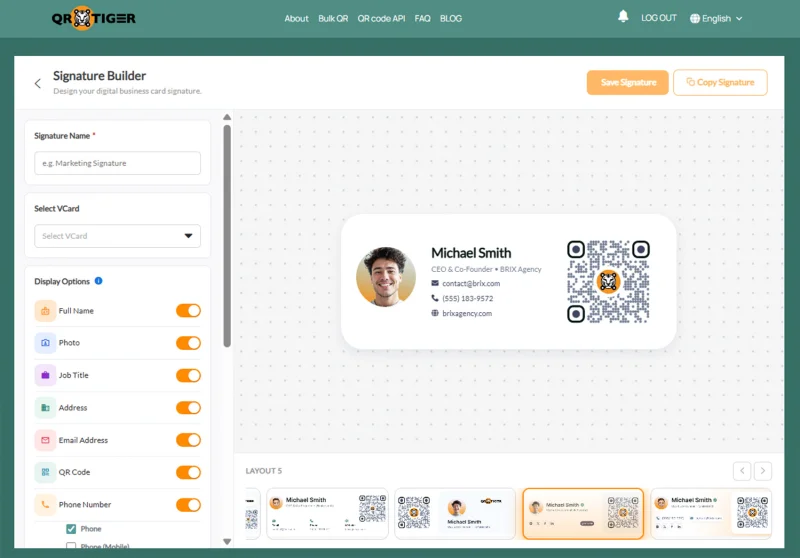
এই পদক্ষেপগুলি অনুসরণ করে স্বাক্ষরের বিস্তারিত ব্যবস্থা করুন।
- একটি স্পষ্ট স্বাক্ষর নাম লিখুন।
- বেছে নিন vCard কিউআর কোড আপনি স্বাক্ষরে সংযোগ করতে চান।
- "বিস্তারিত দেখানো বা লুকানোর জন্য 'ডিসপ্লে অপশন' ব্যবহার করুন।"
- পাঁচটি সোশ্যাল মিডিয়া লিঙ্ক যোগ করুন (ফেসবুক, ইনস্টাগ্রাম, টুইটার, লিঙ্কডইন, হোয়াটসঅ্যাপ, এবং/অথবা ইউটিউব)।
- আপনার কোম্পানির লোগো আপলোড করুন (আকার 500 কিলোবাইটের নিচে, সুপারিশকৃত মাত্রা 150 পিএক্স দ্বারা 50 পিএক্স)।
- "স্টাইল সেটিংস" এর অধীনে, প্রাথমিক এবং দ্বিতীয় রঙ সাজান।
- আপনার ইমেইল স্টাইলে মিলিত লেআউট থেকে নির্বাচন করুন।
ধাপ 5: আপনার ইমেইল স্বাক্ষর ব্যানারটি সংরক্ষণ করুন এবং কপি করুন
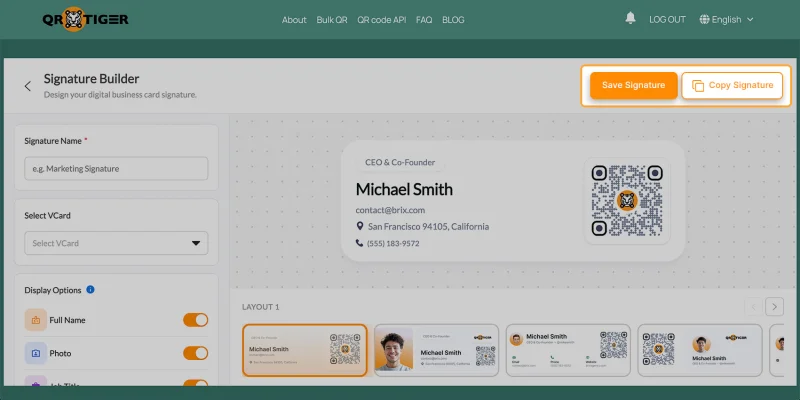
"স্বাক্ষর সংরক্ষণ" ক্লিক করুন প্রথমে, তারপর "স্বাক্ষর কপি" নির্বাচন করুন। এটি আপনাকে তা সরাসরি আপনার Gmail স্বাক্ষর সেটিংসে পেস্ট করতে দেবে।
কিভাবে Gmail এর ইমেইল স্বাক্ষরে একটি vCard সংযুক্ত করবেন
আপনার ইমেইল স্বাক্ষর কপি করার পর, এটি আপনার Gmail অ্যাকাউন্টে যোগ করুন।
পদক্ষেপ 1: আপনার Gmail সেটিংস খুলুন
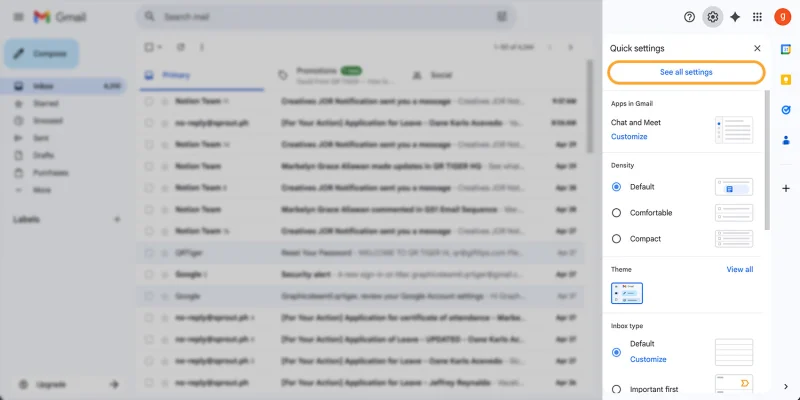
জিমেইলে যান। গিয়ার (⚙️) আইকনে ক্লিক করুন, তারপর "সমস্ত সেটিংস দেখুন" নির্বাচন করুন।
ধাপ 2: স্বাক্ষর বিভাগে যান
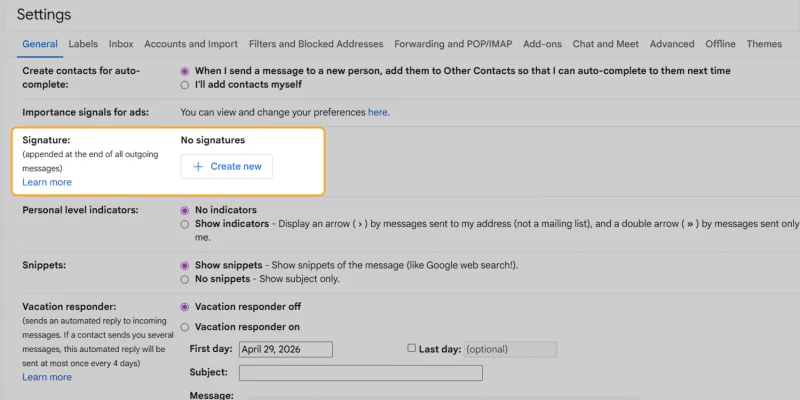
সাধারণ ট্যাবে নীচে স্ক্রোল করুন, "স্বাক্ষর" নির্বাচন করুন। "নতুন তৈরি করুন" নির্বাচন করুন।
ধাপ 3: আপনার ইমেইল স্বাক্ষর পেস্ট করুন
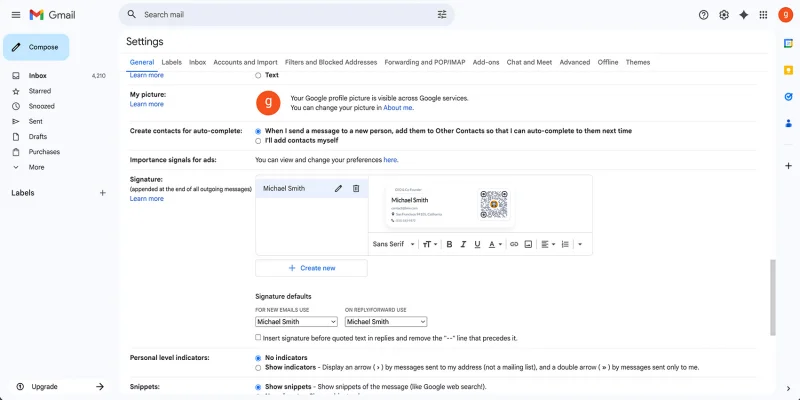
- একটি স্বাক্ষর নাম লিখুন, তারপর "তৈরি করুন" ক্লিক করুন।
- জিমেইল স্বাক্ষর সম্পাদকে ক্লিক করুন।
- অনুলিপিত vCard স্বাক্ষর ব্যানার পেস্ট করুন।
লেআউট, কিউআর কোড, এবং যোগাযোগের বিবরণ সঠিকভাবে দেখার জন্য প্রিভিউ চেক করুন।
ধাপ 4: স্বাক্ষর ডিফল্ট সেট করুন
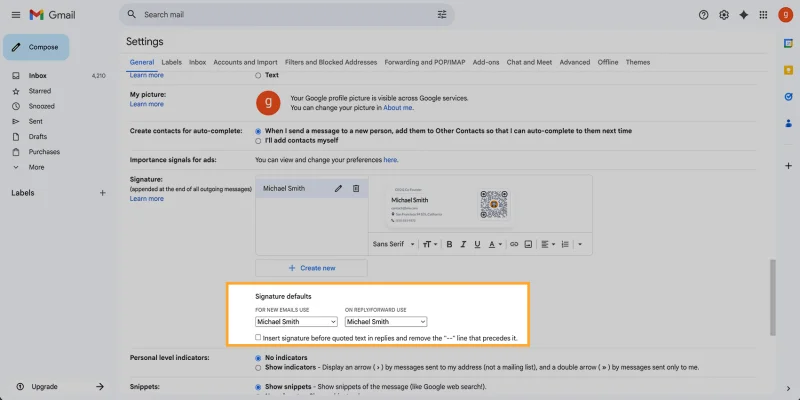
"স্বাক্ষর ডিফল্ট" বিভাগে, জিমেইল যখন স্বাক্ষর ব্যবহার করতে পারে তা নির্বাচন করুন।
আপনি এটা সেট করতে পারেন:
- নতুন ইমেইল
- উত্তর এবং পুনরায় প্রেরণ করুন
ড্রপডাউন মেনু থেকে ভিকার্ড ইমেইল স্বাক্ষর নির্বাচন করুন।
প্রস্তাবিত "উত্তরে উল্লিখিত পাঠের আগে স্বাক্ষর ঢুকান।" এটি নিশ্চিত করে যে আপনার vCard ইমেইল স্বাক্ষরটি আপনার উত্তরের নিচে না, ইমেইল থ্রেডের নীচে না দেখা যায়।
ধাপ 5: আপনার নতুন ইমেইল স্বাক্ষর সংরক্ষণ করুন
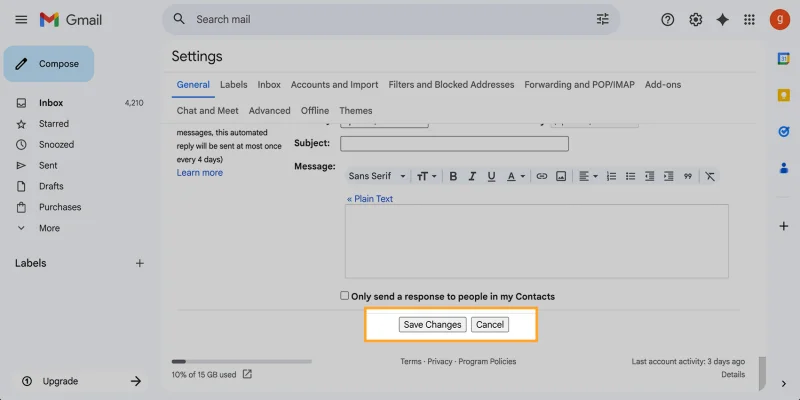
জিমেইল সেটিংস পৃষ্ঠার নীচে নামানো করুন। "পরিবর্তন সংরক্ষণ করুন" ক্লিক করুন।
প্রস্তাবিত নিজেকে একটি নমুনা ইমেইল পাঠানোর মাধ্যমে একটি দ্রুত পরীক্ষা চালান। দেখুন কীভাবে vCard ইমেইল স্বাক্ষর দেখা যাচ্ছে।
ইমেইলের জন্য কাস্টম সাইনেচার ব্যবহার কেন করবেন?
একটি অভিনিত দরজা ইমেইল স্বাক্ষর আপনি আপনার প্রাপকদের বেসিক যোগাযোগ বিবরণের বেশি প্রদান করতে দেয়।
এটা তোমাকে সাহায্য করে
- প্রতিটি ইমেইলে আপনার vCard শেয়ার করুন।
- যোগাযোগ সংরক্ষণ সহজ করুন।
- আপনার ইমেইল স্বাক্ষরকে আরও ভাল দৃশ্যমান করুন।
- দেখানো সাবধান ব্র্যান্ডিং দল দলে
- আপনার যোগাযোগের বিস্তারিত তথ্যের একটি দ্রুত পথ দিন সম্ভাবনাদাতাদের।
- প্রতিটি ইমেইল স্বাক্ষর ম্যানুয়ালি পরিবর্তন করা ছাড়াই vCard বিস্তারিত আপডেট করুন।
- পেশাদার পদক্ষেপ ছেড়ে প্রমাণিত করুন যে যে সময়ই পরীক্ষা করা যেতে পারে।
ইমেইল স্বাক্ষর বৈশিষ্ট্যটি কে ব্যবহার করবে?
ইমেইলের মাধ্যমে আপনার যোগাযোগের বিবরণ শেয়ার করা হলে আপনার vCard প্রচার করার এবং সংযোগ স্থাপনের একটি দ্রুত উপায়।
এই ভিকার্ড বৈশিষ্ট্যটি কাজে লাগতে পারে:
- কর্মকর্তা
- সংগ্রহকর্তা
- বিক্রয় দলগুলি
- মার্কেটিং দলগুলি
- গ্রাহক সমর্থন দল
- বাস্তুসংস্থা এজেন্ট
- পরামর্শদাতা
- ইভেন্ট প্রতিনিধি
- ব্যবসা উন্নয়ন দলগুলি
ব্র্যান্ডেড ইমেইল সাইনেচার তৈরি করুন QR TIGER vCard দিয়ে
ভিকার্ড প্ল্যাটফর্মে কাস্টম ইমেইল সাইনেচার তৈরি করার পদ্ধতি জানা টীম এবং পেশাদারদের সাহায্য করে আপনার যোগাযোগের বিবরণগুলি ব্র্যান্ডেড জিমেইল সাইনেচারে পরিণত করতে যেন মানুষরা যে সময়ই স্ক্যান করতে পারেন।
প্রতিটি ইমেইল যা আপনি পাঠান, সেটি যোগাযোগ ভাগাভাগি স্থির রাখে, আপডেট ভিকার্ড অ্যাক্সেস সাপোর্ট করে, এবং প্রাপকদের যোগাযোগ তথ্য সংরক্ষণের জন্য একটি দ্রুত উপায় দেয়।
এখন পর্যন্ত, এই বৈশিষ্ট্যটি শুধুমাত্র Gmail সমর্থন করে, Outlook সমর্থন শীঘ্রই উপলব্ধ হবে।
আরও জানতে, QR TIGER ওয়েবসাইট দেখুন অথবা আমাদের IT সাপোর্ট দলের সাথে যোগাযোগ করুন [email protected] সত্যিকার সময়ে সহায়তা পেতে।
আজকেই আমাদের বিনামূল্যে নিউজলেটারে সাবস্ক্রাইব করুন এবং আমাদের সর্বশেষ আপডেট এবং প্রোমোগুলির সম্পর্কে প্রথমে জানার একজন হন! 
প্রশ্নাবলী
ইমেইল স্বাক্ষর কিভাবে সম্পাদনা করব?
প্রথমে, QR TIGER এর ইমেইল স্বাক্ষরে আপনার সংরক্ষিত স্বাক্ষর খুলুন। পরবর্তীতে, নির্বাচিত vCard, ডিসপ্লে ফিল্ড, লেআউট এবং রঙ সম্পাদনা করুন। তারপর, আপডেট করা স্বাক্ষরটি আবার সংরক্ষণ এবং কপি করুন।
ভিকার্ডগুলি এখনো ব্যবহৃত হচ্ছে?
হ্যাঁ। অনেক দল এবং পেশাদাররা vCards ব্যবহার করে যেহেতু যোগাযোগ ভাগাভাগি করা সহজ এবং দ্রুত করে তুলে। একটি vCard QR কোড, বিশেষভাবে, প্রাপকদের একবার স্ক্যান করতে দেয় এবং আপনার আধুনিক যোগাযোগ বিবরণ অ্যাক্সেস করতে দেয়।
কি ভিকার্ড লিঙ্ক নিরাপদ?
হ্যাঁ, একটি vCard লিঙ্ক নিরাপদ যদি এটি একটি বিশ্বস্ত vCard জেনারেটর দ্বারা তৈরি করা হয়। অজানা বা সন্দেহজনক উৎস থেকে লিঙ্ক থেকে বিরত থাকুন।
পেশাদার ইমেইল স্বাক্ষরে কি এড়ানো উচিত নয়?
আপনার স্বাক্ষরটি পরিষ্কার, পঠনযোগ্য এবং আপনার ব্র্যান্ডের সাথে সাজানোর মাধ্যমে লিঙ্কগুলি সীমাবদ্ধ রাখুন, অতিরিক্ত বড় চিত্র এবং দীর্ঘ উক্তিগুলি এবং সাদা, অসংকোচিত লেআউটে পরিষ্কার যোগাযোগের বিবরণ প্রদান করুন। 
এই নিবন্ধটি মৌলিক তথ্যাদি উদ্দেশ্যে মাত্র এবং আইনি, আর্থিক, বা অন্য পেশাদার পরামর্শ হিসাবে গণ্য হয় না। QR TIGER'র পণ্য বা সেবাগুলি সম্পর্কে প্রশ্ন থাকলে, অনুগ্রহ করে আমাদের সাপোর্ট দলের সাথে যোগাযোগ করুন [email protected].
সচরাচর জিজ্ঞাসিত প্রশ্ন (এফএকিউ)
How do I modify an email signature?
Are vCards still used?
Is a vCard link safe?
What should be avoided in a professional email signature?
এই নিবন্ধটি কি সাহায্যকর ছিল?
সেরা QR কোড জেনারেটর দিয়ে স্ক্যান সর্বোচ্চ করুন।
যোগ দিন হাজার হাজার বিশ্বব্যাপী ব্র্যান্ড, যারা গভীর গভীর ব্যবস্থাপনা, বাল্ক সৃষ্টি, এবং গভীর অ্যাট্রিবিউশন অ্যানালিটিক্স ব্যবহার করে।
বিনামূল্যে শুরু করুন