
How to Connect QR Campaigns to Google Analytics Using Zapier
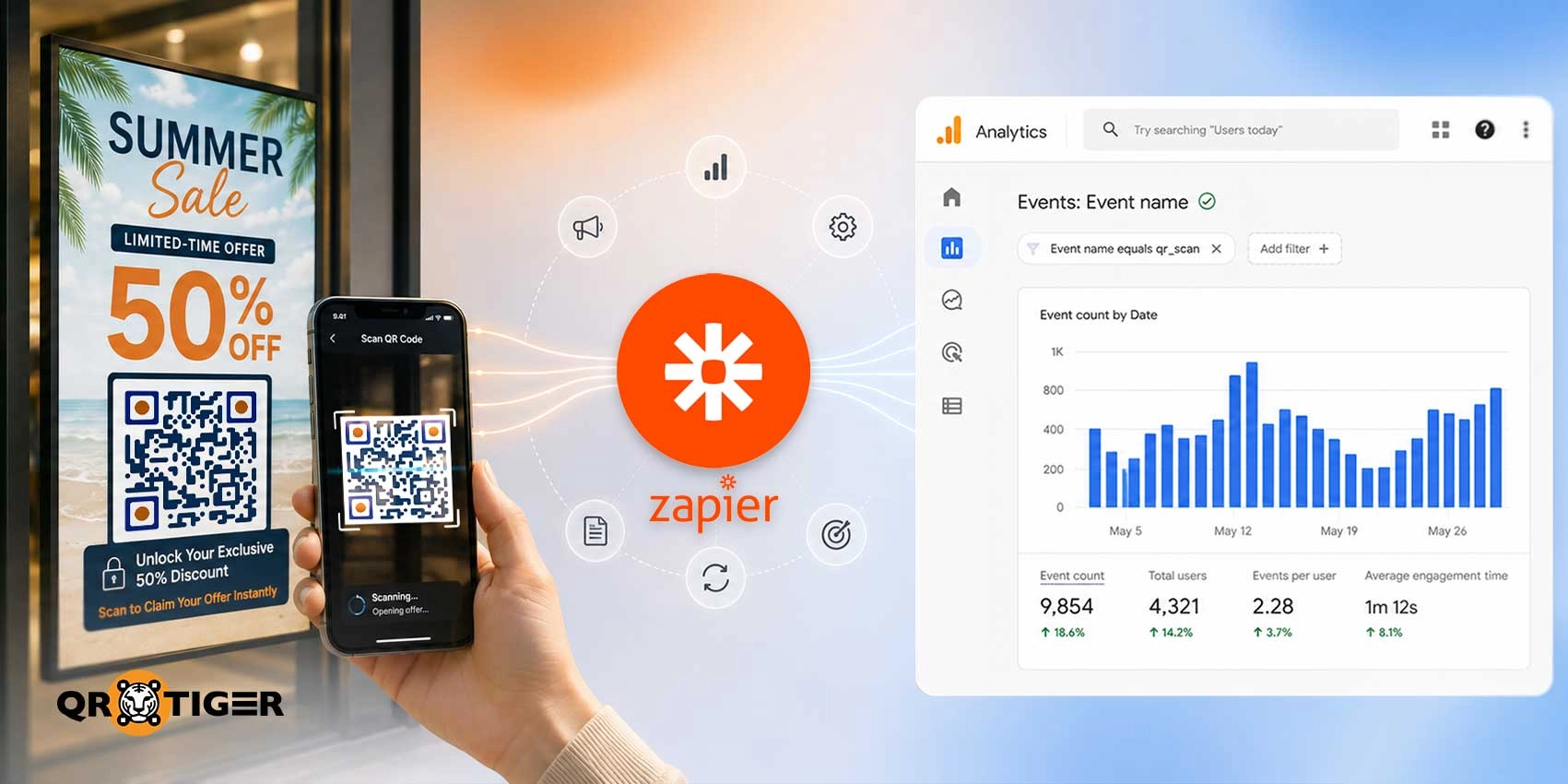
Connecting your QR code campaigns to Google Analytics 4 using Zapier gives you clearer insights and greater control over your campaign data by sending it straight to your analytics dashboard.
To do this, set QR TIGER as the Zap trigger, use GA4 as the action, and map scan details like location, device, and campaign name to event parameters. You learn how to track QR code scans with full context in your GA4 reports.
Here’s what you’ll learn:
- The complete steps for connecting QR TIGER scans to GA4 using Zapier;
- Event naming rules for clean, comparable GA4 reports;
- How to map QR metadata (location, device, scan time) to event parameters;
- When to use QR event parameters versus UTMs; and
- How to separate scan tracking from vCard lead capture.
Let’s get into it.
Table of Contents
- How do you send QR scan events to GA4 through Zapier?
- How should you name GA4 events for QR code tracking?
- How does QR metadata enrich your GA4 reports?
- How do you combine QR data with digital campaign tracking?
- When to use QR event parameters versus UTMs
- How does QR scan tracking in GA4 improve attribution accuracy?
- Start connecting your QR campaigns to GA4 via Zapier
- Common questions asked
- Terms and definitions
How do you send QR scan events to GA4 through Zapier?
You can send QR scan events to GA4 by assigning QR TIGER as the Zap trigger and GA4 as the action.
The Zap forwards each scan through GA4's Measurement Protocol using your Measurement ID and API Secret. We’ll get to this in detail as you follow this guide step by step.
Step 1: Set QR TIGER as the Zap trigger
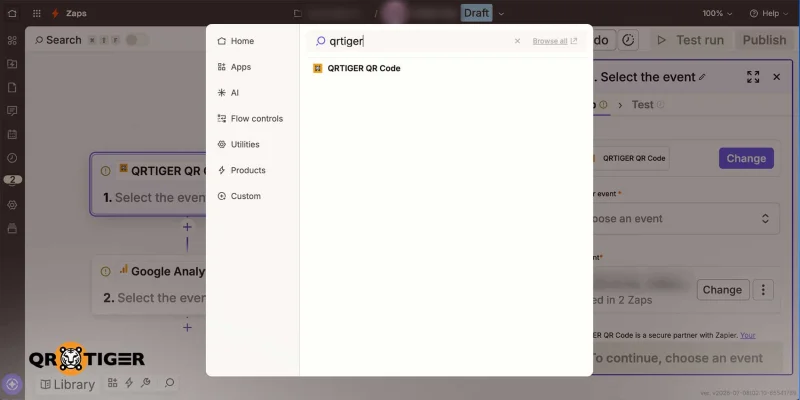
- Open Zapier and click “Create Zap”.
- Rename the Zap through the “Untitled Zap” dropdown, then enter a clear name.
- Search for QR TIGER and select “New QR Scan” as the trigger event.
- Connect your enterprise account.
- Test the trigger using a sample record.
Note: If you haven’t set up your QR TIGER Zapier integration yet, complete the connection first, then return to this step.
Step 2: Add Google Analytics 4 as the action
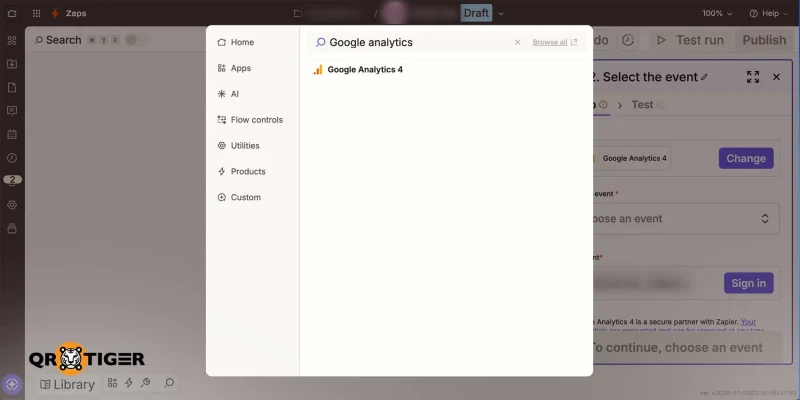
- Click the plus icon under the QR TIGER trigger.
- Search “Google Analytics 4” and select the app.
- Select “Send Measurement Events for an Application” as the action event.
- Click “Continue.”
Quick definition: Send Measurement Events for an Application refers to a Zapier action that sends event data to GA4 through the Measurement Protocol. In simple terms, every time someone scans your QR code, GA4 records it as a new event.
Step 3: Get your Measurement ID from GA4
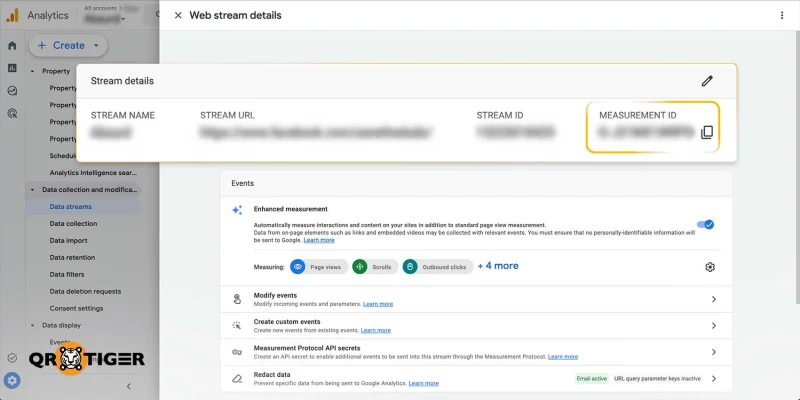
- Open “Google Analytics 4”.
- Click “Admin”.
- Under “Data collection and modification”, select “Data Streams”.
- Choose your web data stream platform, then copy the “Measurement ID”.
The Measurement ID starts with “G-”. Example: G-6LWIGEK4MS
Step 4: Create your GA4 API Secret
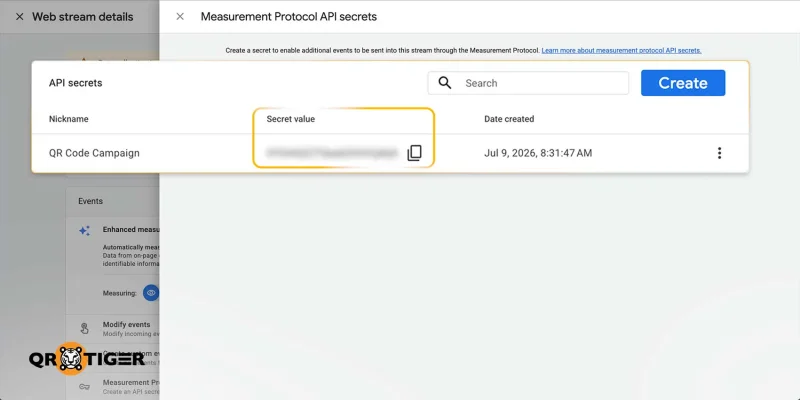
- Still in “Data streams”, select your web data stream, then open “Measurement Protocol API secrets”.
- Read the acknowledgment message, click “Review terms,” and confirm.
- Click “Create” and add a clear nickname, then click “Create” again.
- Copy the generated API Secret.
Note: Keep the “API Secret” private. Treat it like a password and avoid public screenshots, blog images, or shared files.
Step 5: Set up the GA4 action in Zapier
In the GA4 action step, fill out these fields:
- Measurement ID: Paste your GA4 Measurement ID.
- API Secret: Paste your GA4 Measurement Protocol API Secret.
- Client ID: Select QR TIGER’s uniqueHash field or paste “{{358250042__uniqueHash}}”
- Event name: Add your campaign/event name.
Leave the “Firebase App ID” blank, as this setup tracks web-based QR campaign activity. Skip the “User ID” field too. QR TIGER’s uniqueHash gives you enough for scan-level tracking.
Step 6: Add the GA4 event parameters
Tell Zapier which data from QR TIGER should be sent to specific Google Analytics 4 (GA4) event parameters.
Recommended mapping:
- qr_code_name = QR name field
- qr_category = QR category field
- location_country = Country field
- location_region = Region field
- location_city = City field
- device_type = Device field
- scanned_at = Scanned at field
- short_url = Short URL field
Note: In Zapier’s “Events” field, enter the data in JSON format. Replace the “INSERTEVENTNAME” with your own QR event name, then add the mapped QR TIGER fields inside params.
Add “engagement_time_msec: 100” to help GA4 count the scan event in engagement-related reports. Without this parameter, the event still appears, but engagement metrics become less accurate.
Example:
{"name": "qr_scan", "params": {"qr_code_name": "{{=gives['358250042']['qrName']}}", "qr_category": "{{=gives['358250042']['qrCategory']}}", "location_country": "{{=gives['358250042']['country']}}", "location_city": "{{=gives['358250042']['city']}}", "scanned_at": "{{=gives['358250042']['scannedAt']}}", "scanner_ip": "{{=gives['358250042']['ip']}}", "short_url": "{{=gives['358250042']['shortUrl']}}", "device": "{{=gives['358250042']['device']}}", "location_region": "{{=gives['358250042']['region']}}”, "engagement_time_msec": 100}}
Click the plus (+) button or type the forward slash (/) inside the field to insert the QR TIGER fields. This helps you avoid typos in field names.
Step 7: Test and publish
- Run a test in Zapier.
- Check whether the QR event is captured in GA4 and review the event details.
- If the test works, publish the Zap.
How should you name GA4 events for QR code tracking?
Use one consistent event name for the same scan action across all campaigns. A single event name makes your GA4 reports easier to filter and compare.
Most teams overcomplicate this step by creating separate event names for each campaign, which fragments GA4 reports and prevents clean comparisons.
GA4 enforces specific rules for event names:
- Lowercase letters
- Underscore between words
- No spaces
- No hyphens
- No special characters
- Must start with a letter
- 40-character limit
- Avoid reserved names like form_submit and page_view
For example, set your event name to something like "qr_scan." Every QR scan sent from QR TIGER to GA4 will use the same event name.
Don't create event names like summer_sale_qr_scan, poster_qr_scan, restaurant_menu_scan, or event_booth_qr_scan. Each one becomes a separate event type inside GA4. That turns reporting into a mess.
Keep campaign details as event parameters instead. Move the QR code name, category, placement, and location into event parameters. Your team then compares campaigns through parameter filters, not scattered event types.
Parameter names should describe what each value represents. Clear names (location_city, device_type, qr_code_name) make your reports readable months later.
How does QR metadata enrich your GA4 reports?
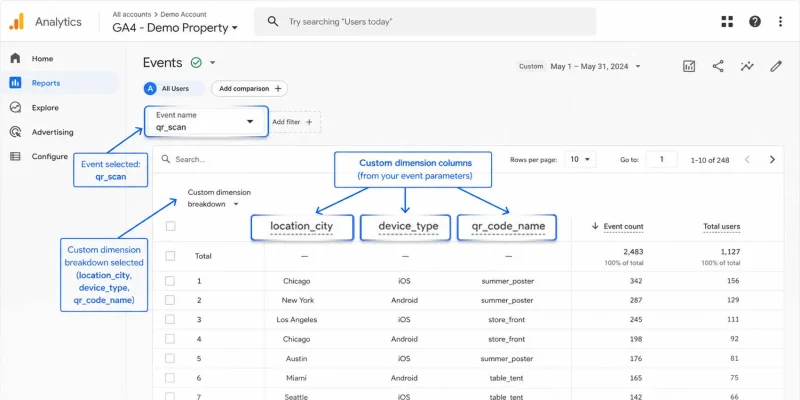
QR metadata is the extra information attached to each QR scan beyond the raw scan count. This includes details such as the QR code name, category, scan location, device type, scan time, and short URL.
QR code analytics gets richer when scan metadata reaches GA4. Instead of logging a plain scan count in GA4, the event includes the location, device, scan time, short URL, and name or category.
These details help your team answer sharper questions. Your GA4 reports show in detail which QR codes received the most scans, which specific cities generated the most activity, which devices scanners used, and when scan activity peaked.
Here's a clear example: A retail team using Google Analytics with QR code data filters by location_city finds 60% of scans come from three stores.
A product team compares device_type data and discovers 85% of scans happen on iOS. Both insights come from the same event, broken down by parameter.
To use these fields in GA4 reports, set up event-scoped custom dimensions for your QR event parameters. A custom dimension is a GA4 report field that displays data from an event parameter.
Custom dimensions let your team filter QR reports by parameter values like city, device, or campaign name.
For team-level reporting, sync QR code data to Google Sheets using Zapier and give stakeholders direct access to scan breakdowns without GA4 logins.
How do you combine QR data with digital campaign tracking?
Once QR TIGER events reach GA4, your team reviews QR code marketing activity alongside other digital actions. This connects offline QR interactions with website visits, form submissions, button clicks, and conversions.
For campaign tracking, use “New QR Scan” as the main trigger. This records scan activity on vCard QR codes and other kinds of QR codes.
If you also want to measure vCard lead submissions, set up a separate Zap that uses the “New vCard Contact” action. This tracks submitted contact records, not scans.
This setup helps your team answer questions like:
- Which QR campaigns generated the most scans?
- Which vCard campaigns produced contact submissions?
- Which QR placements led to website visits or conversions?
- Which devices, cities, or regions showed stronger engagement?
When to use QR event parameters versus UTMs
UTM parameters are tags added to a URL that tell GA4 the source, medium, campaign, and placement of a website visit.
Use QR TIGER event parameters to track QR activity or vCard submission. Use UTMs only when the QR code destination leads to your own website.
Think of the split this way:
QR TIGER event parameters track the scan or vCard submission. UTMs track website visits and their sources after the QR interaction.
If you send custom QR parameters to GA4, create event-scoped custom dimensions for the fields you want in reports.
Note: For vCard submissions, avoid sending names, emails, phone numbers, or personal notes to GA4. Use only non-personal fields, such as Submission ID, vCard ID, and Created At.
How does QR scan tracking in GA4 improve attribution accuracy?
Attribution is the process of linking a user action to the campaign, source, or placement that drove it. Without a QR-to-GA4 connection, QR scans often sit in a separate dashboard, disconnected from your main campaign reports.
Your team sees scan numbers, but not how each scan connects to a campaign source, placement, or follow-up action.
According to a GA4 actionable insights article from Google, businesses get more value from analytics when data connects across campaigns and channels.
QR TIGER event parameters close this gap. They add context to each QR interaction: the QR code name, category, location, device, scan time, and short URL. Every QR event ties back to the campaign behind the scan.
For a full walkthrough on tracking QR codes in Google Analytics, check out our setup guide: How to Track QR Codes in Google Analytics
A consistent event name plays a role here, too. When every scan uses the same event name, GA4 treats the activity as one event type. Your team then filters by parameters (QR code, campaign, placement, city, region, or device) instead of hunting through fragmented event types.
UTMs layer on top when the QR code destination is your own website. QR TIGER event parameters track the QR activity. UTMs track the website visit after the scan. Together, they show how offline QR interactions move into online sessions, form submissions, or conversions.
For vCard campaigns, separate tracking events give clearer attribution. A QR scan shows engagement. A vCard contact submission shows lead capture.
This setup connects four details inside GA4:
- QR action (what happened)
- Campaign context (which campaign triggered the action)
- Traffic source (where the follow-up visit came from)
- Follow-up activity (what the user did next)

Start connecting your QR campaigns to GA4 via Zapier
Connecting QR code campaigns to analytics tools through Zapier lets your team review scan data with full context in GA4. The setup takes minutes, and the payoff carries over into every campaign you run afterward.
Your reports will show which QR codes performed, where scans occurred, and how offline activity moves into online conversions.
QR TIGER's enterprise plan offers full Zapier integration, scan-level data, and vCard tracking. Create an account today and connect your QR campaigns to Google Analytics via Zapier.
Common questions asked
Can Google Analytics track QR codes?
Not on its own. GA4 doesn't natively read QR scans. You need a connector like Zapier to send scan events from your QR code platform to GA4 through the Measurement Protocol.
Once connected, you get a Google Analytics trackable QR code that records each scan as an event with location, device, and campaign parameters.
Is Zapier an API integration?
Zapier is an automation platform that connects two or more apps via their APIs. You don't write code or manage API calls yourself. Zapier handles the data transfer between apps using triggers and actions.
How to create a trackable QR code in Google Analytics?
Generate a dynamic QR code from an advanced QR code generator like QR TIGER. Connect the account to Zapier and set "New QR Scan" as the trigger. Send the scan event to GA4 using the Measurement Protocol with your Measurement ID and API Secret.
Terms and definitions
Action: The task Zapier runs after the trigger fires. Here, GA4's "Send Measurement Events for an Application" acts as the action.
API Secret: A private key generated inside GA4 for the Measurement Protocol. Treat the value like a password.
Attribution: The process of linking a user action to the campaign, source, or placement behind the action. Combining event parameters and UTM parameters improves attribution accuracy.
Client ID: A GA4 identifier for the user or session behind an event. QR TIGER's uniqueHash fills this role for scan tracking.
Custom dimension: A GA4 report field built from an event parameter. Custom dimensions let your team filter QR reports by parameter values.
engagement_time_msec: A GA4 event parameter measuring active engagement time in milliseconds. Adding this value (minimum 100) to your QR scan event helps GA4 count the scan in engagement-related metrics. Without the parameter, the event logs but engagement reports lose accuracy.
Event: A single action recorded inside GA4. In this setup, one QR scan equals one event.
Event name: The label GA4 assigns to an event type.
Event parameters: Extra details attached to a GA4 event. Parameters carry the scan location, device, campaign name, short URL, and other context.
Event-scope custom dimension: A custom dimension tied to a single event, not a user session. Event-scoped dimensions let you filter GA4 reports by values attached to individual QR scan events, such as city or device type.
Measurement ID: A GA4 identifier tied to your web data stream. The value starts with "G-" and tells Zapier where to send scan events.
Measurement Protocol: A GA4 method for sending event data from external sources like Zapier. QR TIGER scans reach GA4 through this protocol.
QR TIGER uniqueHash: A unique identifier QR TIGER assigns to each scan record. GA4 uses this value as the Client ID for scan-level tracking.
Trigger: The event that starts a Zap. In this setup, "New QR Scan" from QR TIGER acts as the trigger.
UTM parameters: Tags added to a URL that tell GA4 the source, medium, campaign, and placement of a website visit. UTMs work best when the QR code destination leads to your own site.
Web data stream: A GA4 data source collecting activity from a website. Your Measurement ID and API Secret both live inside the web data stream settings. GA4 also supports app data streams, but this setup uses web only.
Zap: A workflow inside Zapier that connects two apps. One app sends data through a trigger. The other app receives that data through an action.