
How to Sync QR Code Data to Google Sheets Using Zapier

Work smarter, not harder. Skip manually exporting contact lists and instead learn how to sync QR code data to Google Sheets using Zapier. Now, every vCard contact submission flows straight into an organized spreadsheet.
Here’s how it works: When someone scans your vCard QR code and submits their contact details, Zapier records the data as a new row in your sheet. Your team gets a live list of leads that is easy to review, filter, and share.
Read on and follow our simplified guide to sync your QR code data from QR TIGER to Zapier and Google Sheets.
Table of Contents
- Why syncing QR code data to Google Sheets matters
- Steps to integrate QR TIGER with Zapier
- Setup guide: How to sync QR code data to Google Sheets using Zapier
- Step 1: Add an action step
- Step 2: Choose Google Sheets as the action app
- Step 3: Select the action event
- Step 4: Connect your Google account
- Step 5: Create your Google spreadsheet
- Step 6: Choose your Google Drive account
- Step 7: Set the target spreadsheet
- Step 8: Define the worksheet tab
- Step 9: Map each column to the QR TIGER fields
- Step 10: Test and publish the action
- Structuring Zapier QR code data for analysis
- Sharing real-time scan dashboards
- Using Google Sheets for campaign QA and auditing
- Exporting QR data without manual work
- Sync QR code data for real-time contact tracking
- FAQs
Why syncing QR code data to Google Sheets matters
Syncing QR code data to Google Sheets helps your team keep lead data in one place. Since each vCard submission appears in a shared spreadsheet, your team gets a clearer view of incoming contacts and spends less time checking entries across different tools.
It also helps you move faster on follow-ups and reporting. You can sort submissions by date, review contacts by campaign, and keep records ready for handoffs or analysis.
Steps to integrate QR TIGER with Zapier
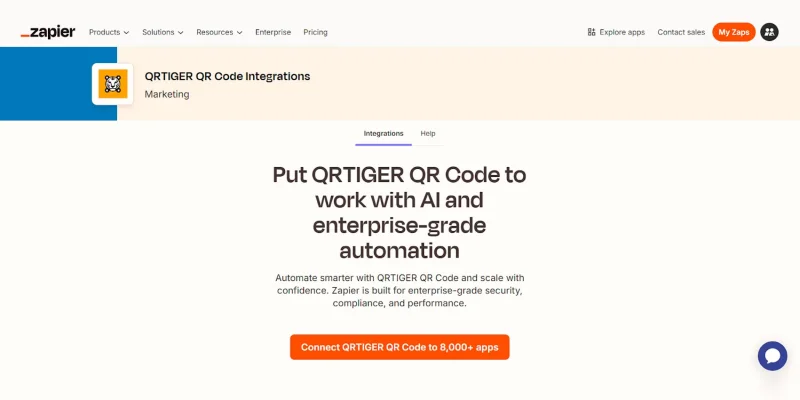
Start by setting up the Zapier QR code integration with QR TIGER. Follow the steps to smoothly set up the rest of the QR code automation process.
Step 1: Sign in to Zapier
Open Zapier and log in to your account.
Step 2: Open the app directory
On your Zapier dashboard, click “Explore apps” to open the Zapier app marketplace.
- In the search bar, type “QRTIGER QR Code” and select the app.
- Click “Connect QRTIGER QR Code to 8,000+ apps” to open the Zap editor where you configure the automation.
Step 3: Configure the trigger
Under “Trigger event”, select “New vCard Contact”. This event triggers the automation whenever a new contact is submitted from a vCard QR code.
Step 4: Connect your QR TIGER account
- Under the “Account” field, click “Sign in”.
- A pop-up window appears asking for your API Key and Email.
- To get the API key: Open your QR TIGER account in another tab.
- Log in, click “My Account”, then go to “Settings”.
- Select “Plan” and copy your “API Key”.
- Return to the pop-up window.
- Paste your API key, enter your email, then click “Continue”.
Step 5: Test the trigger
- Click the “Test trigger” button. Zapier will search for recent data from your QR TIGER account.
- Review the sample contact record to confirm the data appears correctly.
- If the test succeeds, click “Continue with selected record”.
This completes the trigger setup. You can now proceed to connect Google Sheets and map your data.
Setup guide: How to sync QR code data to Google Sheets using Zapier
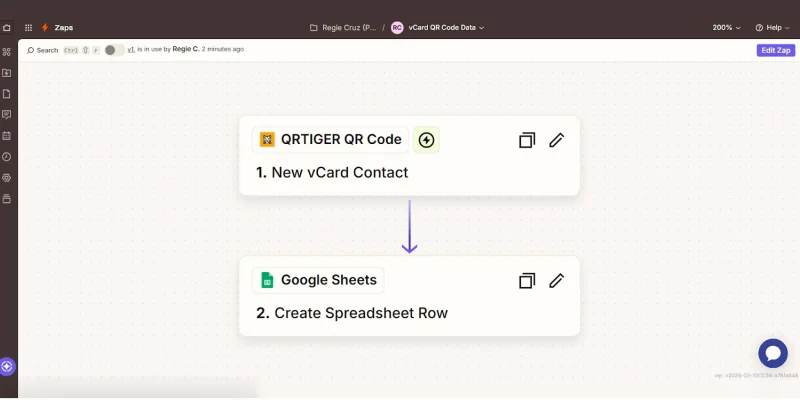
Once you’re done connecting QR TIGER and Zapier, you can move on to the next part: sending vCard contact data into Google Sheets.
Step 1: Add an action step
Under the QR TIGER trigger, click the “+ Add step” button to add the next step in the workflow automation.
Step 2: Choose Google Sheets as the action app
Search for Google Sheets in the action app list, then select it.
Step 3: Select the action event
Choose “Create Spreadsheet Row” to add vCard contact data into a new row.
Step 4: Connect your Google account
Click “Sign in”. Choose your Google account and approve Zapier access.
Step 5: Create your Google spreadsheet
Open the Google Sheets and create a new spreadsheet. This sheet will store the contacts collected from your vCard QR code.
- Give your spreadsheet a clear name, such as “QR vCard Contacts”.
- Rename the worksheet tab if needed, for example: “vCard Leads”.
- In the first row, add column headers such as:
| Name | Phone | Note | Submission | vCard ID | Created At |
Note: Each captured contact appears in one row. One vCard submission creates one row of contact data. This format keeps the sheet organized and easier to search, filter, and sort.
Step 6: Choose your Google Drive account
In the “Drive” field, select the “Google Drive account” where your spreadsheet is stored.
Step 7: Set the target spreadsheet
From the “Spreadsheet” field, choose the file where the contact data will be saved.
Step 8: Define the worksheet tab
Under “Worksheet”, select the tab where data will appear.
Note: For “Use Timezone set up on the spreadsheet to format date values?”, select “True” so that the timestamp matches the timezone set in your Google Sheet. If set to “False”, the timestamp may appear in UTC or different formats.
Step 9: Map each column to the QR TIGER fields
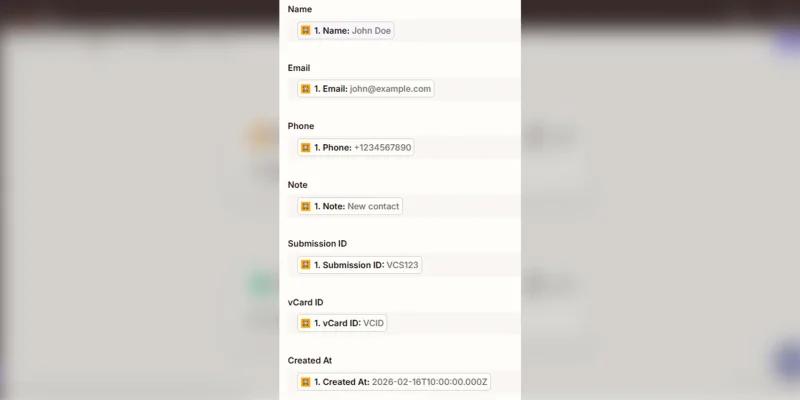
Scroll below the “Worksheet” field. You should see the column names from your sheet.
Since the column headers match the trigger fields, just map them accordingly. For example:
Step 10: Test and publish the action
After field mapping, click “Continue” and run “Test step” to send a sample vCard contact data into Google Sheets. Open the sheet to confirm that the row or data appears. It should look like this:
| Name | Phone | Note | Submission ID | vCard ID | Created At | |
| John Doe | [email protected] | 1234567890 | New contact | VCS123 | VCID | 2026-02-16 10:00:00 |
After verifying, click “Publish”.
Once up and running, each new vCard contact submission will appear in your Google spreadsheet, so your team can see them without exporting reports.
Structuring Zapier QR code data for analysis
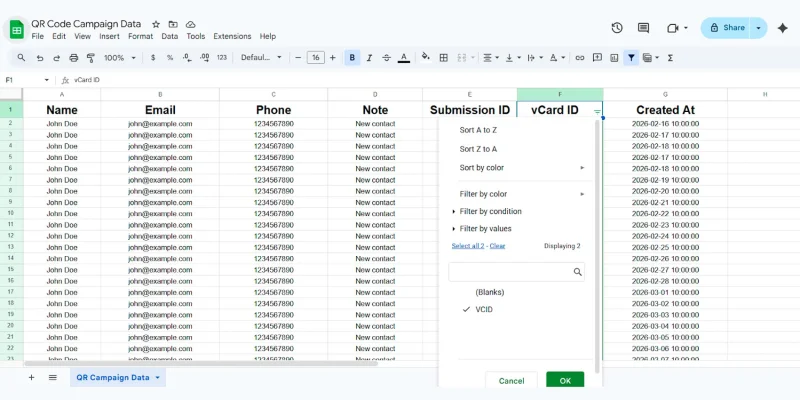
Once Zapier sends data to your spreadsheet, it becomes your running record of QR code leads. Organize the sheet so your team can review contacts.
To make it easier, use key Google Sheets features like filters, sorting, and data views. Also, be sure to keep the following practices in mind:
Keep column headers unchanged
Do not rename or delete the headers after activating the Zap. Zapier maps incoming data based on those column names. Changing them may break the data mapping.
Filter contacts by QR campaign
Use the filter tool in Google Sheets to review contacts from a specific QR code. Filtering by “vCard ID” helps isolate leads generated by one vCard QR code.
Sort contacts by submission time
Sort the sheet using the “Created At” column to view the most recent contacts first. This helps teams monitor incoming leads.
Review campaign performance
Review the sheet to see which vCard QR captures more contacts. Check the “vCard ID” column and count how many rows appear for each QR code to identify which campaigns generate the most leads.
Pro Tip: Use the QR TIGER dashboard for in-depth scan analytics, including scan count, time, location, and device type. You can also access the QR code analytics tool to ask questions about your scan data and get quick insights on campaign performance, trends, and top-performing QR codes.
Sharing real-time scan dashboards
Once contact data flows into Google Sheets, your team can monitor activity in real time.
Share the spreadsheet
Open your sheet and click “Share”. Add the email addresses of your team members.
Set access to “Viewer” if they only need to monitor the data.
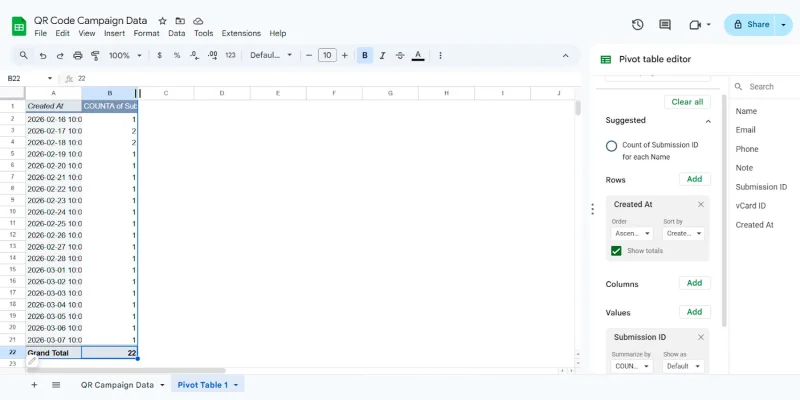
Create summary tables
Use pivot tables or simple formulas to summarize the contact data.
Examples:
- Total contacts collected
- Contacts per day
- Contacts per week
To create a pivot table:
- Select the entire dataset.
- Click Insert > Pivot table.
- Keep “New sheet” selected and click “Create”.
- On the pivot table editor panel:
a. Click “Add” under “Rows”.
b. Select “Create At” from the field list.
This places the “Created At” dates in the first column of the table. Each row will represent a date when a vCard was captured.
Add the value field
- In the same panel, click “Add” under Values.
- Select “Submission ID.
This tells Google Sheets to summarize the number of submissions.
Set the calculation type
- After adding the Submission ID, a small settings box appears under Values.
- Open the “Summarize by” dropdown.
- Select “COUNT”.
Now the pivot table will show how many contacts were captured for each date based on the “Created At” field.
Using Google Sheets for campaign QA and auditing
Aside from recording contacts in an organized document, the spreadsheet also helps verify that the vCard QR code works and data sync runs correctly.
When using Google Sheets for campaign QA and auditing, here are a few things you need to do:
Test the QR code submission
Scan the vCard QR code using a QR code scanner or your phone. Save the contact, then enter sample details in the contact form, such as name, email, phone number, and note. Complete the captcha and click “Submit”.
Confirm the contact appears in the sheet
Open your Google Sheets and check the empty row. The contact details should appear under each column.
Verify field mapping accuracy
Review the new row and confirm each value appears in the correct column. Use Google Sheets functions to validate entries and detect inconsistencies.
For example, the email should appear under the “Email” column.
Check the submission timestamp
At the “Created At” column, confirm the date and time match the moment your form was submitted to verify that Zapier logs the submission correctly.
Monitor the sheet for issues
Review the rows regularly. Look for missing values, duplicate entries, or abnormal submission patterns. This helps detect mapping errors or automation issues early.
Exporting QR data without manual work
Since Zapier writes data directly into Google Sheets, exporting the data becomes simple.
Download reports anytime
Open the spreadsheet and download the data in CSV, XLSX, or PDF format. This allows teams to create esports or send contact lists to other systems.
Share contact data with other tools
Google Sheets integrates with many analytics and reporting platforms. Teams can connect the sheet to dashboards, CRM systems, or reporting tools for further analysis.
Sync QR code data for real-time contact tracking
You now know how to sync QR code data to Google Sheets using Zapier to efficiently record and track every vCard contact you receive.
Simply set the trigger, map the fields, test the workflow, and publish. After that, each new contact logs automatically into your sheet. No manual export. No delay.
You get up-to-date QR scan reports and a clean record of captured contacts. Use the sheet to track contacts, review performance, and verify your setup. Even better, pair it with the QR TIGER dashboard and AI Data Chat for deeper insights into scan results.
Once active, your team works with updated data, responds faster, and keeps every QR code leads organized.
Export QR scan data automatically.
FAQs
How to connect QR code to Google Sheets?
Use Zapier to link your QR code platform with Google Sheets. Set a trigger such as a new vCard contact from your QR code, then add an action to “Create Spreadsheet Row” in Google Sheets.
Map the fields, test the workflow, and publish. Each new form submission will be automatically appear as a new row in your sheet.
Can Zapier connect to Google Sheets?
Yes. Zapier integrates directly with Google Sheets. You can create, update, or find rows based on triggers from other apps, which allows automatic data syncing without manual entry.
How to use QR code data in Google Sheets?
Use QR code data in Google Sheets by organizing it into clear columns, then filtering or sorting to find specific entries. Apply formulas, pivot tables, or charts to track scans, leads, and campaign performance.