
Hvordan laster jeg opp egendefinerte skrifter i QR TIGER vCard-plattformen

Tilpassede skrifter hjelper til med å gjøre vCard-designet ditt mer merkbart og passer til merkevarestilen din.
Du kan laste opp og bruke egendefinerte skrifter i QR TIGER vCard når du oppretter eller redigerer ditt digitale visittkort, eller når du setter opp en vCard-mal.
Dette hjelper deg med å holde alle vCard-ene i merkevaren din samtidig som du holder de opplastede skrifttypene eksklusive for din bruk.
Innholdsfortegnelse
Hva du bør vite før du begynner å laste opp skrifter
QR TIGER vCard godtar TrueType (TTF), OpenType (OTF), Web Open Font Format (WOFF) og Web Open Font Format 2.0 (WOFF2) skriftfilformater. Hver fil må være under 5 MB.
Opplastede skrifter forblir private for kontoen som lastet dem opp. De deles ikke med andre kontohavere og organisasjoner. Dette betyr at du har eksklusive rettigheter til å bruke de tilpassede skriftene.
Rolle tilgang er også viktig:
- Administratorer kan laste opp, slette og bruke egendefinerte skrifter.
- Redaktører kan bare bruke skrifter som allerede er lastet opp av administratoren.
I tillegg gjelder ikke opplastede skrifter for alle vCards som standard. For å bruke egendefinerte skrifter i vCard, må du velge skriften manuelt i "Skriftfamilie" når du oppretter eller redigerer et vCard, eller når du setter opp en vCard-mal.
Hvordan laster du opp egendefinerte skrifter til din vCard-konto
Trinn 1: Logg inn på din QR TIGER-konto
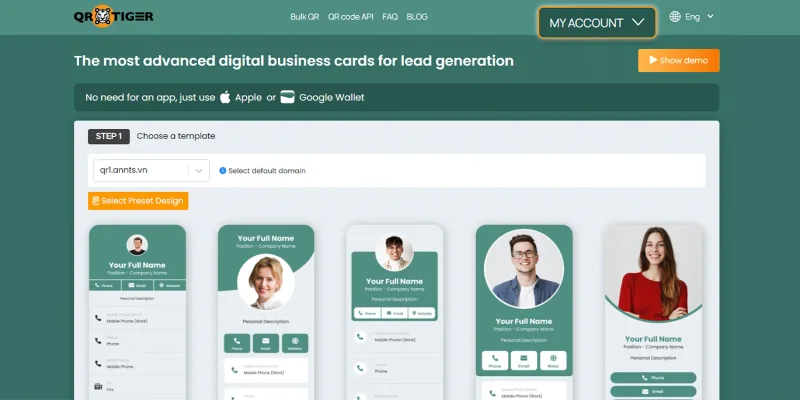
Åpne din QR TIGER vCardkonto og klikk på "MIN KONTO".
Trinn 2: Åpne Innstillinger
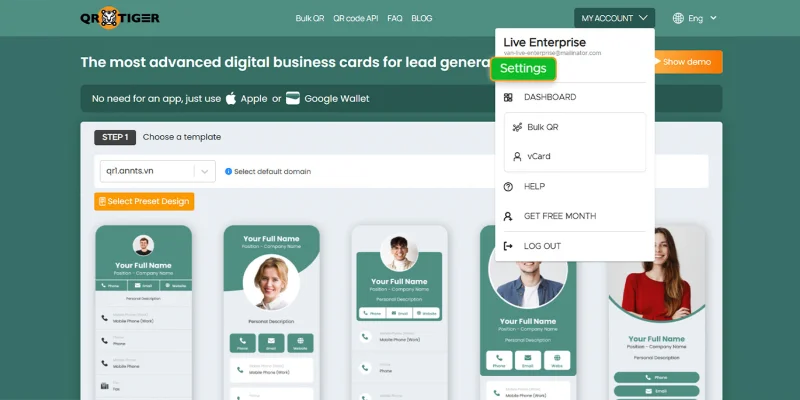
Under din e-postkonto, klikk på "Innstillinger".
Gå til lisensierte skrifter
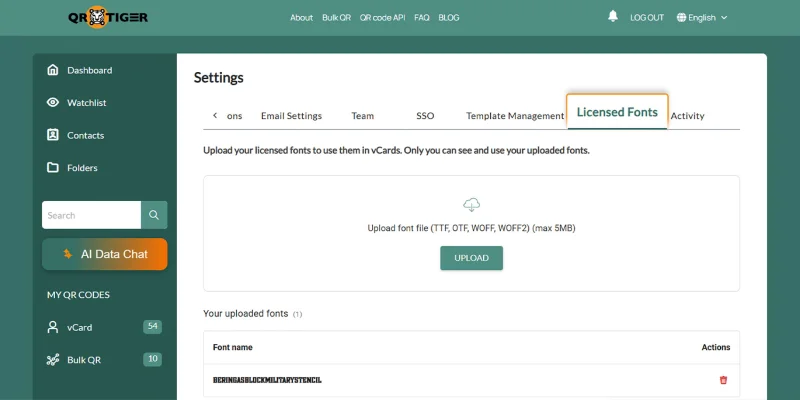
I Innstillingene velger du "Lisensierte skrifter".
Trinn 4: Last opp skriftfilen din
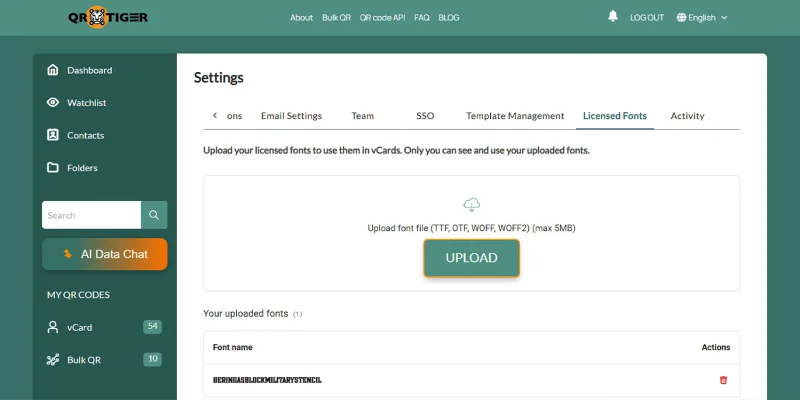
Klikk på "Last opp", velg deretter den støttede skriftfilen fra enheten din.
Trinn 5: Gjennomgå den opplastede skrifttypen
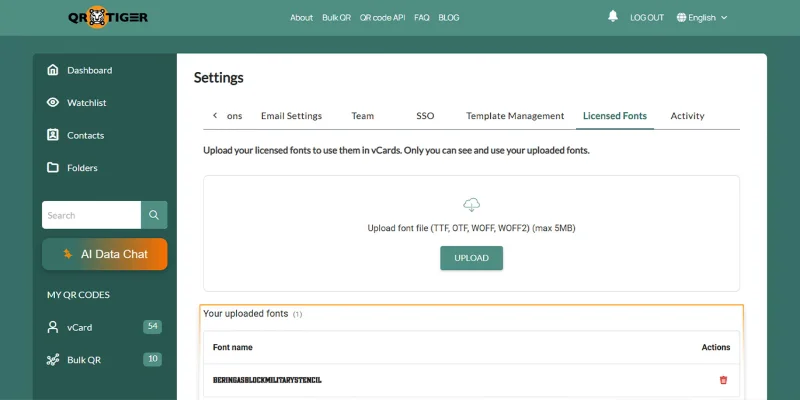
Sjekk skrifttypenavnet i "Opplastede skrifter"-delen for å bekrefte at opplastingen var vellykket.
For å få vite mer oppdateringer og nye funksjoner, les QR TIGERs programvareoppdateringer .
Måter å bruke de opplastede egendefinerte skrifttypene på
Etter opplasting, den nye skrifttype vises i rullegardinmenyen for “Skrifttype” i vCard-en.
For ny vCard
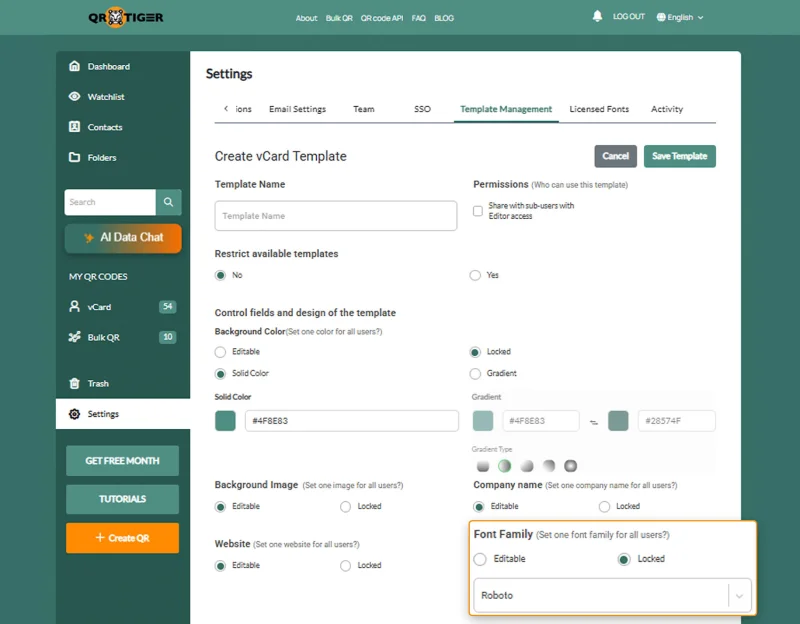
- Åpne vCard-byggeren og fyll ut de påkrevde feltene.
- Åpne "Skrifttypefamilie".
- Velg skrifttypen du har lastet opp.
- Sjekk forhåndsvisningen.
- Generer det dynamiske vCard QR-kode og rediger designet.
- Test QR-koden ved å skanne forhåndsvisningen med smarttelefonen din.
- Last ned og lagre det på enheten din.
For å redigere en vCard
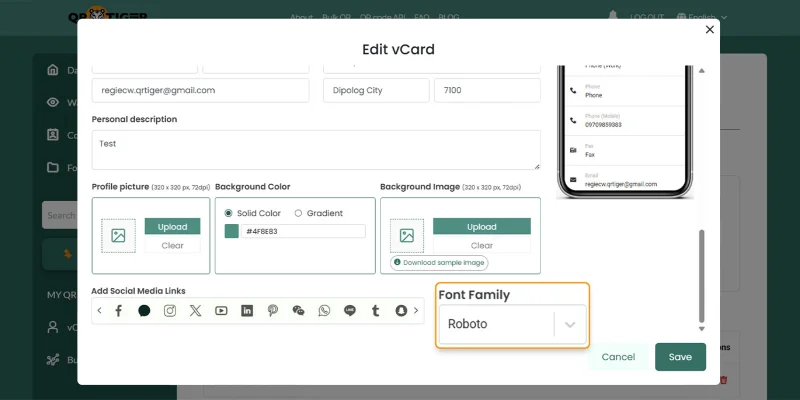
- Klikk på "MIN KONTO", velg deretter "vCard".
- Velg en vCard QR-kode, og klikk deretter på "Rediger".
- Åpne "Skrifttypefamilie".
- Velg skrifttypen du lastet opp.
- Du kan også rediger QR-kodedesign å matche merkevaren.
- Klikk "Lagre".
For vCard mal
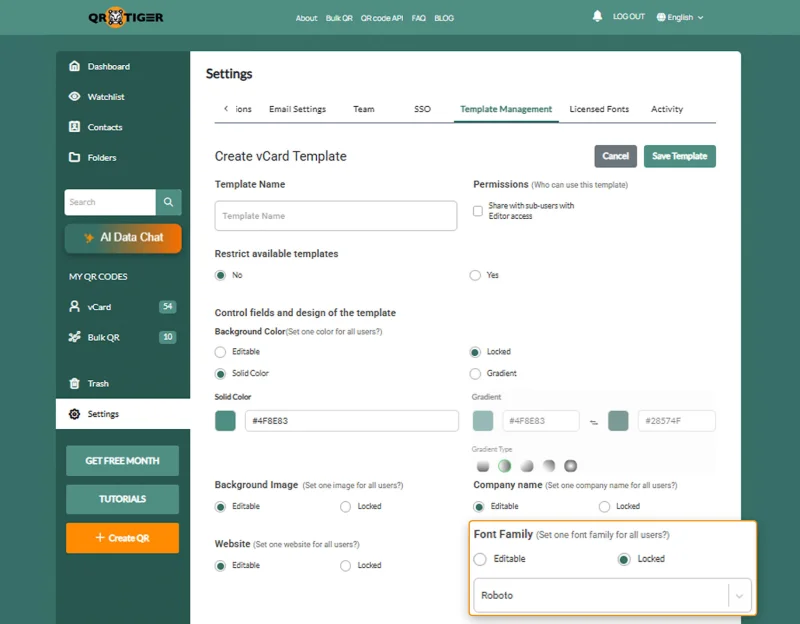
- Gå til "Innstillinger", velg deretter "Malbehandling".
- Opprett en ny mal eller åpne en eksisterende.
- Under "Skrifttype", velg "Låst" for å beholde én fast skrifttype.
- Åpne nedtrekksmenyen og velg skrifttypen du har lastet opp.
- Klikk på "Lagre mal".
Hvorfor er tilpassede skrifter viktige i vCards?
Det riktige skriftvalget gjør mer enn å endre utseendet på visittkortet ditt.
- Juster vCards med din merkevarestil.
- Lag vCarden se mer profesjonell ut .
- Gi brukerne mer designkontroll.
- Hjelp teamene med å holde malene konsistente.
- Gjør nøkkelkontaktinformasjonen lettere å lese.
Hold vCardene dine i tråd med merkevaren
Tilpassede skrifter gir vCardene dine en nærmere merkevaretilpasning på nye kort, redigerte kort og maler.
Last opp filen din én gang, velg skrifttypen der det er nødvendig, og hold all design konsistent innen kontoen din. Teamet ditt får mer stilkontroll, samtidig som skrifttypene dine forblir private for riktig arbeidsområde.
For å lære mer om denne funksjonen, utforsk QR TIGER-nettstedet eller kontakt vårt IT-støtteteam på [email protected]. 
Ofte stilte spørsmål
Hva er en vCard-fil?
En vCard er et digitalt visittkort som lagrer kontaktdetaljer som navn, telefonnummer, e-postadresse, firmanavn og nettside.
Hvordan oppretter jeg mitt eget vCard?
For å opprette en vCard, gå til en vCard-generator som QR TIGER, skriv inn detaljene dine, tilpass designet og lagre QR-koden.