
How to Access the Contacts Page on QR TIGER’s vCard Platform
 By Regie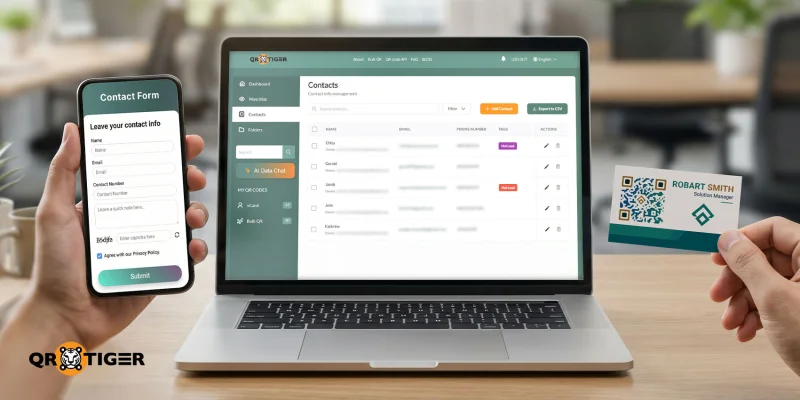
Don’t know how to access the Contacts page on the vCard platform yet? This blog outlines the steps to view, manage, and organize saved lead contacts.
QR TIGER’s vCard QR code lets you record leads’ contact information submitted via the contact form in a single dashboard. This helps your team keep incoming leads visible and ready for follow-up.
More than this, your team can also add contacts manually, assign tags, search for records, filter entries, and export data as a CSV file.
Read on to get started.
Table of Contents
How to access the Contacts page on vCard platform
Here is how to open the vCard QR code Contacts page and review the contacts recorded.
Step 1: Log in to your QR TIGER account
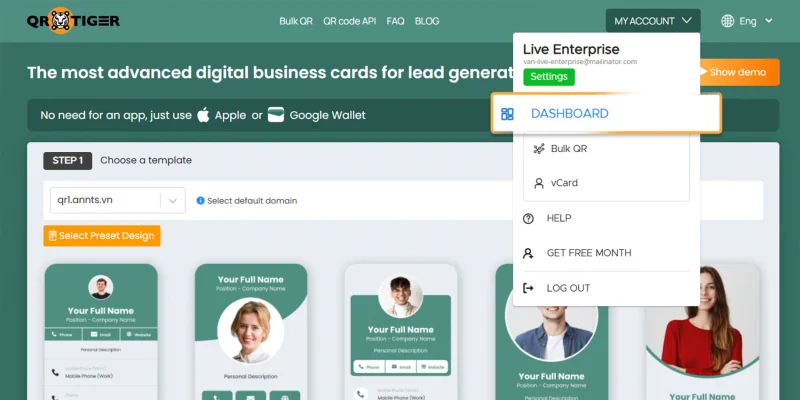
Open your QR TIGER vCard account and go to the “Dashboard”.
Step 2: Click Contacts from the left menu
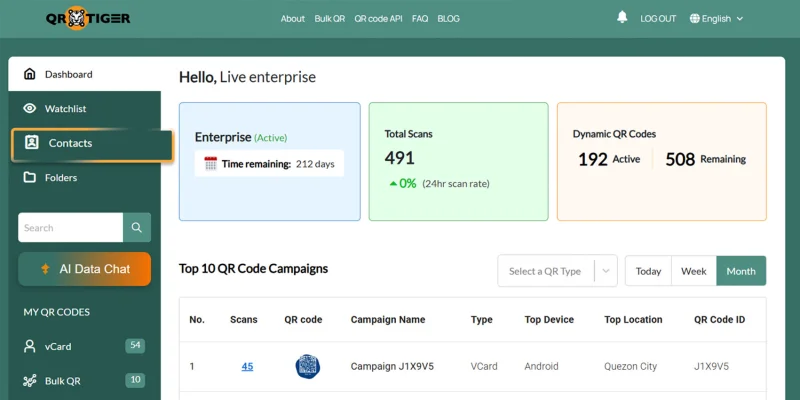
Select “Contacts” to open the contacts page.
Step 3: Review your saved contact list
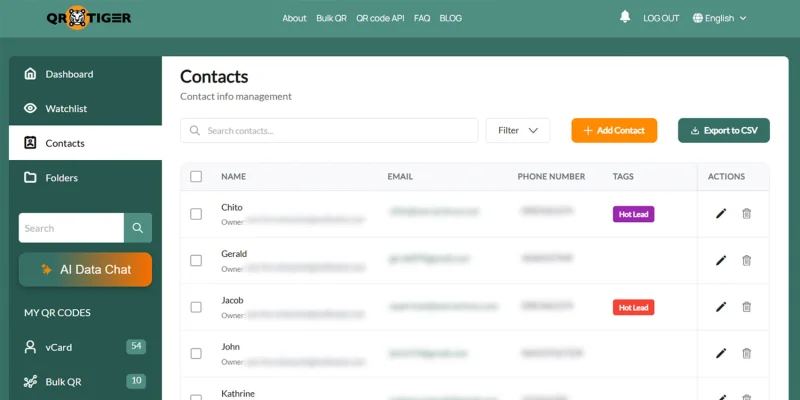
Once inside, review the contact table. You will see each saved entry with its name, email address, phone number, tags, and available actions for each vCard contact.
Stay updated on new tools and features through QR TIGER software updates.
How the Contacts page assists in management
Once your contacts are recorded, you can use these tools to manage them more efficiently.
- Search for a contact: Use the "Search bar" to find a specific name, email, or saved record faster.
- Filter contact records: Use the “Filter” to narrow the list based on your selected criteria. This helps when your team needs to focus on customer segmentation strategies.
- Add a new contact manually: Click “Add Contact” to create a new entry directly from the page. This is useful when your team wants to save a contact vCard record without waiting for a form submission.
- Review tags: Check the “Tags” to spot labeled contacts. Tags help your team sort priority records faster.
- Edit or delete a contact: Use the “Edit” and “Delete” icons to update contact details or remove a record from the list.
- Export your contact list: Click “Export to CSV” to download your contact data for reporting, backups, sharing, or a VCF file to contacts workflows.
Quick tips to properly use the Contacts page
To get more value from the Contacts page, follow these simple habits:
- Keep contact tags consistent so your team sorts leads faster.
- Review new records often, so follow-up stays timely.
- Use search and filters as your contact list grows.
- Export records when you need a file for reporting, outreach, or to prepare data to create a VCF file with multiple contacts.
- Update incorrect entries early, so your team works with clean data.
Pro Tip: Use QR TIGER’s AI Chatbot to get broader contact data insights.
Keep your vCard contacts organized
Knowing how to access the Contacts page on the vCard platform helps you review your leads’ details, update records, organize contacts with tags, and export data when needed.
As your contact list grows, this helps you keep records clean and follow-up work consistent. Access your vCard account today and use the Contacts page to keep every lead within reach.
For more details, visit the QR TIGER website or contact our IT support at [email protected].
FAQ
What are vCards?
vCards are digital contact cards that store details such as name, phone number, email address, company, and other contact information. They are commonly shared through a QR code, link, or VCF file.
Is VCF the same as vCard?
A VCF file stores vCard contact details. The vCard is the contact information, while the VCF file is the format that holds it.
How do I access my vCard?
Log in to QR TIGER, open the “Dashboard”, then under “MY QR CODES”, select “vCard”.
This article is for general informational purposes only and does not constitute legal, financial, or other professional advice. For questions about QR TIGER's products or services, please contact our support team at [email protected].
Frequently Asked Questions (FAQ)
What are vCards?
Is VCF the same as vCard?
How do I access my vCard?
Was this article helpful?
Maximize Scans with the Best QR Code Generator
Join thousands of global brands using QR TIGER to manage dynamic routing, bulk creation, and deep attribution analytics.
Get Started For Free