
How to Automate QR Code Workflows Across Apps Using Zapier
 By Regie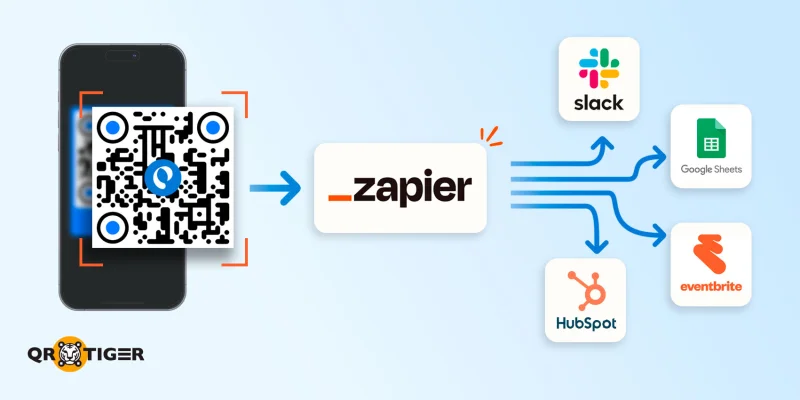
To automate QR code workflows across multiple tools, QR TIGER’s Zapier QR code integration is useful as a trigger, an action, or both.
A scan of a dynamic QR code or a lead submission on your vCard triggers the Zap. And when another app triggers it, QR TIGER creates a new QR code.
Keep reading to find out how to build multi-step Zaps, route scan data to multiple destinations, filter out noise, recover from failures, and scale safely.
How QR TIGER + Zapier automation works
Together, QR TIGER and Zapier work as QR code automation software built on a trigger-action model.
- A trigger is the event that starts the Zap, an automated workflow that connects different apps and performs the task automatically.
- An action is the work Zapier does in response.
The integration spans both sides of the equation, so you either start with a scan and end with an app update, or start with an app event and end with a new QR code.
Triggers send data out when someone scans a QR code or submits a lead form. Actions bring data in when another app fires an event.
Between the two sides, Zapier’s Filter, Formatter, and Paths steps shape the data as it passes through.
Building multi-step Zaps from QR triggers
A Zap is a chain: One trigger, followed by one or more actions in sequence. Each step feeds its output to the next step.
QR TIGER plugs into both ends of that chain. What you build downstream is yours to design.
Heads up: Multi-step Zaps require a Zapier Professional plan or higher. Free and Starter plans cap Zaps at one trigger plus one action.
QR TIGER’s triggers and actions in Zapier
Two sides sit inside the same integration, listed in Zapier’s app directory as “QRTIGER QR Code.” Which side you use depends on where the automation should start.
Trigger events:
- Scan event: Labeled “New QR Scan”. Triggers when a dynamic QR code in your account is scanned. Filter by QR ID to target a specific code.
- Contact event: Labeled “New vCard Contact”. Triggers when someone submits their info through the form. A lead-capture flow, not an admin event.
Both are “Instant” triggers. Zapier fires them the moment the event happens, rather than checking on a schedule, the way polling triggers do every 1 to 15 minutes.
On the action side, QR TIGER works as a Zapier QR code generator. When another app fires the Zap, the integration creates a new QR code in one of sixteen formats:
Action events (Creates a new QR code):
- Dynamic (URL)
- Static
- vCard
- Menu
- HTML
- File
- MP3
- App Stores
- Google Form
- Text
- Social Media
- Youtube
When to use which trigger
The two triggers solve different problems. Pick based on what you're trying to capture.
Go for the scan trigger when:
- You care about physical-world engagement, such as foot traffic to a booth, sign, or product package.
- Campaign attribution is the goal, such as knowing which QR code drove the scan, from where, or when.
- The scan itself is the event, regardless of whether the person leaves contact info.
Choose the vCard trigger when:
- You’re capturing warm leads from networking, sales collateral, or event badges.
- Follow-up needs contact details to be useful.
- CRM enrichment matters more than raw scan counts.
They aren’t mutually exclusive. A single vCard QR code fires the scan trigger the moment someone scans, and fires the lead trigger later if that person fills out the contact form. Build both Zaps and let Zapier handle the sequencing.
How to automate your first QR workflow
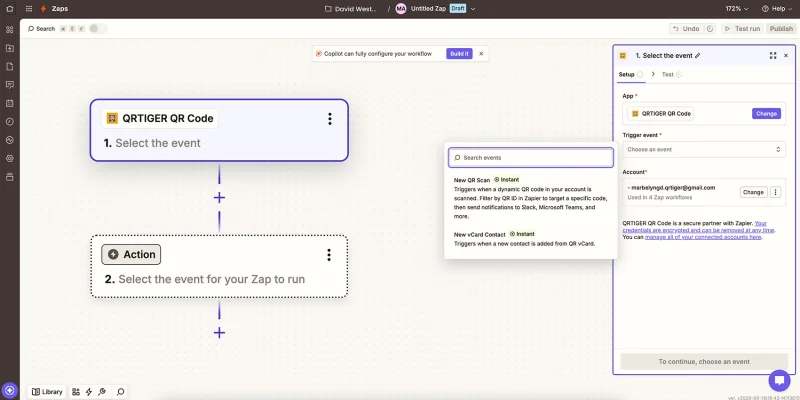
- Connect QR TIGER to Zapier if you haven’t already.
- In Zapier, click Create Zap. Search for “QRTIGER QR Code” and select it as a trigger app.
- Choose your trigger event: “New QR Scan” or “New vCard Contact”. Filter by QR ID if the Zap should fire on one specific campaign instead of every QR code in your account.
- Test the trigger. Zapier pulls the most recent scan or contact submission so you know the connection works and the data structure looks right.
- Add your first action step. Pick any of Zapier’s apps, such as Slack, Google Sheets, Google Analytics 4, or your CRM.
- Add more action steps if the workflow needs them. Each step passes its output to the next, so one scan trigger routes to various apps in a single Zap.
- Publish the Zap and turn it on. Your Zap is now active and waiting for the next scan.
Routing scan data to multiple destinations
One scan doesn’t need to end in one destination. Routing multiple apps is often the smarter option. A dynamic QR code on a trade show booth backdrop reaches four teams the moment someone scans:
- Sales gets a Slack alert with the booth ID
- Marketing sees the scan in Google Analytics 4 via a custom event
- Operations gets a new row in Google Sheets for post-event reporting
- Your CRM gets a lead record
For the GA4 side of that setup, see how to connect QR campaigns to Google Analytics 4.
You have two ways to structure this:
Sequential actions: add each destination as a step. Zapier runs them in order and halts if any step fails, unless you’ve set custom error handling.
Paths: a native Zapier branching feature. Scans from booth ID “A1” route one way; scans from “B4” route another.
For parallel routing, sequential actions are simplest. If you need conditional branching, Paths gives you control to split traffic based on rules.
Applying filters and conditions
Not every scan deserves a workflow. A test scan by your marketing team shouldn’t create a lead record. Scans from your office IP shouldn’t ping the sales channel at 2 AM. Filters block those runs before they cost you tasks.
Every Zapier plan comes with a monthly task limit, and each action step counts as one task.
Common filter conditions:
- QR code ID equals a specific value (targets one campaign out of dozens)
- Device type is not “desktop”
- Location falls inside a set country or region
- Timestamp falls between business hours
Filter, Formatter, and Paths steps stopped counting toward Zapier task limits during its 2024 pricing update. They’re the closest thing to a free defensive layer you’ll get.
Paths split traffic, too. A single QR code on a transit ad routes New York scans to one landing page tracker, while Los Angeles scans go to another.
Handling errors and retries
Zapier gives you two replays or safety nets. Autoreplay retries transient failures for you. Manual replay lets you rerun failed tasks once you’ve fixed the underlying cause.
Autoreplay retries a failed step up to five times, per Zapier’s help documentation. Backoff intervals: 5 minutes, 30 minutes, 1 hour, 3 hours, and 6 hours. The final retry lands 10 hours, 35 minutes after the first error.
What you’ll want to know:
- Autoreplay is an account-wide toggle on Professional plans and higher. In Teams and Enterprise accounts, only super admins or owners flip it on.
- Filter and Paths steps are never replayed. A blocked Filter step stays blocked.
- Zapier auto-pauses a Zap automation when errors occur in 95% or more of its runs in the last seven days. A safety guardrail, though silent Zaps are the tradeoff.
- Enterprise plans let you override the auto-pause per Zap.
For a QR-driven workflow, retries matter more than in most integrations. A scan is a real-world event. You don’t get a second one when the person walks away. If your CRM API times out and your Zap doesn’t retry, the lead is gone.
Turn Autoreplay on before you scale anything scan-driven.
Scaling QR automations safely
Scaling means keeping automation fast, cheap, and stable as scan volume grows. Consolidate Zaps where the logic repeats. Watch your task usage weekly. Respect rate limits on your destination apps. Build a fail-safe log outside Zapier so a bad day doesn’t cost you raw data.
Practices worth adopting:
- Consolidate where possible. One Zap with a Path often replaces three near-identical Zaps.
- Turn on low-task alerts. Zapier emails you when you reach 80% and 100% of your monthly quota, so you can upgrade before a mid-month freeze.
- Sync scan data to Google Sheets or a database, outside your action chain. If Zapier goes down, you still hold the raw data.
- Watch your Zap history weekly. Errored runs cluster around specific integrations first.
- Test on a staging QR code before scaling. Dynamic QR codes let you swap destination URL later, so a single “Test” QR code covers a lot of scenarios.
- Document your Zaps. A short internal doc listing trigger, actions, and owner saves you from an unknown workflow.
One more thing from experience: I’ve watched teams grow to hundreds of Zaps without a single naming convention. Don’t be one of those teams. Prefix by function (“qr_scan_”) and folder by campaign. Six months in, unnamed Zaps become mystery workflows.
Questions about QR TIGER and Zapier automation
Do I need HubSpot to automate QR workflow in Zapier?
No. Zapier connects QR TIGER directly to 9,000+ apps, so any CRM already in your stack works fine as a data destination. HubSpot is one option among many.
How many actions does a single Zap support?
Zapier’s multi-step Zap builder supports as many actions as your plan’s task budget allows. Each action counts as one task. Practical Zaps run three to ten steps. Going beyond ten is a signal you might want to split the workflow into smaller pieces.
What happens if my scan triggers while my Zap is broken?
If your Zap is on and a step fails, Autoreplay retries that step up to 5 times. When your Zap is off, the trigger event isn’t captured.
Are filter steps counted against my Zapier task quota?
No. Zapier stopped counting Filter, Formatter, and Paths steps toward task limits.
Start automating your QR workflows across multiple tools with Zapier
Connecting QR TIGER to Zapier lets your team turn every scan and vCard lead into a workflow that runs on its own. The setup takes minutes, and the payoff carries over into every campaign, event, and product launch you run afterward.
Your automations will route scan data to the CRM you already use, log every tap for reporting, alert the right team the moment interest hits, and generate new QR codes when your upstream apps need them.
QR TIGER offers full Zapier integration, scan-level data, and vCard tracking. Create an account today and connect your QR campaigns to 9,000+ apps through Zapier.
Definition of terms
Action: Zapier does this after a trigger fires. Actions send data to another app.
Autoreplay: Zapier’s automatic retry feature for failed steps.
Filter: A step that stops a Zap when the data doesn’t match a rule.
Instant trigger: A trigger that fires in real time.
Multi-step Zap: A Zap with a trigger plus two or more actions.
Paths: A step that branches a Zap into different routes based on conditions.
Polling trigger: A trigger that checks for new events every few minutes instead of reacting instantly. Slower than Instant Trigger.
Task: One successful action step in a Zap. Every plan has a monthly task limit.
Trigger: The event that starts a Zap.
Zap: A Zapier automation with one trigger and one or more actions running in sequence.
This article is for general informational purposes only and does not constitute legal, financial, or other professional advice. For questions about QR TIGER's products or services, please contact our support team at [email protected].
Frequently Asked Questions (FAQ)
Do I need HubSpot to automate QR workflow in Zapier?
How many actions does a single Zap support?
What happens if my scan triggers while my Zap is broken?
Are filter steps counted against my Zapier task quota?
Was this article helpful?
Maximize Scans with the Best QR Code Generator
Join thousands of global brands using QR TIGER to manage dynamic routing, bulk creation, and deep attribution analytics.
Get Started For Free