
How to Customize vCard QR Code Email Message on QR TIGER

Learn how to customize vCard QR code email settings to help you improve the send-by-email experience.
A vCard QR code does more than share contact details. It lets you send contact information by email with a subject line, logo, and message that reflect your brand.
QR TIGER's new Email Settings feature lets Enterprise and vCard users control these email elements, helping businesses keep communication consistent from the first interaction.
This guide shows how to update your email settings and apply them to your vCard QR code setup.
Table of Contents
What is Email Setting on QR TIGER?
QR TIGER Enterprise and vCard’s Email settings let users compose a custom message to send together with their vCard QR code email.
This helps sales professionals, marketers, and business owners keep the message on their contact card QR code clearer, on-brand, and more useful to recipients.
How to customize your vCard QR code email message
Before you start, make sure you have an Enterprise or dynamic vCard QR code generator account.
Step 1: Log in to your account
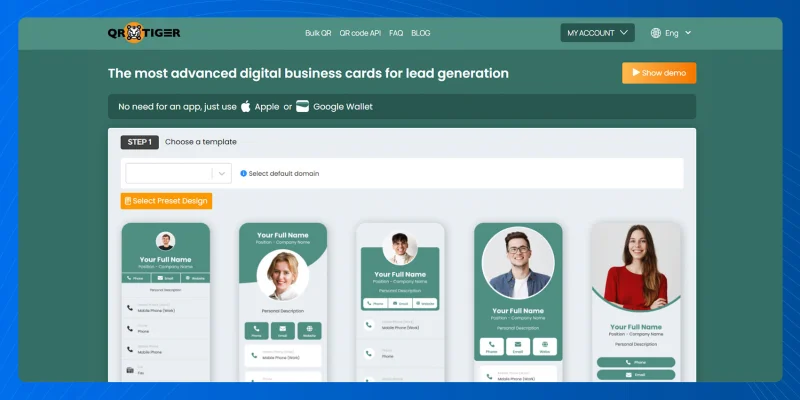
Open your QR TIGER Enterprise or QR TIGER vCard account and sign in.
Step 2: Go to Settings
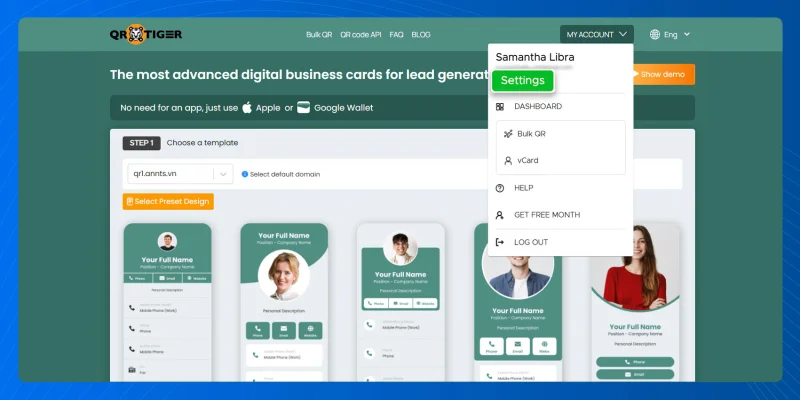
Click "MY ACCOUNT" > "Settings".
Step 3: Open Email Settings
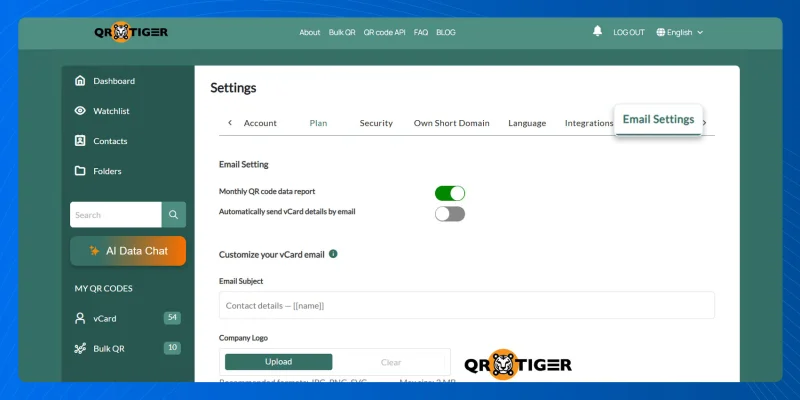
Inside settings, find and select "Email Settings".
Step 4: Review the Email Settings
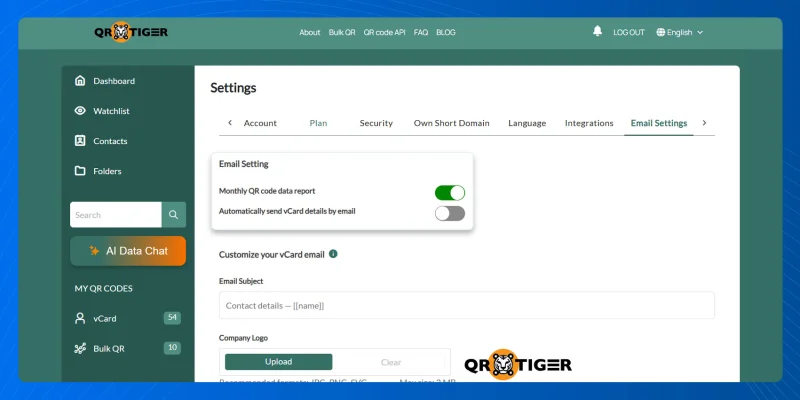
Check the available email options.
You will see these:
- Monthly QR code data report
- Automatically send vCard details by email
Set each one based on your preferred email setup.
Step 5: Customize your vCard email
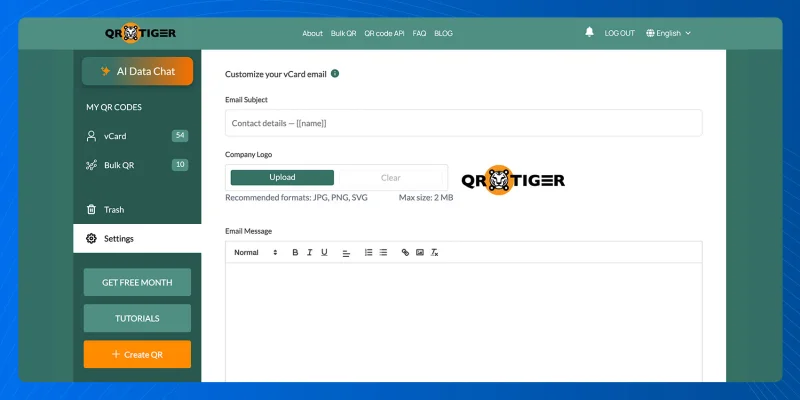
Go to the “Customize your vCard email” section.
Here, you can input custom:
- Email Subject
- Company Logo
- Email Message (at least 10 characters)
Step 6: Save template
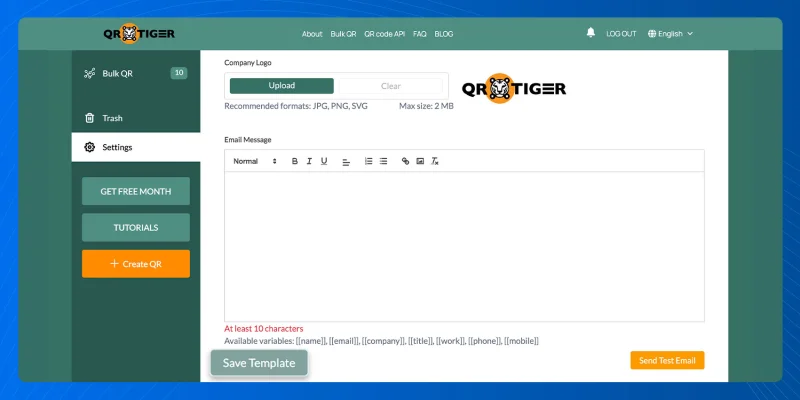
Click “Save Template” to apply your changes.
Your customized email message template will be used for future “Send to Email” actions from your vCard QR code for business cards.
How to test the custom vCard email template
After saving your template, run a quick test. This helps you confirm the QR code works and the email message appears as expected.
Follow these steps:
- Scan a vCard QR code.
- Open the vCard landing page and tap “Save to contacts”.
- Choose the “Send to Email” option.
- Type your email address into the field.
- Submit the request.
- Check your email inbox.
- Review the subject line, message format, and spacing.
Option: Click the “Send Test email” button after saving the template.
Why customize your vCard email message
A custom email template gives contact-sharing a better finish. Here is why professionals and teams should use this setting:
- Your brand looks more polished.
- Your message feels more personal.
- Your recipients instantly know the intent behind each email.
- You guide the conversation from the start.
- More people follow through with a message and a contact QR code in one.
- Your team keeps a more consistent customer experience.
Customizing your email message adds more value after you create a vCard QR code and share it.
Who should use the Email Setting feature?
QR TIGER’s Email Setting works well for:
- Sales teams sharing direct contact details.
- Customer support teams that send service contact cards.
- Recruiters sharing professional profiles.
- Event teams that collect and share business contacts.
- Businesses with branded digital business cards.
If your vCard QR code is part of a branded workflow, this feature helps maintain a consistent brand touchpoint.
For more product improvements and feature releases, check out QR TIGER software updates.
Make every vCard email more professional
Customizing the email message sent from your vCard QR code is a small setup step with a clear payoff.
Knowing how to customize vCard QR code email settings gives each shared contact a cleaner message, stronger branding, and a more professional presentation.
For businesses that use QR codes for networking or lead capture, this feature helps standardize contact emails across teams. Paired with an enterprise QR code generator, it also supports a more polished and reliable contact-sharing process.
For more information about this vCard email feature, contact our IT support at [email protected] or visit the QR TIGER website.

FAQ
Can I change the info on a vCard QR code?
Yes. You can change the information on a vCard QR code if it is dynamic. You can update details like your name, phone number, email, company, and other contact fields without creating a new code.
Can I customize a vCard QR code design?
Yes. You can customize a vCard QR code design by changing its colors, pattern, eyes, frame, and logo to match your brand.