
How to Set Up HubSpot QR Code Lead Capture Step by Step

QR codes are easy to scan, and HubSpot QR code lead capture is where most setups fall apart.
If you’re using a lead generation software, such as HubSpot, QR codes shouldn’t send prospects into a dead end or a manual process. They should move the data straight into your CRM, tagged and organized, ready for follow-up.
This guide shows you step by step how to connect the best QR code generator to HubSpot and capture submissions automatically.
Table of Contents
- Connect QR TIGER for HubSpot QR code lead capture
- Sending QR submissions directly into HubSpot Contacts
- How to capture leads in HubSpot using QR codes
- Mapping QR fields to HubSpot contact properties
- Auto-tagging contacts by QR campaign and source
- Trigger HubSpot workflows after a QR code form submission
- Turning QR scans into a HubSpot CRM lead capture
- FAQ
Connect QR TIGER for HubSpot QR code lead capture
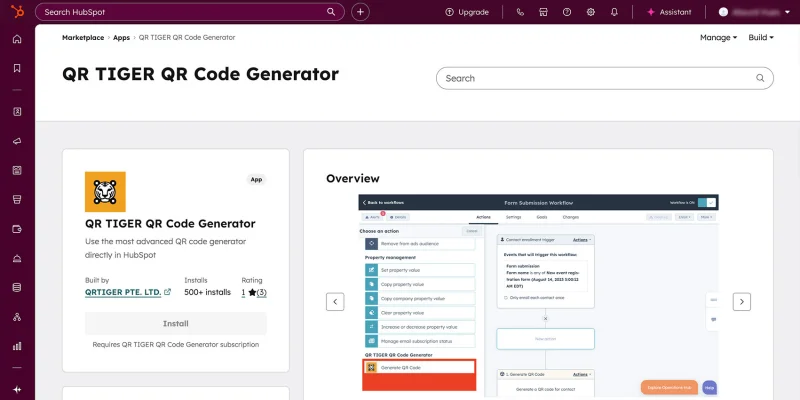
With QR code integration available for HubSpot, you can shorten the path from interest to conversion.
Follow these steps to link your accounts and start turning every vCard QR code scan into a HubSpot contact.
- Log in to your HubSpot account.
- In the HubSpot Marketplace, install QR TIGER QR Code Generator.
- Open a new tab and log in to QR TIGER.
- Go to My Account > Settings > Plan.
- Copy your API key.
- Go back to HubSpot and paste the API key into the required field.
- Click “Connect app.” Once it says, “Connection Successful”, you're all set.
Sending QR submissions directly into HubSpot Contacts
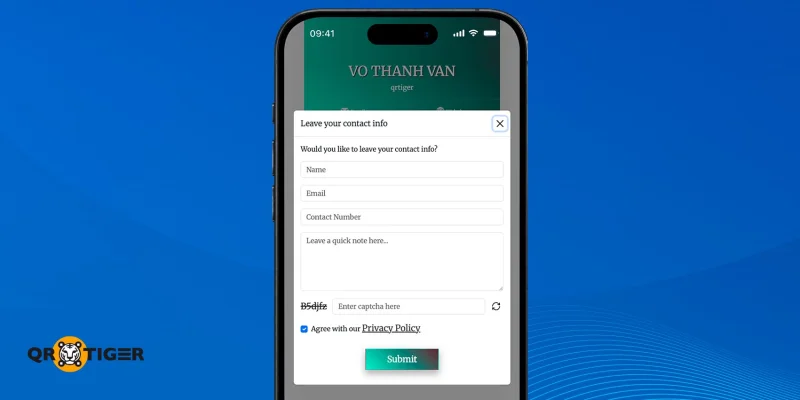
When users scan the vCard QR code and submit their details, the integration automatically sends the contact data to HubSpot.
Here’s how it works:
- A user scans the vCard QR code.
- The vCard landing page opens.
- User clicks Save to contacts > Leave contact info
- A contact form pops up.
- User enters their contact info and submits the form.
- HubSpot records the submitted data in Contacts.
If your fields are mapped correctly, details are saved in the matching contact properties. This helps you organize leads and see which QR code brought in each contact.
How to capture leads in HubSpot using QR codes
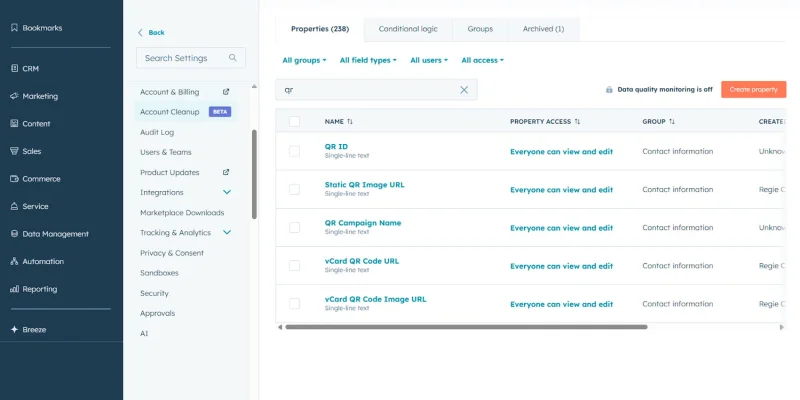
HubSpot is one of the best CRM software tools for capturing, monitoring, and following up on leads. With a proper HubSpot QR code lead capture setup, contact data form QR submissions send prospects straight into your CRM.
Create contact properties
To track where your leads come from, create custom contact properties.
1. In HubSpot, go to Settings.
2. Select Data Management > Properties.
3. Click “Create property”.
4. Choose “Contact” as the object.
5. Create properties such as:
a. vCard QR Code Image URL
b. QR Campaign Name
c. QR ID
d. Note
6. Save the properties.
These properties store campaign data from your contact QR code.
Pro Tip:
- For lead-capture properties, make sure the internal names have no spaces or underscores. (E.g., QR Campaign Name = qrcampaignname)
- For QR code URL properties, having underscores is fine. (E.g., vCard QR Code Image URL = vcard_qr_code_image_url)
Generate a contact QR code using a HubSpot workflow
To create a HubSpot QR code through workflows:
1. Go to Automation > Workflows.
2. Click “Create workflow”.
3. Choose “Met filter criteria”.
4. For “Record type”, select “Contact”.
5. Under “Contact properties”, search for and select “Create date”.
6. Click “Save”.
7. Add “QR TIGER” action and choose “Contact QR Code”.
8. Set:
a. Custom Text = Email (Enrolled Contact)
b. Choose a List ID = Record ID (Enrolled Contact)
9. Click “Save”.
10. Add an “Edit record” action.
11. Select the property, “vCard QR Code Image URL”.
12. For the value, select “QR Image”.
13. Click “Save”.
14. Click “Review and turn on”.
Once the workflow is active, each new contact added to HubSpot automatically generates a contact QR code.
Note: To create a workflow manually, use “Trigger manually” and enroll a contact yourself.
Mapping QR fields to HubSpot contact properties
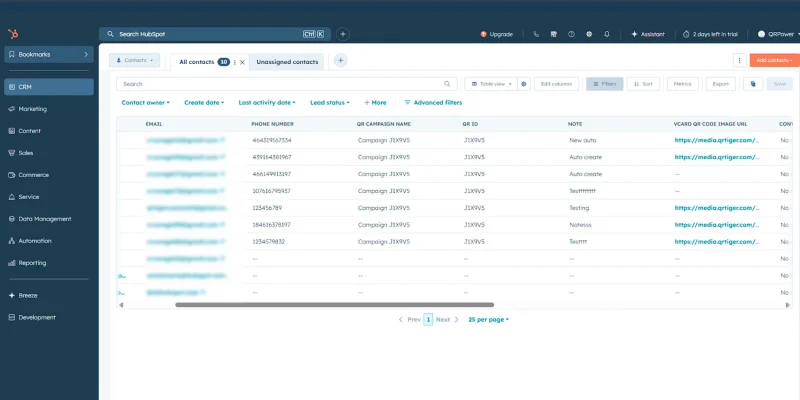
After a user submits their details through the vCard contact form, HubSpot stores each value in the matching contact property. This makes sure your lead data stays organized and easy to track.
For example:
- QR campaign value goes to QR Campaign Name
- Source goes to QR ID
- Extra remarks go to Note
If the correct properties are already in place, HubSpot automatically records the submitted data to the corresponding contact fields.
Auto-tagging contacts by QR campaign and source
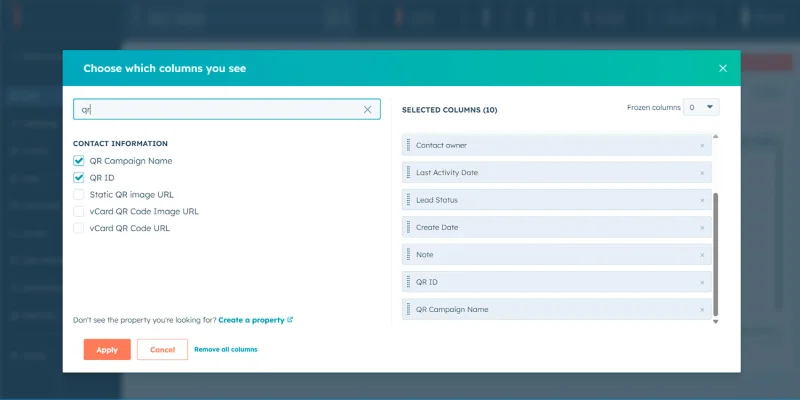
Since QR codes do not automatically tag contacts, you can automate HubSpot to tag contacts so you can monitor which QR code campaign or source they came from.
Once your QR fields are added to contact properties, HubSpot stores each submission in the correct field. To make those tags easier to track, add your QR properties to the Contacts table view.
1. Go to CRM > Contacts.
2. Click “Edit columns”.
3. Search for the QR fields you created.
4. Select properties such as:
a. QR Campaign Name
b. QR ID
c. Note
5. Click “Apply”.
This lets you view each contact’s QR campaign and source details directly from the contact list. You can then sort, filter, and review contacts based on the QR properties attached to each submission.
Trigger HubSpot workflows after a QR code form submission
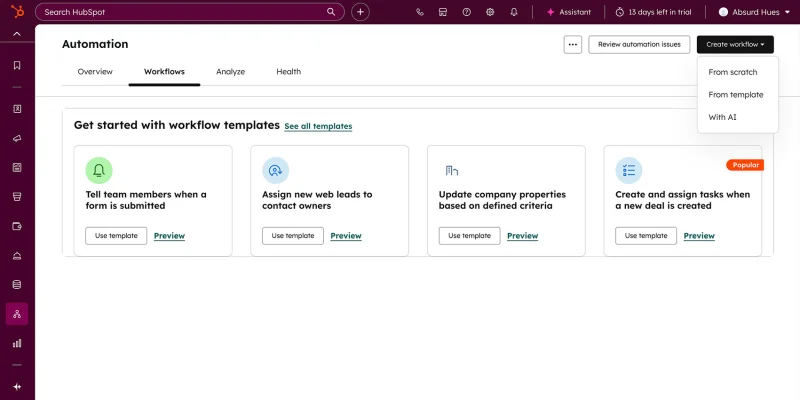
QR code scans do not directly trigger HubSpot workflows. Workflows start once the vCard submission creates a new contact in HubSpot. Follow these steps:
1. Go to HubSpot, then Automation > Workflows.
2. Click “Create workflow”, then select “From scratch”.
3. Choose Contact-based workflow.
4. Set the enrollment trigger to:
a. “Met filter criteria” or “When filter criteria is met”
b. Contact properties > Create date is known
5. After the trigger, add actions such as:
- Send a confirmation or welcome email
- Assign the contact to a sales rep
- Add the contact to a list
- Set a lifecycle stage
- Create follow-up tasks
Save and turn on the workflow. From this point forward, every contact form submission coming from a QR code follows the same automation path.

Turning QR scans into a HubSpot CRM lead capture
QR codes for businesses are effective when paired with the right workflows.
By integrating QR TIGER QR Code Generator and HubSpot, you create a clear path from scan to submission. This HubSpot QR code lead-capture setup organizes contact properties, tags them by campaign, and follows up through workflows. All without extra tools or manual steps.
If you want QR codes to drive real lead generation, not just traffic, this setup makes it happen.
Connect QR TIGER API to HubSpot and start capturing instant leads where they belong.
FAQ
Does HubSpot have a QR code generator?
HubSpot does not have a built-in QR code generator by default. To create QR codes in HubSpot, you need to connect a third-party tool, such as QR TIGER, via API integration.
How to create a QR code in HubSpot?
After connecting QR TIGER, go to Automation, then Workflows. Add a QR TIGER action, enter your URL, and generate the QR code automatically.