
How to Scan a QR Code on a Laptop (Windows & Mac)
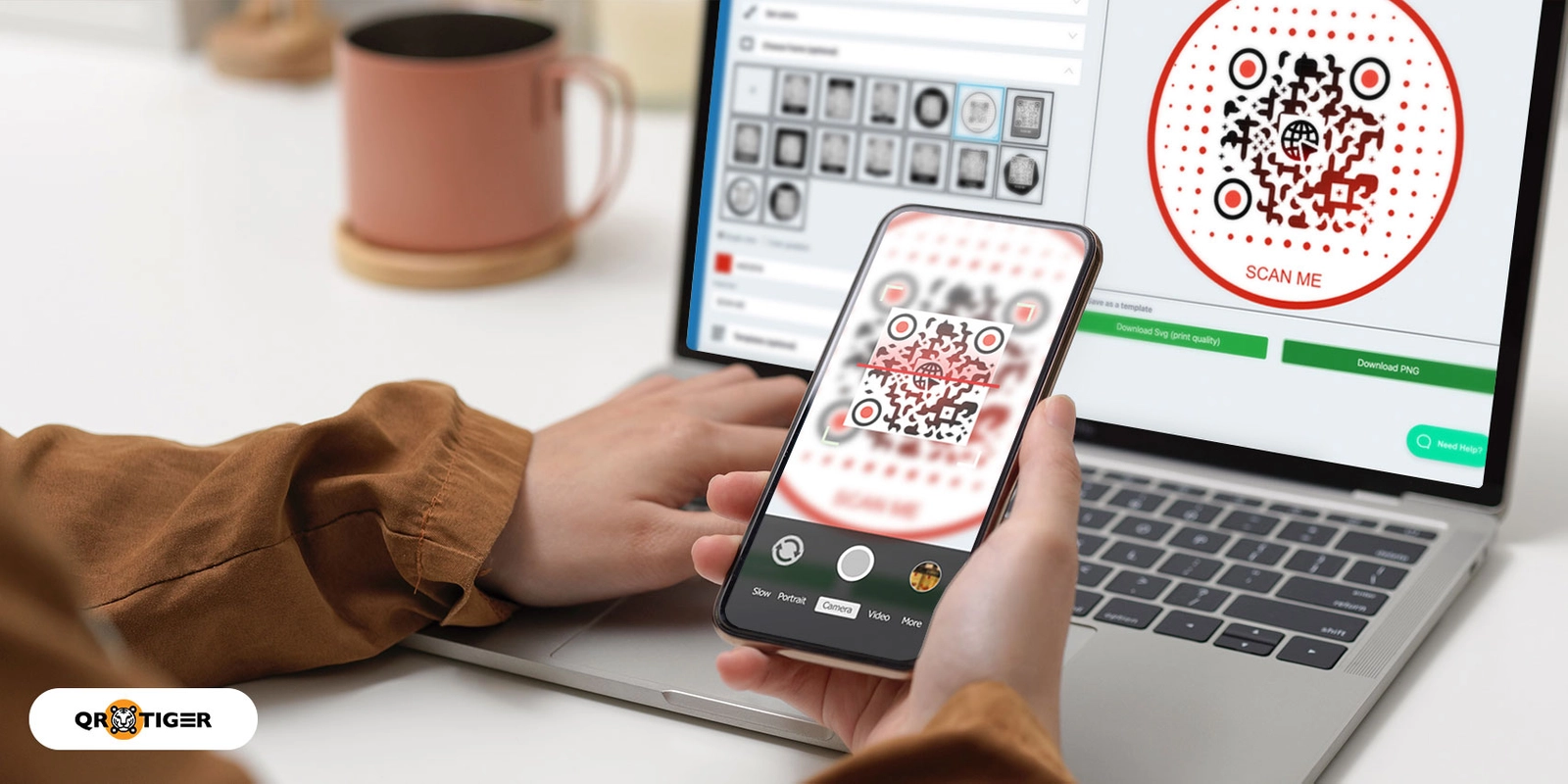
There are three ways to scan a QR code on your laptop: using Windows’s camera, an online QR scanner (without a camera), an app (macOS), or Google Lens.
By the end of this blog, you’ll know how to scan QR codes on your laptop quickly and easily, whether it’s a Mac or Windows.
Table of Contents
- How to scan QR codes on your Windows laptop without extra software
- How to scan a QR code on your MacBook
- How to scan a QR code on a laptop without a camera
- How to scan a QR code using Google Lens
- How to scan a QR code on a laptop screen with your Android phone
- How to scan a QR code on a laptop screen with your iPhone
- Best apps and tools for scanning a QR code on your laptop
- Frequently asked questions
How to scan QR codes on your Windows laptop without extra software
New-gen laptops allow users to scan QR codes using their laptop's camera. Most newly released devices now have built-in QR scanners. Here's how to scan on a Windows laptop:
- Open the camera on your laptop
- Click the QR code or barcode to enable scanning
- Show the code to the camera so it can start scanning.
How to scan a QR code on your MacBook
- Download and install a QR code scanner app from the App Store
- Open the app and activate the scanner
- Show the code to the camera to let it scan
- Copy or click the destination URL to access it
How to scan a QR code on a laptop without a camera
If your Mac or Windows laptop can’t scan the code, you can use a free online QR code scanner to read QR codes from your computer easily. Here’s how:
- Open a QR code generator on your browser
- Click “Upload a QR code image to extract the URL”
- Select the QR code image you want to scan
- Copy the destination URL or link and open it in a new tab
How to scan a QR code using Google Lens
- Go to Google and click the camera icon on the right side of the search bar
- Drag the QR code image or upload the file
- Copy the URL from the QR code
- Paste it into the new tab to access it
- Move your cursor toward the QR code image you want to decode, then right-click.
- Once a window appears, scroll down and look for the Search image by Google option.
- Click to let Google extract the website link or landing page it leads to.
How to scan a QR code on a laptop screen with your Android phone
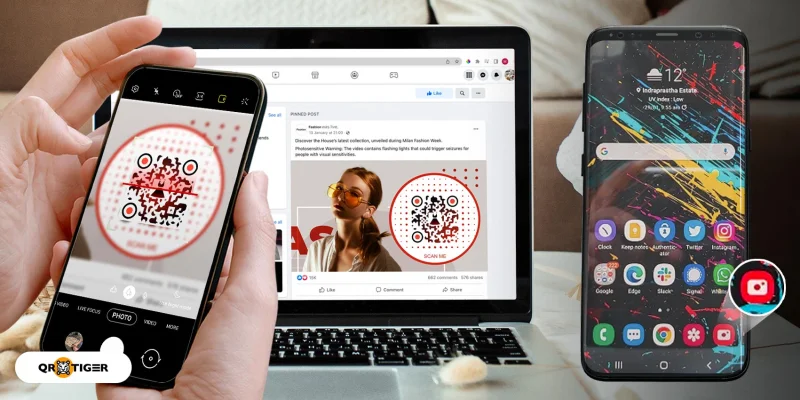
Android 7 and below
Smartphones on Android 7 and below do not have built-in QR code scanner features, so you’ll need to download and install a third-party QR code scanner app.
When looking for a scanner app, ensure it’s compatible with your Android version. Otherwise, chances are it won’t work. Also, make sure to use one that has a good rating and a user-friendly interface.
Android 8 and above
If your phone runs on Android OS Oreo, Pie, or other recent versions, you can easily scan QR codes with your camera. Android 8 and above have a QR code scanner built into the app.
No need to download and use a third-party QR code reader app.
To scan a QR code on a PC, laptop, or any digital display screen using an Android device, follow these steps:
- Launch the camera app and hover your camera over the QR code.
- Once it recognizes the QR code, you will find a page with a link on your screen.
- Tap the link to go to the landing page or embedded website.
If this doesn’t work, you can also use Google Lens. With Google’s latest image recognition technology, you can access the QR code by searching for images.
Here’s how you can use it to scan the code:
- Open your Google Lens app. You can also launch your Google Assistant or open your camera app to activate Google Lens.
- Hover your camera over the QR code to scan.
- A link will appear on the screen. Click the pop-up link to access the website.
Another built-in QR code scanner on Android devices is the default browser. Depending on the model, it is located within the search bar.
To scan a QR code:
- Open the browser and tap the QR code or barcode scanner.
- Point the camera to the QR code to scan.
- Wait for it to recognize and automatically direct you to the content.
How to scan a QR code on a laptop screen with your iPhone
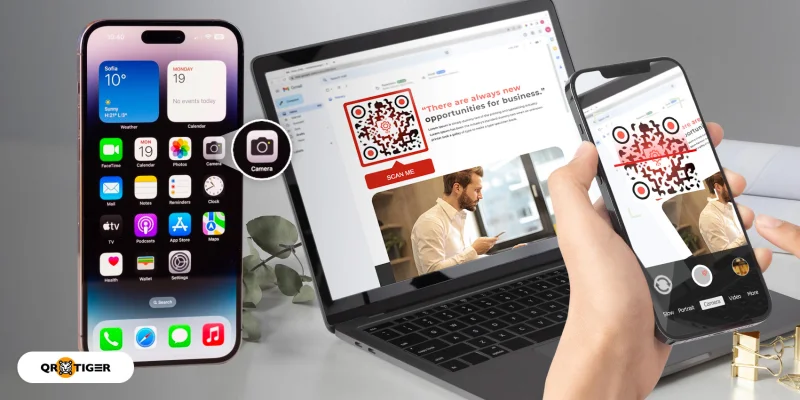
iOS QR code scanner
Only iPhones with iOS 11 and up have a built-in QR code scanner in the Camera app. iPhones with older iOS versions do not support this feature.
iOS 11 and above
- Open your camera app, making sure that the rearview camera is on.
- Point your camera toward the QR code. Wait until a pop-up banner appears on the screen.
- Click the pop-up banner. It will redirect you to Safari, where you can access the QR code content.
Other iOS versions
- Download a QR code scanner app from the App Store.
- Activate the app by making sure that you turn on permissions.
- Open the third-party QR code scanner app.
- Point your camera at the QR code image.
- Click the pop-up link that will appear on the screen. The link will immediately redirect you to Safari, where you can access the content.
Best apps and tools for scanning a QR code on your laptop
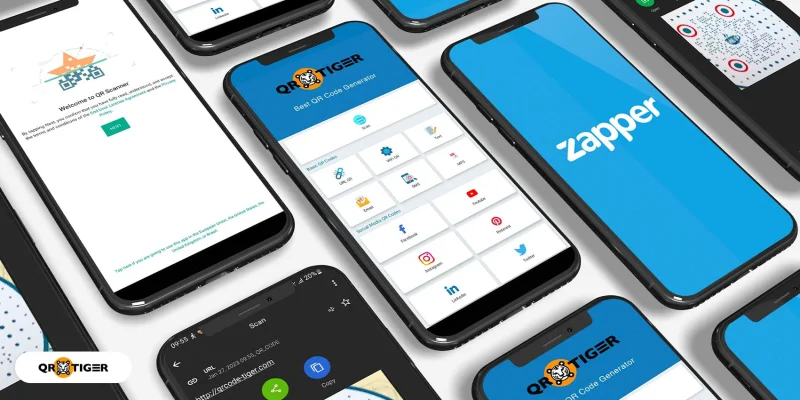
To help you out, here’s a list of the best QR code reader for laptops that you can easily find on the Google Play Store or the iOS App Store:
Minifier QR Code Scanner
QR code scanner by Minifier is a free laptop QR code scanner that can quickly and accurately scan any type of QR code. It’s great for scanning a QR code from a laptop screen.
You can take a screenshot of the QR code on your screen, save it, and then upload the image file from local storage to decode its contents.
If you have a detachable web camera, you can connect it to this online tool to scan the code like your phone. Within a few seconds, the Minifier QR code scanner will come up with decoded output results. The tool does not ask for sign-up or registration, simply land and start decoding QR codes.
Editpad QR code scanner
Another QR code scanner for a laptop you can use is the Editpad QR code Scanner, which lets you scan QR codes on your device’s screen.
This web-based tool allows users to upload an image of the QR code to read it and access its contents. Like Minifier, you can also use a web camera to scan the code.
Google Lens
Google has a free QR scanner for laptops. Its Search by Image feature lets you explore concepts through pictures and extracts the information a QR code stores.
Simply drag the image to upload or locate the file on your computer, and Google automatically shows the link, text, or any information it contains.
💡 You may also read: Here's How Google Lens QR Code Scanner Works
Bar-Code reader
The Bar-Code reader app is one of the earliest scanners on the Play Store and the App Store. This multi-barcode scanner lets you scan various barcodes displayed on any media.
You can access and share the QR code-embedded content on various platforms, such as Facebook, SMS, or email.
Though it comes with ads, the app is generally easy for mobile users.
If you wish to remove the ads, you can create an account and pay $0.99 to enjoy seamless QR code and barcode scanning.
QR & Barcode Scanner
With over half a billion downloads, this app by Gamma Play is one of the top QR code scanners on the Google Play Store.
A unique feature of this app is that it takes a picture of the QR code you are scanning. This picture is stored and can be viewed later. Thanks to this feature, you can go back to older QR codes if you wish to access their content again.
You can also scan QR codes on images stored in your phone, which means you can send the laptop QR code to someone with the app so they can decode it for you.

Frequently asked questions
Can I scan a QR code from a static image shown on my screen?
Can I scan a QR code displayed on my laptop screen with another device?
Can I scan a QR code directly with my laptop’s webcam?
How do I scan a QR code on Windows 10/11 using a phone?
Are there built-in options in browsers to scan QR codes from my screen?
How can I ensure the QR code on my screen scans correctly?
- Make the QR code large enough (about 2x2 inches usually works)
- Set the right screen brightness
- Avoid glare or reflections if you’re scanning it with another device
- Check that the image isn’t blurry or stretched
What should I do if scanning the QR code shows an error or doesn’t work?
- Zoom in or enlarge the code on your screen.
- Adjust your screen’s brightness.
- Wipe your camera lens. Smudges can cause issues.
- Try another scanning app.
- Double-check that the QR code isn’t cropped or distorted.
Is it safe to scan QR codes from my own screen?
Can I scan a QR code from a presentation or PDF on my laptop?
Any tips for scanning on high-resolution screens or small displays?
- Use the original image instead of a screenshot if possible.
- Hold your phone steady and let it focus before scanning.
- Zoom in or enlarge the QR code image.
- Keep your screen brightness at a comfortable level.
- For smaller screens, zooming in usually does the trick.