
How to Add a vCard Custom Slug in QR TIGER vCard Enterprise
 By Regie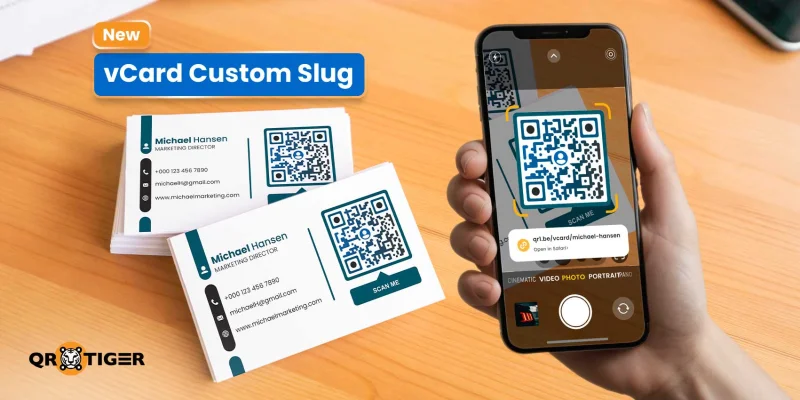
To add a vCard custom slug, log in to your account, select a template, add your contact details, click the Custom Slug toggle, enter your chosen slug, and generate your QR code.
QR TIGER’s vCard Enterprise users can now control how their vCard URLs read on business cards, email signatures, and every other sharing point.
Table of Contents
What is a vCard custom slug?
A custom slug for a vCard QR code is a personalized short URL of your digital business card. Instead of a random string of numbers and letters, you get a slug with your brand or name.
Example:
- Platform-generated vCard slug: qr1.be/ABC123
- Custom vCard slug: qr1.be/vcard/jane-doe
The vCard custom slug feature available in QR TIGER lets you rewrite this piece to reflect your name, brand, or job title. Nothing else about your QR code changes.
Note: The custom slug for digital business cards is only available to Enterprise users. It is not yet offered under our standard vCard QR code solution.
How to add a custom slug for vCard QR code in QR TIGER
Step 1: Log in to your Enterprise account
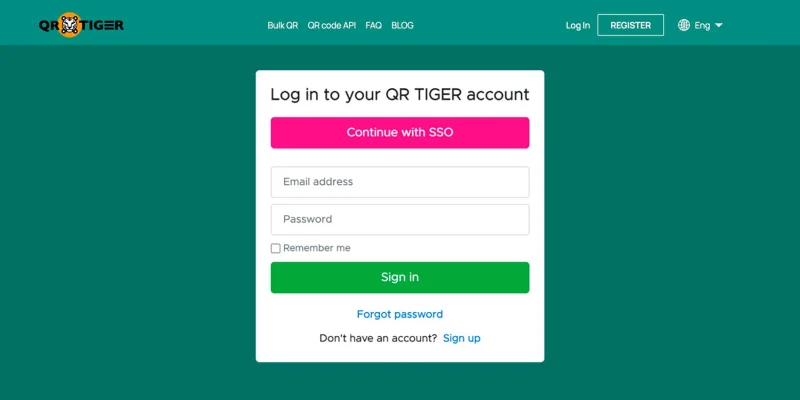
Log in to your QR TIGER vCard Enterprise account.
Step 2: Choose a vCard template
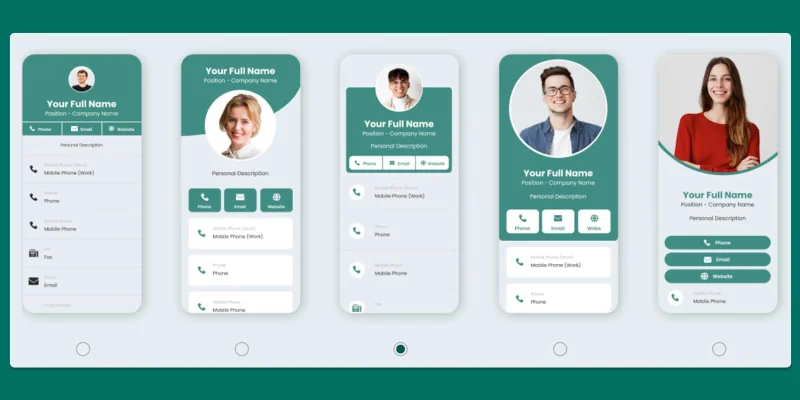
Pick one of the preset templates to serve as the foundation for your virtual business card.
Step 3: Complete your vCard details
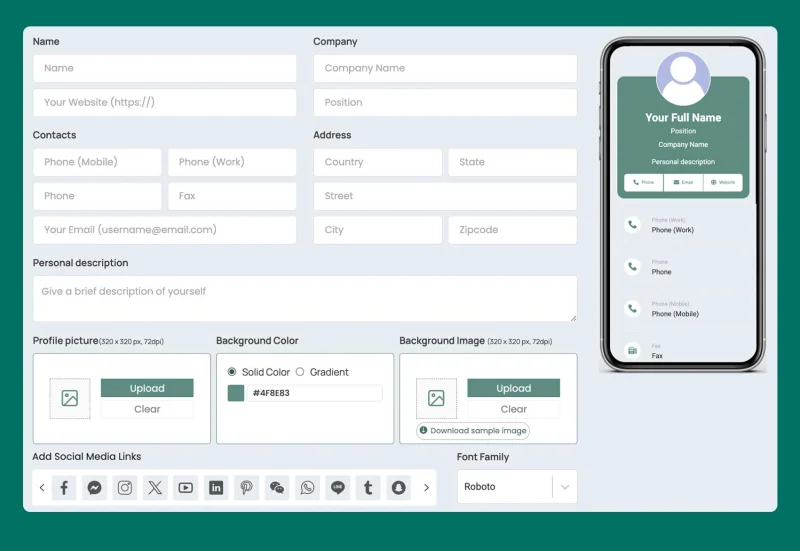
Fill in your name, organization, contact numbers, address, email, and personal description. Add your social links and profile photo, then pick a font family for your landing page.
Step 4: Add a custom URL slug and generate your QR code
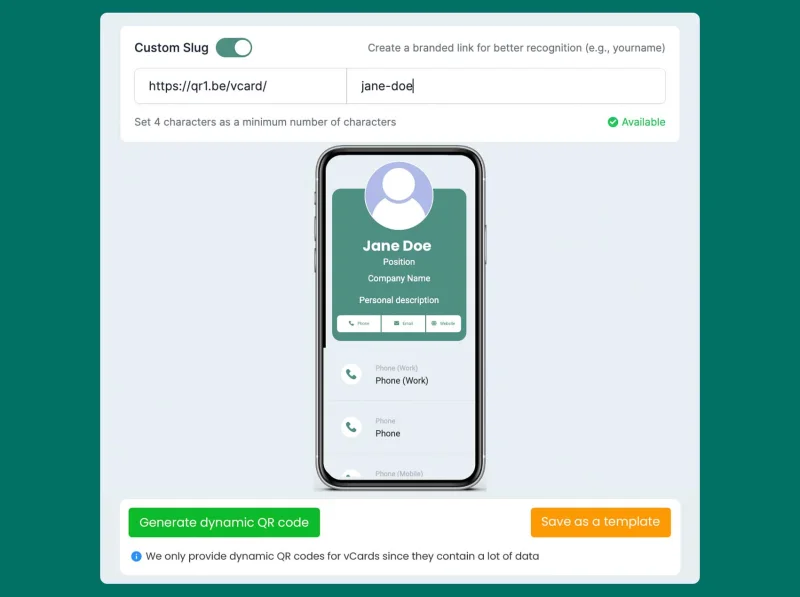
Click the “Custom Slug” toggle and type your chosen slug. The system checks its availability against existing slugs on the platform. If your first choice is taken, the tool prompts you to try another.
Click “Generate dynamic QR code” once your slug is confirmed.
Step 5: Customize and download your vCard QR code
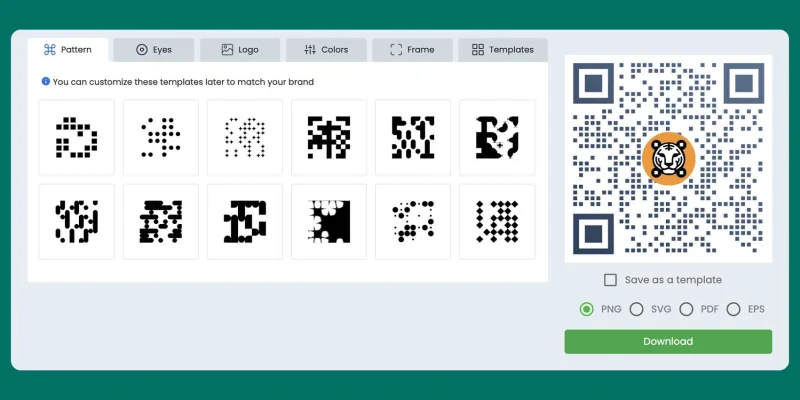
Customize your QR code to adjust pattern, eyes, colors, frame, and logo. Check the preview of your QR code.
Select an export format (PNG, SVG, PDF, or EPS) and hit “Download.”
Pro Tip: Choose SVG format if you’re printing at any size. Vector files scale cleanly from business cards to banners without compromising their quality.
How to update your vCard custom slug
Step 1: Open your vCard list
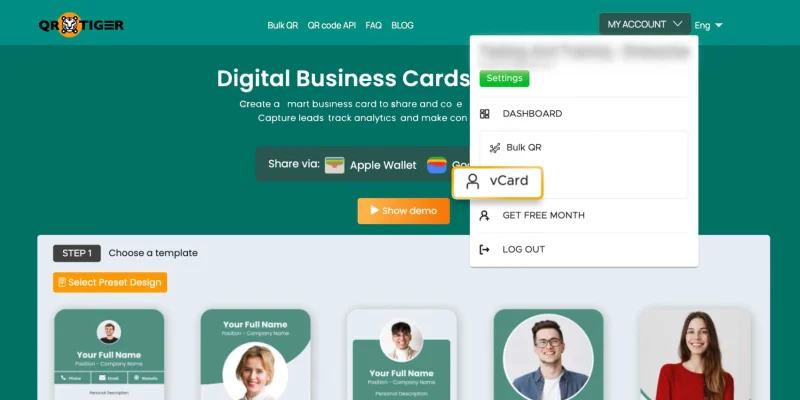
Click “MY ACCOUNT.” Under DASHBOARD, select “vCard.”
Step 2: Click “Share” on your vCard
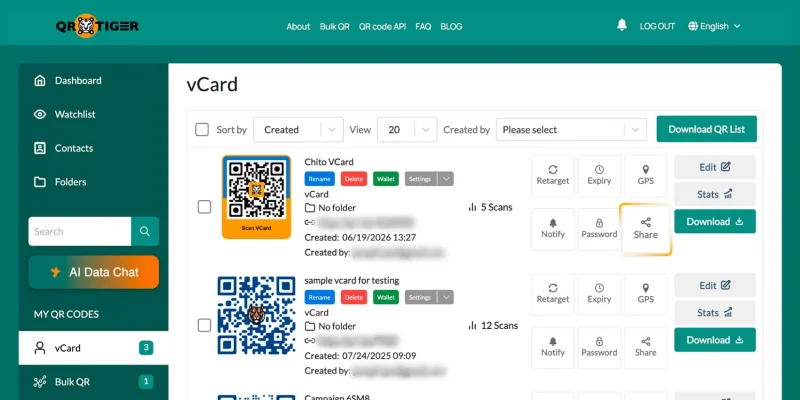
Find the vCard you want to update. Click the “Share” button. A share modal opens, showing your current Share Link and direct sharing options.
Step 3: Add Custom Slug and save
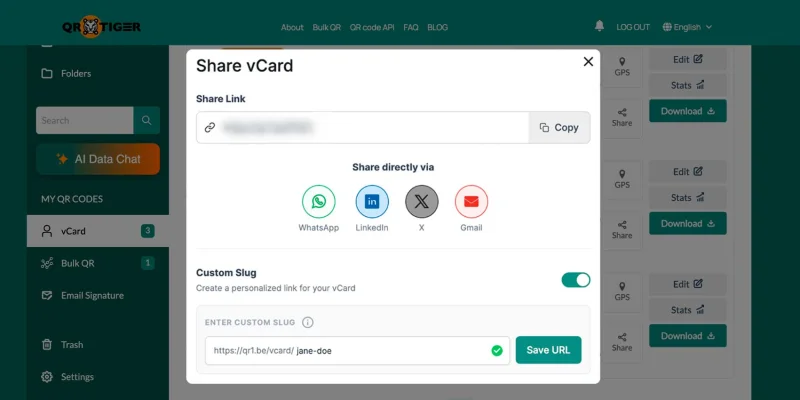
Flip on the “Custom Slug” toggle and enter your chosen slug into the field.
Click “Save URL.” The slug updates for both new scans and existing prints.
Best practices for creating your custom slug
The custom slug carries your identity across every card, scan, and share. A few rules keep your short URL clean, memorable, and future-proof.
Do this:
- Keep it short: Under 15 characters reads best on printed cards.
- Use your name or brand: Personal names, company names, or a mix work well.
- Add hyphens for readability: Hyphens work like spaces, especially when your name runs long. A slug like “jane-doe” separated by hyphens reads better than “janedoe.”
Avoid this:
- Numbers: Random digits (e.g., john123) look spammy and lose the advantage of professionalism and memorability.
- Hard-to-spell words: If people struggle spelling your slug during a phone conversation, the branding value drops.
- Personal info leaks: Don't pack sensitive details (like birthdays or parts of your address) into your slug.
Why custom slugs matter for your brand
A custom slug for vCard QR code matters because it builds user trust, improves click-through rates, and makes your vCard URL easier to manage.
Build user trust
Generic short URLs increasingly raise suspicions of phishing in professional inboxes.
When you drop your vCard URL into an email signature, LinkedIn message, or SMS follow-up, a branded link looks legitimate and trustworthy to click.
Improve click-through rates
Rebrandly reports that branded short links generated up to 39% more click-throughs than generic short URLs.
People trust what looks familiar, and familiarity translates to action. Your vCard URL earns more clicks when the link in front of the QR code carries your identity.
Maintain branding consistency
Companies rolling out digital business cards across sales or marketing teams benefit from having a branded short URL.
Every member has an on-brand vCard slug with their name, reinforcing brand consistency, legitimacy, and professionalism at every touchpoint.
Clarify attribution data
Different slugs for different contexts. Each variation acts as its own tracking anchor, letting you see where your vCard scans from without UTM parameters or separate campaigns.
For example, use a slug /jane-events for your booth signage, /jane-email for email signature, and /jane-linkedin for LinkedIn profile. Each route has its own contact info, but it shows its own scan count in your dashboard.
You can now sort your vCard list to see which channel earned the most traction at a glance.
Questions people ask about the vCard custom slug
What characters are allowed in a custom slug?
The custom slug can have letters, numbers, and hyphens. Skip other special characters, spaces, underscores, and symbols. Keep your slug under 15 characters for the cleanest results on printed cards.
Does using a custom slug affect QR scan speed?
No. The QR code encodes the same short URL structure whether the slug is random or branded. Scan speed depends on your QR code size, contrast, and printing quality, not the slug.
What happens if my chosen slug is already taken?
The system prompts you to pick another. Try variations: add a middle initial, add your company, or add your role.
Create branded vCard URLs with QR TIGER
The vCard custom slug feature lets you turn a short URL that people can recognize, type from memory, and share verbally without spelling out characters one by one.
For sales teams, recruiters, and executives whose business cards carry the brand, moving from a generic to a branded URL shifts the impression at every handoff.
For account setup, plan questions, or slug conflicts, reach out to the QR TIGER team at [email protected].
This article is for general informational purposes only and does not constitute legal, financial, or other professional advice. For questions about QR TIGER's products or services, please contact our support team at [email protected].
Frequently Asked Questions (FAQ)
What characters are allowed in a custom slug?
Does using a custom slug affect QR scan speed?
What happens if my chosen slug is already taken?
Was this article helpful?
Maximize Scans with the Best QR Code Generator
Join thousands of global brands using QR TIGER to manage dynamic routing, bulk creation, and deep attribution analytics.
Get Started For Free