
Snapseed QR Code: How to Create, Scan, and Apply the Presets

Producing stunning photo edits now got easier thanks to Snapseed QR codes. It’s a unique feature of the photo editing app that lets you share and apply custom edits on photos effortlessly.
Let’s jump right in to know how this amazing QR code feature works and how to create, share, and scan them.
Plus, discover curated Snapseed presets to add in your editing kit!
Table of Contents
- How does a Snapseed QR code preset work?
- How to save edits in Snapseed?
- How to create a QR code in Snapseed?
- How to scan a QR code for Snapseed presets
- Best Snapseed preset ideas
- What are the benefits of using a Snapseed QR code?
- Find more ways to collaborate using the best QR code generator online
- Frequently asked questions
How does a Snapseed QR code preset work?
Snapseed offers a whole host of tools, effects, and filters that can enhance images the same way professionals do.
Presets is one of the many features that make it a top photo editing app. These predetermined settings can instantly edit pictures when applied, making the editing process much faster.
What makes these presets great is that you can create your own styles, have them link to QR code images, and then share them with others.
With the app’s scanner, users can simply scan the Snapseed QR code while editing a photo. Once scanned, the app reads the preset and immediately applies the changes.
The app also lets you upload a QR code Snapseed preset, allowing you to simply search for presets on your phone.
How to save edits in Snapseed?

Saving your own edits is possible in Snapseed and is a great way to make your own style before sharing it with a QR code. To do so, perform the following steps:
- After making your edits, select the Export option on the lower right corner of the screen.
- In the submenu that opens up, choose between Save, Save a copy, or Export.
a. Save will store edits that can be changed after.
b. Save a copy will save a duplicate of the photo with changes you can undo
c. Export will save a copy of your edits that can’t be undone.
Reminder: Saving edits is only possible on the iOS version of the app. Android users can only save their edited photos but can’t edit them after the fact.
How to create a QR code in Snapseed?
With Snapseed, you can achieve the exact look you want for your photos and share your creativity with everyone else through a QR code. Simply follow the steps below:
- Open the Snapseed app and edit your photo.
- Press the menu icon in the top right corner (it should be beside the information icon).
- Click on QR Look.
- Choose Create QR Look to generate a QR code.
- Pick a color scheme for your QR code (Warm Sunset or Cool Urban).
- Give your QR code a name.
- Save the QR code as a JPEG image or share it directly with friends and other Snapseed users.
💡Did you know? While the QR code for Snapseed presets are in JPEG format, other QR code generators can save theirs as a QR code SVG file. The SVG image format allows you to resize your QR code considerably without affecting its quality.
How to scan a QR code for Snapseed presets
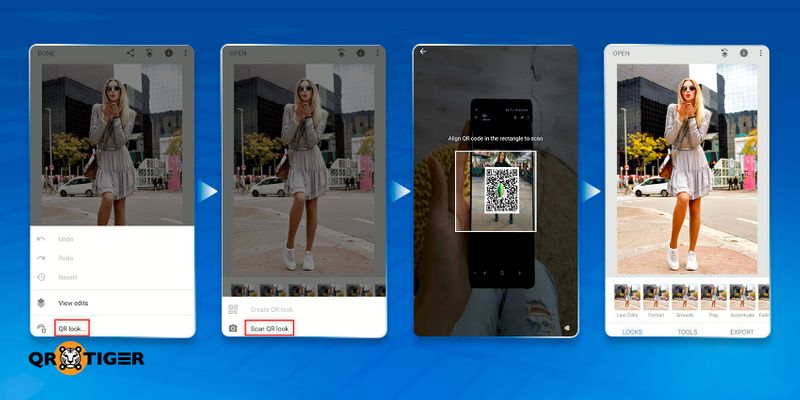
Scanning a QR code from Snapseed is easy. Simply follow the steps below:
1. Open a photo in the Snapseed app.
2. Tap the "Looks" icon, which looks like a filter icon with a slight arrow, at the top right of the screen.
3. Select the "QR look" option at the bottom, then choose "scan QR code".
4. Scan a QR code either by:
a. pointing your phone's camera at the displayed QR code, or
b. uploading a QR code image from your photo gallery.
5. Snapseed will automatically apply the editing style from the QR code.
Best Snapseed preset ideas
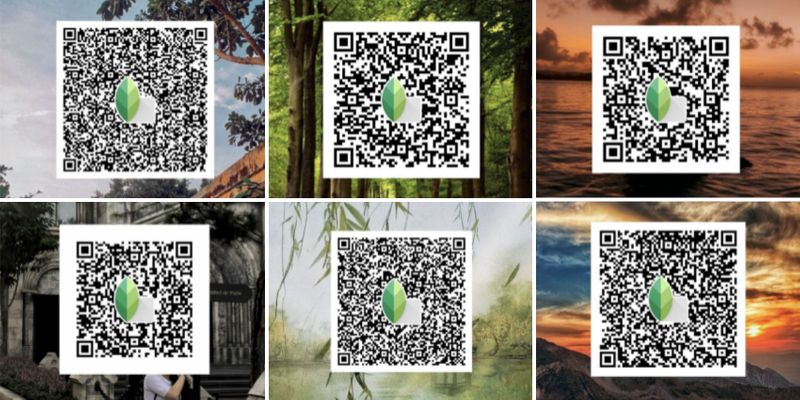
If you search for a QR code for snapseed presets, you would find over a thousand presets available on their website alone.
These are the most popular presets that you should add in your toolkit:
1. Black and White
A classic color scheme that is perfect for creating a bold and timeless photo, this preset drops colors to monochrome values while adjusting shadows and highlights for the perfect vintage look.
2. High Definition
These presets increase the brightness and sharpness of a picture, creating a high definition look that adds a professional look to edits.
They are great for users who want images with stunning visuals, many presets are available, even a Snapseed 8K QR code preset.
3. Aesthetic Look (Aesthetic Film)
If a more aesthetic look is desired, this preset is the one for you.
Aesthetic Look enhances the color saturation, shadows, and contrast of your photos, creating a dynamic and moody style that is perfect for portraits.
4. Vintage Effect (Vintage Film)
The opposite of a Snapseed QR code HD preset, the Vintage Effect creates a look similar to old analog films.
The preset adds film grain, retro color grading, and subtle fades to an image, evoking a sense of nostalgia for the perfect artistic touch.
5. Cinematic Film
Aesthetic and Vintage Film styles may not be what you’re looking for, but Cinematic Film might be.
This Snapseed preset adds a warm, grainy, and soft look to your photos, similar to the style of classic films.
6. Portrait Glow (Face Smooth Preset)
When editing photos of someone’s face, it can be difficult to smooth out imperfections without giving them a “plastic” look. Fortunately, the Face Smooth Snapseed QR code preset is available for use.
This preset uses skin smoothing tools to reduce blemishes and wrinkles to create a softer appearance while retaining the person’s natural look.
Furthermore, the preset uses Snapseed’s face detection technology to apply the changes to the person’s face without affecting the other elements of the photo.
7. Lightroom
The Lightroom preset is something for those who prefer the effects found in Adobe Lightroom.
With this Snapseed preset, colors will be greatly enhanced, while overall brightness is reduced to draw attention to the main subject of your photo.
8. Vibrant Effect
Snapseed QR code photo editing can also create a vibrant look with the Vibrant Effect preset.
This preset increases color saturation and sharpens details to create a bright and lively image.
9. Moody Vibes (Night View)
Lastly, the Moody Vibes preset adds a dramatic look to your photos by decreasing brightness and increasing contrast, making it perfect for shots in urban landscapes.
What are the benefits of using a Snapseed QR code?
So many Snapseed presets are available for use, all accessible through a free QR code.
Why should you use the Snapseed editing QR codes? Here are the reasons that are all advantageous to you:
It saves you a lot of time
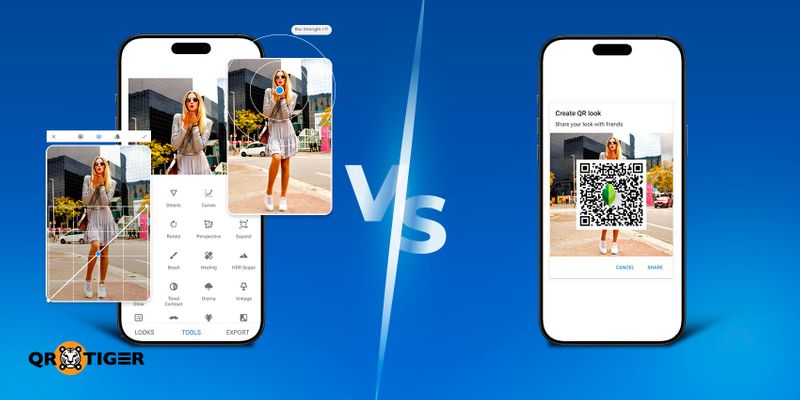
By scanning a Snapseed QR code background, you can instantly apply specific editing styles to your images. This can save you time, especially when you’re after a specific look.
Presets can also be applied numerous times, so editing an entire album can be done much faster.
Snapseed also allows you to make additional changes to your photo after applying a preset and save them. This means that creating your own style is much easier.
💡Did you know? Google added a new “Faves” feature in the iOS version of Snapseed, allowing users to save their specific tools for easier access.
It makes collaboration a smooth and easy process
QR codes from a reliable generator such as QR TIGER are effective at sharing information, so it stands to reason that collaborating with Snapseed’s QR codes makes teamwork much more streamlined.
The benefits of improved collaboration not only impact the workload of editing teams but also the quality of their output.
With a single QR code preset, photo edits can remain consistent across multiple images, ensuring consistency and authenticity.
It allows you to stay on brand
Speaking of consistency, a Snapseed QR code allows you to create a style that makes your brand stand out.
This style can then be applied to all of your photos, improving brand recognition through your work.
💡Did you know? Just like how Snapseed’s QR code style features its logo, QR codes you make through other generators can often be improved by adding your own logo. This helps your users recognize your brand when they see your QR code.
It preserves edit history
In addition to using presets, Snapseed also saves your edits, which means that you can come back to your work at any time without repeating all of your adjustments.
These edits can also be saved as your own presets, allowing you to apply them to future photos and share them with others.
It stores changes separately
Lastly, you have the option to save the edited photo as a separate image or as a non-destructive edit stack on the original and create a new QR code for it.
This is why it's a feature of one of the best photo editing apps that everyone should start using.
Find more ways to collaborate using the best QR code generator online
Snapseed is a powerful application for creating professional-grade edits on photos. Its use of QR codes to share editing styles with other users further helps create an environment of creativity and collaboration across the web.
The genius addition of the Snapseed QR code feature is but one example of how QR codes can transfer information to other users, something that can help finish projects smoothly.
You can also create your very own QR codes using a dynamic QR code software. With QR TIGER QR Code Generator, you can choose from over 21 QR code solutions, each with its own applications and use cases.
Sign up for free today and generate up to three custom dynamic QR codes for your projects!
Frequently asked questions
Are Snapseed QR codes free to use?
Yes. The free app doesn’t charge you for using its key features, such as the preset QR codes. This makes editing your photos, having Snapseed scan QR code presets on your screen, and collaborating with others possible without draining your wallet.
Is Snapseed a good photo-editing app?
Absolutely. Snapseed is ad-free and can be used with no charge. Despite this, it offers a ton of editing options, filters, and tools, making it an effective app for professionals and casual users alike.