

Advanced QR generator for Google Forms
Create a QR code for Google Forms to streamline sharing. Make your survey, quizzes, registration, attendance, medical, and check-in forms accessible with a scan
What is a Google Forms QR code?
A quick response code for forms lets you share your online form with a wider audience. This is ideal for use in events, conferences, and printed materials. The possibilities are endless—you can link the QR to a survey, customer feedback, application form, registration, quizzes, and more. No need to manually share or type the URL.

Target who’s likely to send a response
Make your online forms instantly accessible and collect more responses. Our QR allows your target respondents to access your forms and respond on mobile devices.

Google Forms + QR TIGER
Digital forms and QR codes are the ultimate duo you need to collect responses from online or offline audiences.
Why use a QR code for Google Forms
Instantly share your online forms using the best QR code generator

Free Google Forms QR code
Download, customize, and edit your QR without spending a single dime
Built with advanced features
Dynamic means your QR comes with advanced built-in tracking, retargeting, and analytics tools to let you create future-proof campaigns.
One QR code for different forms
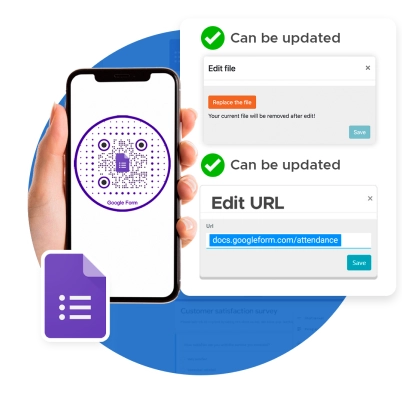
Edit the link on your code any time. No need to create another QR for new campaigns or forms.
View scan activity in real-time
Our built-in tracking feature lets you see the scan performance of each QR. This lets you refine your setup and placements.
Why top brands choose QR TIGER
What makes us your best option for phygital solutions
Branded QR codes for Google Forms
Customize your QR with your brand scheme and logo. This increases your scan rate by 40 percent
Complete QR code provider
Our robust software offers more than 20 specific solutions that address all your business needs. Get access to a wide range of advanced applications and features in one QR code platform.
Detailed analytics
Track your QR engagement in real-time. See the count, dates and times, locations, and devices used to scan.
Works with tools you love
Connect your QR TIGER dashboard with platforms like Zapier, Canva, Hubspot, Monday.com, and more.
Trusted support system
Our customer success team is online 24/7 to respond to your queries and make sure things work on your end.
Proven scannability
Reach maximum output without interruption with our platform’s rapid auto-scaling server clusters and 99.9% service uptime.
Frequently asked questions
What is a Google Forms QR code?
Can I get a QR code for a Google Form?
Yes, you can make your own form QR online. Use QR TIGER to generate a unique code for your digital forms.
How do I make a quick response code for a Google Form?
Can I create a QR code for Google Form for free?
Yes. Use the best free QR code generator to create a form QR code for free. When generating your code, choose Static QR.
What is a Google Forms QR code generator?
How does a Google Form QR work?
Why do you need a quick response code for Google Forms?
Share online forms with no hassle. Reduce manual errors, update forms whenever you want, track engagement in real-time, and collect responses from your target respondents in just a quick scan.
How do I use a Google Forms QR?
What can I store in a Google Forms QR?
This solution can store Google Form links. Dynamic ones can store different links at a time by replacing the stored link with a new one.
Can I edit the stored link in a Google Forms QR?
Can I add a logo to my QR code Google Forms?
How do I add a logo to my Google Forms QR?
Can I customize my QR code’s design?
Can I edit a QR design?
Is the Google Forms QR solution trackable?
How do I track my Google Forms QR?
To track your Google Forms QR, simply go to your account dashboard. Select the QR you want to track and click Stats to see the analytics. Here, you can see how your specific QR campaign performs based on the scan activity.
Download the QR TIGER App



'QR Code' is a trademark of DENSO WAVE INCORPORATED. © 2026 www.qrcode-tiger.com