
25 Reasons Your QR Code is Not Working and How to Fix Them
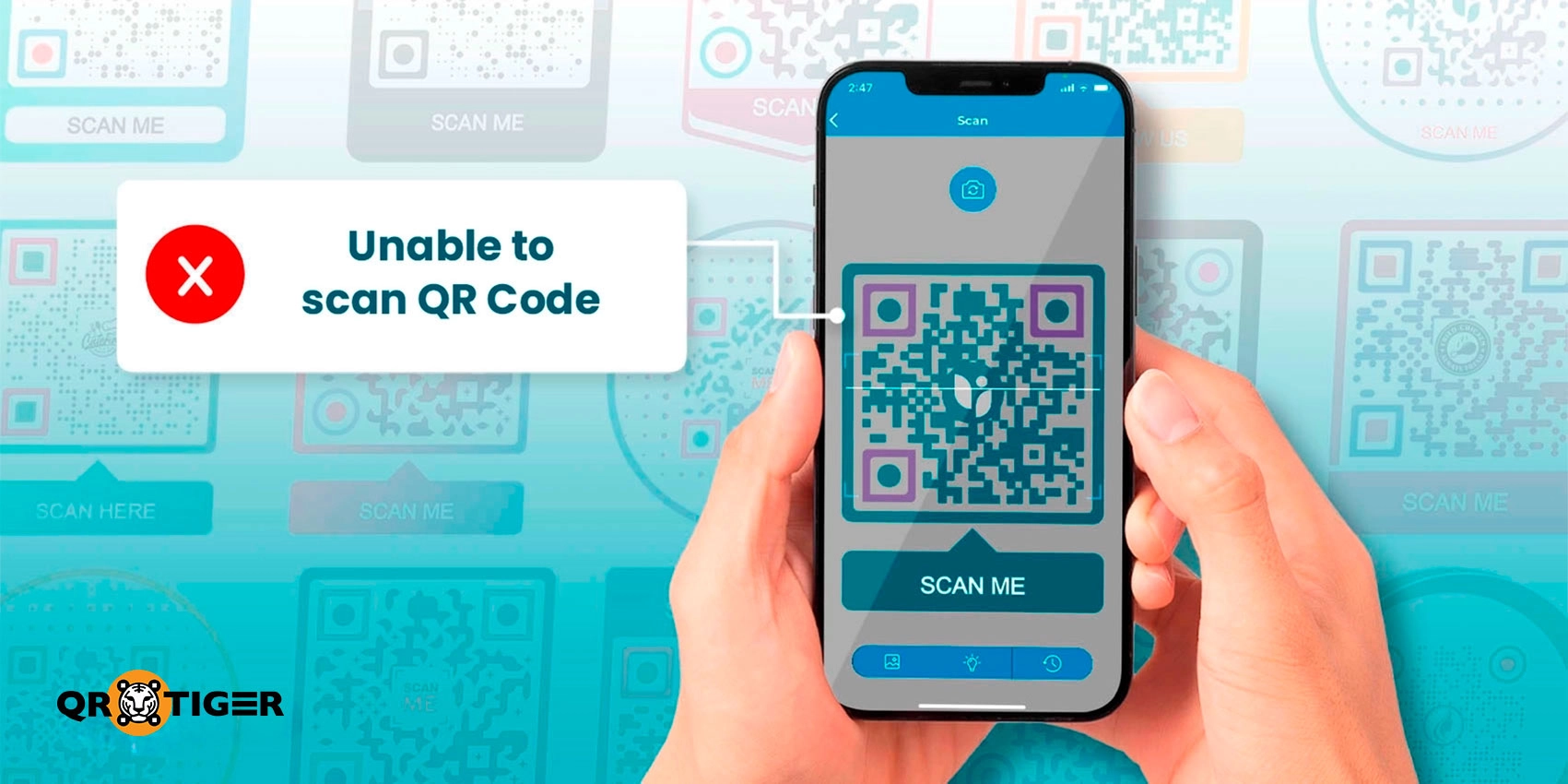
QR code not working? Here's why:
1. Inverted colors make scanning difficult
2. Weak contrast slows or blocks scanning
4. Pixelated QR codes from too much data
9. The page behind the code no longer exists
10. Too much design customization
11. Scanning too close or too far
12. The campaign was turned off or disabled
13. Scan limits have been reached
14. The phone cannot scan QR codes
18. Physically damaged QR code
19. Cluttered background or nearby elements
21. Page is not mobile-friendly
25. Camera hardware or app problems
A QR code may not scan because of poor lighting, a dirty camera lens, low or distorted image quality, damaged printing, incorrect scanning distance, disabled QR scanning in your phone settings, or an invalid or expired destination link/page. Most scanning issues can be fixed in seconds by adjusting your camera or checking the QR code's condition.
Quick troubleshooting guide to fix your QR code that's not working
If your phone won't scan a QR code, try these steps:
- Clean your camera lens to remove fingerprints or dust.
- Hold your phone 6 to 12 inches (15 to 30 cm) away from the code and keep it steady for a few seconds.
- Move to a well-lit area and avoid glare or shadows on the code.
- Check the QR code's quality. Make sure it isn't blurry, folders, scratched, or partially covered.
- Enable QR code scanning in your phone settings
- iPhone: Go to Settings > Camera > turn on Scan QR codes
- Android: Open Camera Settings > enable Scan QR codes or QR code reader (this option may vary by device).
- Try Google Lens if your default camera app cannot detect the code.
- Check your internet connection if the QR code scans, but the webpage or content does not load.
If the QR code is displayed on your phone screen
When showing a digital QR code, such as a boarding pass, event ticket, or payment code, scanners may struggle to read it if your screen settings reduce contrast.
To fix this:
- Turn Dark Mode off
- Disable Night Light, Eye Comfort, or similar blue light filters
- Increase your screen brightness to maximum before presenting the code.
Here’s a complete list of the most common reasons QR codes don’t work and how you can fix each one.
Why your QR code is not working and how to fix it
QR codes usually fail for small, fixable reasons. A design choice, a broken link, poor placement, or a low-quality file can stop a code from scanning. The good news is that most of these issues are easy to spot and fix once you know what to look for.
Here is a clear guide to the most common scanning problems and how to solve them:
1. Inverted colors make scanning difficult
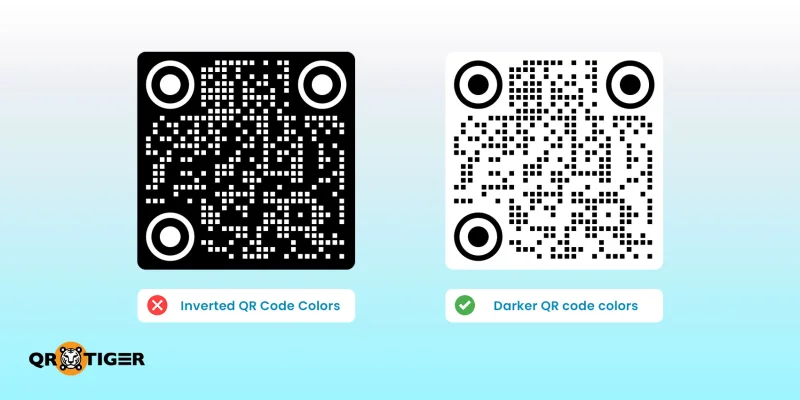
The number one rule in customizing your QR code’s colors: AVOID inverted colors.
QR code scanners are built to read dark patterns on a light background. So if the colors are reversed, the camera struggles to detect the code.
How to fix it:
Use a dark color for the code or pattern and use a light color for the background. If the design is already crafted, update the colors using the Edit QR design feature. If the code is static, you’ll need to create a new one using the right color combination.
2. Weak contrast slows or blocks scanning
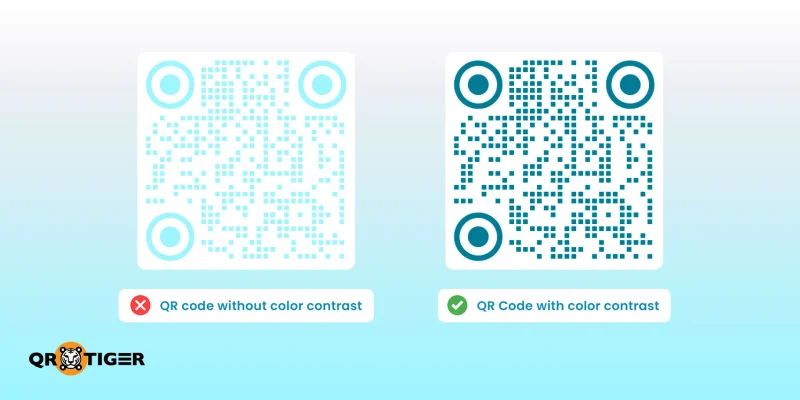
Light shades like yellow, pastel, or soft gray can easily blend into the background. This makes the pattern harder to read.
You can still be creative with your QR code by using brand colors and design variations. Just make sure the contrast stays strong. If the code does not stand out clearly from the background, scanners will struggle to read it quickly.
How to fix it:
Choose a strong contrast. A dark code on a white ot light surface always works best. You can add a logo or color accents, but clarity should always come first.
📌 Here’s your guide: Colored QR Codes: How to Color Them Correctly
3. Blurry QR code images
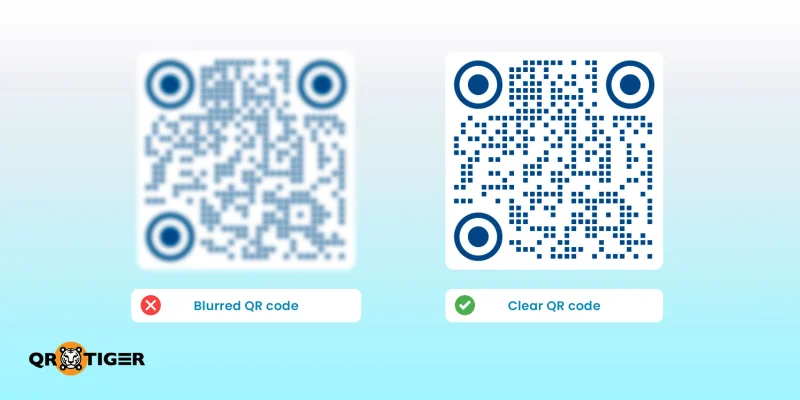
When the image is not sharp, the pattern loses its details. Scanners may fail or take longer to read it.
Blurry QR codes can be hard to scan. They may cause errors and scanning issues. This is one of the major reasons why your QR code is not working.
Using photo editing apps may not suffice if the QR code is too blurry. To make a high-quality QR code image, we recommend using a dynamic QR code maker that lets you save your QR codes in high resolution.
How to fix it:
Download your QR code in high quality. Use image file formats that keep the image clear and sharp. Avoid screenshots or compressed copies, as they often reduce image clarity.
- PNG works well for digital use
- SVG is ideal for resizing without losing quality
- EPS is suitable for professional printing and large formats
- PDF is a safe choice for sharing and a print-ready layout
📌 This may also help: Blurred QR Code Pro Tips
4. Pixelated QR codes from too much data
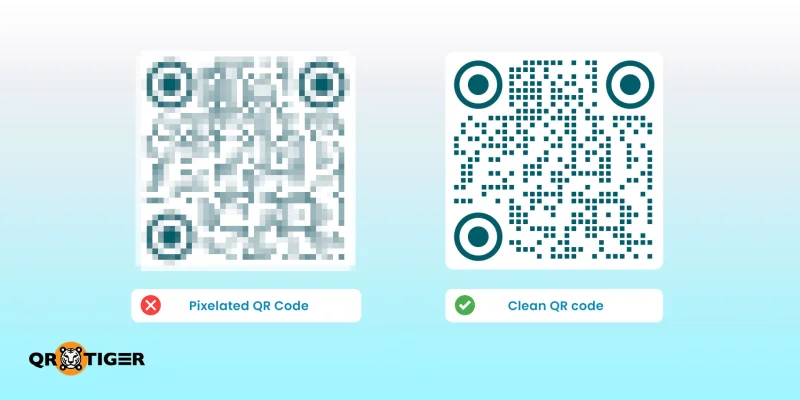
Static QR codes store all the data in the pattern. When there is too much information, the dots or code become crowded and harder to scan.
How to fix it:
Use a dynamic QR code when you need to share more content or embed more information. It stores a short link instead of the full data, which keeps the pattern clean and easier to read.
5. The QR code is too small
Size matters, especially when people scan from a distance. A code that is too small can be hard to capture.
The size of the QR codes will depend on where you place them. It varies depending on your advertising environment and medium.
It is advisable to display or print small codes on construction equipment, business cards, hardware chips, and small product packaging, with a minimum size of 0.8×0.8 inch (2×2 cm).
Of course, when you print them on billboards, say, 20 meters (65 feet) from where a passerby would be scanning, they would probably need to be about 2 meters (6.5 feet) across.
How to fix it:
Match the QR code size to where it will be placed. For business cards or packaging, at least 2 x 2 cm (minimum) is a safe size. For posters or billboards, the code should be much larger. When in doubt, print a bigger version and test in the actual environment.
6. Poor QR code placement
Even a perfect QR code will fail if people don’t see it. And they can’t serve their purpose if they go unnoticed.
How to fix it:
Place it where it’s easy to notice. Eye-level works well. Add a clear call to action so people know what they’ll get when they scan your code.
📌 Here’s your guide: Best QR Code Placements To Boost Scans And Engagement
7. Wrong or broken link
A broken link even from a small typo or a deleted page, stops the code from working. This may lead scanners to the wrong or nonexistent page.
How to fix it:
Check the link before you deploy or share your QR code. Scan the code more than once using different devices to make sure it opens the right page.
8. Expired or inactive codes
Some platforms limit scans or disable codes after a set time. Dynamic codes can also stop working if a subscription ends.
How to fix it:
Keep your plan active as the code is still in use. Choose a reliable QR code generator that supports long-term campaigns.
📌 This can help: Do QR Codes Expire? The Answer— Yes and No
9. The page behind the code no longer exists
If the page the QR code links to no longer exists, it directs you to a 404 error page, making the QR code invalid and must be deleted by the user.
How to fix it:
Use dynamic QR codes so you can update the link behind the code without printing a new code.
10. Too much design customization
Branding helps, but overdesigning can damage the pattern. If the structure changes too much or looks overwhelming, scanners may not easily recognize it.
Customize just enough to give them an identity. Overdoing it results in an invalid QR code, undetectable by QR code readers.
How to fix it:
Less is more with QR codes. Keep the QR code style or design simple. Add a color, a logo, or a frame, but do not change the core pattern. Make sure the added elements do to overlap with each other to keep the code or pattern clear for any scanner.
11. Scanning too close or too far
Distance affects scanning. Standing too close or too far can prevent the camera from focusing or detecting the code.
How to fix it:
Adjust your distance until the code fits clearly inside the camera view. Ensure a steady focus so that it can easily detect the pattern.
12. The campaign was turned off or disabled
Some QR codes are set to stop working after a set date or event. The QR code may only be accessible for a specific period of time.
This is possible with dynamic QR codes. The expiry feature may be enabled, that’s why scanners can’t access it.
For example, if you employ the Scarcity Principle in your QR code seasonal marketing campaign, say for Christmas, the creator can set it to deactivate automatically at a particular time or date.
Of course, if you scan one in February when the campaign has already ended, you'll be redirected to an alternate landing page with a message indicating the deactivation.
How to fix it:
If you run the campaign and have access to the QR code, check your campaign settings. Turn it back on or redirect users to a new page.
If you’re using dynamic QR codes and your previous campaign has ended, you may use the same QR code again for another campaign. Simply edit the content and the design.
13. Scan limits have been reached
Some dynamic QR codes stop working after a certain number of scans.
Some plans can come with a set scan limit. So, even if your dynamic QR code subscription is still active, the code can stop working once it reaches the allowed number of scans.
How to fix it:
Use a QR code generator with unlimited scans or upgrade your current plan to support unlimited scans if the code is part of an ongoing campaign.
14. The phone cannot scan QR codes
Other devices may not have built-in scanning support.
When QR codes work fine when others scan them and you can't, it might be because of the device you're using to scan them.
How to fix it:
Use a trusted QR scanner app if the camera doesn’t support the feature or recognize the code. You can always download a highly rated and trusted third-party QR code scanner app for free on any application store.
15. A dirty camera lens
Fingerprints or dust can blur your camera lens’ vision. A blurred image can stop the camera from reading the code properly.
How to fix it:
Always clean the lens gently with a soft cloth or a microfiber cloth before scanning any QR code.
16. Poor lighting conditions
Sometimes the issue is as simple as lighting. If the QR code sits in a dark place, the camera may struggle to pick up the pattern.
How to fix it:
Move the code to a brighter spot or add more light when scanning it. A well-lit space makes it much easier for phones to scan quickly.
17. Glare or reflections
Shiny surfaces, glass, or direct sunlight can create glares that cover parts of the code. When that happens, the camera cannot read it clearly.
How to fix it:
Avoid printing on glossy materials when possible. Place the code where light will not reflect straight into it. Matte finishes usually work better.
18. Physically damaged QR code
Printed codes can wear down over time. Scratches, folds, fading, or water damage can remove parts of the pattern and affect scanning.
How to fix it:
If the code already looks worn, replacing it with a clean copy is the safest step. When creating a new one, make sure to choose a higher QR code error correction level. This adds a layer of protection by allowing the code to stay readable even if a small part gets damaged, covered, or dirty. It helps the QR code keep working in real-world conditions where prints don’t always stay perfect.
19. Cluttered background or nearby elements
When a QR code sits on a busy background or too close to text, graphics, or icons, the camera may have trouble finding its edges.
How to fix it:
Give the code some space. Keep a clear white area around it and avoid placing it on top of detailed designs.
20. Website is down
There are times when the code works fine, but the website it links to is offline. In that case, the page simply will not load.
How to fix it:
Check that the website is live. If it is down, bring it back up or update the link to a working page.
21. Page is not mobile-friendly
Most people scan QR codes using their phone. So if the page doesn't load well on your mobile device, the experience can feel broken.
How to fix it:
Make sure the page opens smoothly on a phone. It should load fast, be easy to read, and fit the screen properly.
22. Redirect errors
Some QR codes go through a redirect before reaching the final page. If that redirect page is set up wrong, users may land on the wrong page or nowhere at all.
How to fix it:
Test the full link path. Make sure every step leads to the correct and active page.
23. QR code generator issues
Not all QR code tools are built the same. A low-quality or low-performing generator can create codes that do not scan well.
How to fix it:
Use a reliable QR code tool to create your codes. Look for one with real, good reviews from verified users. Always test them on different phones before and after printing or sharing.
24. User scanning error
At times, the problem is not the code. People may move their phone too fast, hold it at a bad angle, or not give the camera enough time to focus.
How to fix it:
Add a short note or text near the code so people know what to do. A simple prompt can remind them to hold their phone steady and center the code.
25. Camera hardware or app problems
Some phones have trouble scanning because of outdated software, camera issues, or missing features.
How to fix it:
Try another device or use a trusted QR scanner app. Updating the phone’s software can also make a difference.
QR code pro-tips for smooth QR code scan
A QR code should work the moment someone points a camera at it. When it doesn’t, people lose interest fast. A few simple habits (or practices) can prevent most scan issues and help you get the results you expect from your campaigns.
Save these practical tips so your QR codes work seamlessly every time:
Apply the best QR code design practices
Design plays a big role in scan performance. A code may look good, but still fail if the basics are ignored.
- Use strong contrast. Dark code on a light background is always a safe choice.
- Avoid a busy background and too many elements that overlap the pattern
- Keep the white space around the code. This space helps scanners detect it quickly
Clean, simple designs always scan better.
💡Here's your detailed guide: 15 QR Code Best Practices: Essential Tips to Get More Scans
Update your QR code design when needed
Sometimes the issue is not the content but the way the code looks. If the colors, logo, or layout make scanning harder, a quick design adjustment can fix it.
With the option to edit your QR code design even after creation, you can change the look of an existing QR code without changing the link behind it. This helps when:
- The contrast is too low after printing
- The logo is too large and covers the code patterns
- The colors do not appear clearly on the materials you’re using
- A small change can improve scan success right away.
Always test before you share or print
Testing is one step many teams rush through, yet it is the easiest way to catch problems early. So before you launch that code:
- Scan the code using both Android and iOS devices
- Try different camera apps and QR scanner apps
- Test in bright light and in low light
- Make sure the link opens quickly and leads to the right page
If it works well across devices, you can move forward with more confidence.
Make sure the size and placement are right
Even a well-designed code can fail if it is too small or placed in a poor spot. So next time you create one:
- Use a size that is easy to scan from a normal distance
- Avoid placing codes on curved or uneven surfaces
- Keep them away from edges where parts may be cut off
Clear placement makes a big difference in how often people scan.
Use a high-quality image for printing
Low-quality images often blur when printed, which makes the pattern harder to scan. Before printing, make sure you:
- Export the code in high resolution
- Do not stretch or distort the image
- Print a simple first before mass production
This step alone can prevent many common scan issues.
Keep the common causes of failure in mind
Most QR code problems come from a few repeat issues. Poor contrast, small size, broken links, and frequent design changes are among the most common. When you stay aware of these, you can avoid them early and save time later.
A quick test, a clean design, and careful placement go a long way. When these basics are in place, your QR codes are far more likely to work the first time someone tries to scan them.

Frequently asked questions
Why is my QR code not scanning at all?
Most scanning failures come from poor image quality, low contrast, or a size that is too small for a camera to read. Blurry images, bad lighting, or heavy designs can also make the pattern hard to detect. You can test the code on different devices to confirm if the issue is the image itself.
Why won’t my phone scan a QR code even though others can?
This is often a device issue rather than a code issue. Older phone, outdated software, or disabled camera settings can prevent proper scanning. Double-check if the QR scanning feature on your camera is turned on. If others can scan it easily, the code is likely fine and the problem is with the phone.
Can QR codes still be scanned if they’re damaged?
Yes, QR codes can still work even if part of them is scratched or faded because they have built-in error correction. Small damage is usually safe, but heavy damage can break the pattern and stop it from working. Once too much data is lost, scanners may struggle to read the code.
Can a broken QR code be fixed after it’s printed?
If the printed image is heavily damaged or poorly produced, it cannot be repaired and will need to be reprinted. If the issue is the link and your QR code is dynamic, just update the destination link without changing the printed code. Static QR codes cannot be edited once created.
Why does the QR code scan but nothing happens?
This usually means the QR code is working, but the link behind it is not. The page may be down, removed, or entered the URL incorrectly during setup. Check the URL directly in a browser to confirm it still loads.
Why did my dynamic QR code stop working suddenly?
Dynamic codes rely on an active account or subscription to keep working. They can stop if a trial ends, a plan expires, or the code is turned off in the dashboard. In some cases, the linked content may have been removed or changed.
Why does my QR code not work after printing?
Printing can affect how the code looks and performs. Low resolution, faded print, weak contrast, resizing, stretching, or placing it on uneven surfaces can make it hard to scan. Always print a sample first, then scan it before printing them in bulk.
Does internet connection affect QR code scanning?
A phone can scan the code without internet, but it needs a connection to open the link. Without data or signal, the scan may work, but the page will not load. This often makes the code seem broken when it is not. Try to connect to a stable network and try scanning it again.
Can I fix a QR code that stopped working?
If your QR code is dynamic, you can update the link or content and restore access without changing the printed material. But if you’re using static QR codes and the link is wrong or no longer active, the only fix is to create and print a new code.