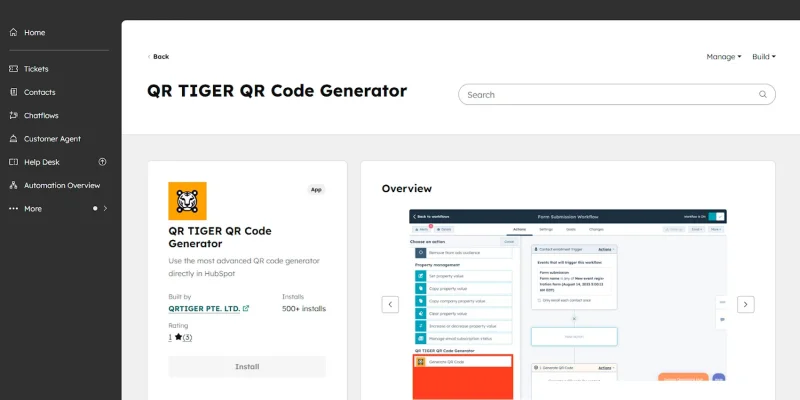
Create QR codes via HubSpot workflows rather than manually in the contact panel.
- Open HubSpot, then go to Settings > Data Management > Properties.
- Select “Create property” and add your “Property label”.
- Choose a “Field type”.
Step 2: Create a trigger
- Go to Automation > Workflows.
- Click “Create workflow” and rename your workflow.
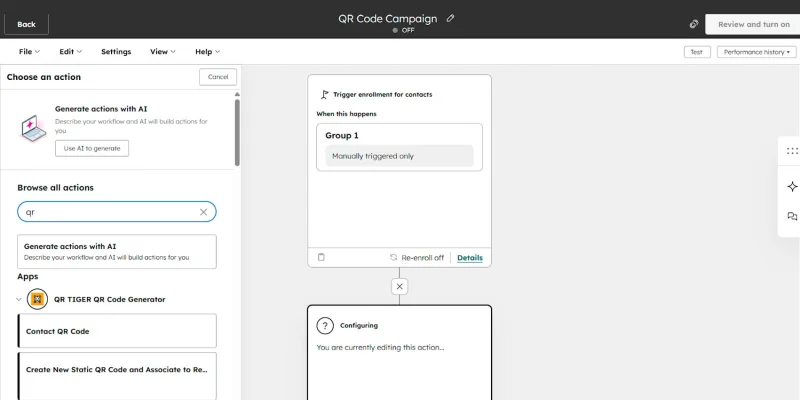
- Select enrollment trigger to “Manually triggered only” for easy setup.
- Choose “Contact or Company” workflow.
- Select the trigger again, then click “Settings” and turn on “Re-enroll”.
- Click “Save and continue”.
Step 3: Add action
1. Click the plus (+) icon under the trigger.
2. Select one action under the “QR TIGER QR Code Generator” app:
a. Create New Static QR Code and Associate to Record
b. Contact QR Code or vCard QR Code
3. Save the action.
Step 4: Add another action
1. Click the plus icon again.
2. Under CRM, select “Edit record”.
3. Set the property:
Example:
Property = QR Code Image URL
Value = QR Image
4. Save the action.
5. Add another “Edit record” action.
6. Set the second property:
Example:
Property = QR Code vCard URL
Value = Short URL
7. Save the action.
8. Click “Review and turn on”.
Step 5: Generating the QR code through the integration
- After turning on the workflow, click “Enroll”.
- Select “Choose individual contacts”.
- Choose the contacts to enroll.
After enrollment, QR TIGER action generates the QR code and saves the QR image URL and short URL to the contact properties.
Step 6: Access the QR code in HubSpot
To view and download:
- Go to the workflow.
- Click “View”, then “Action logs”.
- Select the enrolled contacts.
- Open “Action outputs”.
You will see now the QR image URL and short URL. Use these links to download and share the QR code.
Ways businesses use QR codes with HubSpot
Although the integration only generates static URL QR code and vCard QR codes, these two formats support many marketing scenarios. The destination URL determines the campaign use.
Lead capture
A URL QR code leads to a HubSpot form page. When users scan the QR code and submit the form, HubSpot records the contact. Workflows then trigger follow-up emails or deal creation.
💡Here’s your guide: How to Set Up HubSpot QR Code Lead Capture Step by Step

Campaign landing pages
Businesses place these QR codes on flyers, packaging, or booths. The scan moves offline audiences into HubSpot tracked pages.
Event registration
Companies place QR codes on posters, tickets, or invitations. The scan leads to a HubSpot event registration page. Once the form submission occurs, HubSpot logs the contact and triggers confirmation with embedded forms.
Product pages
Retail brands attach QR codes on product packaging or shelf displays. The scan sends users to a product page or product collection page. HubSpot tracks the user once they submit forms or interact with the embedded forms.
Customer support access
A QR code leads customers to a help center, support form, or contact page. This reduces friction in customer service access.
Customer feedback collection
A QR code directs to a HubSpot form after purchase or service interaction. Businesses place the QR code on receipts, packaging, or product manuals.
When users scan the code, the page opens a feedback form where they submit reviews, ratings, or suggestions. HubSpot records the response and stores the data in the contact timeline.
When a workflow creates a new sales contact record, the integration generates a vCard QR code. The code shares the sales representative’s contact details instantly. Prospects scan the code and save the contact information.
Business networking
Companies generate vCard QR codes for account managers or support teams. When shared during events and meetings, the scan stores the contact details directly in the user’s phone.
Best practices when using QR codes for HubSpot
1. Define your purpose
Identify your goal in using a QR code. When you have a clearer and more concrete reason, you are more likely to lead your contacts on the right path.
2. Use the best QR code generator
To create high-quality custom QR codes, you will need a reliable yet user-friendly QR code maker—QR TIGER.
It offers many QR code solutions and wide customization features. It is also ISO-2700 certified and GDPR-compliant.
Upscale your marketing and sales with HubSpot and QR codes
HubSpot has helped many businesses across industries for 18 years, yet it remains relevant and popular by continually improving its services.
A testament to this is its adoption of the on-the-rise QR code technology to make its user experience even more convenient.
With the HubSpot QR code integration, you can maximize your marketing efforts and increase sales by creating QR codes directly in the app.
It saves you time and effort and helps you focus on various tasks on a single website.
And not only is it convenient for you, but it’s also an advantage for all your contacts, who can now avail of your services with just a scan.
Don’t get left behind, and jumpstart your QR journey today. Go to the best QR code generator and sign up for an account. You may contact 24/7 customer service for more inquiries.
Frequently asked questions
Can HubSpot generate QR codes on its own?
No. HubSpot does not have a built-in QR code generator. You need to integrate a third-party tool or app to automate QR code generation inside workflows.
What types of QR codes can you create with HubSpot integration?
You can generate static URL QR codes and vCard QR codes. These link to landing pages, forms, or contact details stored in HubSpot.
How do QR codes work with HubSpot workflows?
A workflow trigger such as a new contact starts the process. The integration then generates a QR code and saves it to the contact record. This automates lead capture and follow-up actions.