
How to Trigger HubSpot Workflows from QR Code Scans

Instead of treating QR code scans as passive clicks, you can turn them into actionable triggers that move prospects through your funnel automatically using HubSpot QR code workflow integration.
In this guide, we’ll teach you how to trigger HubSpot workflows from QR code scans, so you can transform every interaction into fully automated, measurable marketing experiences that work even while you sleep.
Table of Contents
- Set up HubSpot QR code workflow integration
- How to create trigger-based workflows in HubSpot with QR codes?
- Step 1: Create a HubSpot form for your QR campaign
- Step 2: Choose the destination URL for your QR code
- Step 3: Create a custom contact property
- Step 4: Generate the QR code
- Step 5: Create a contact-based workflow
- Step 6: Set the correct enrollment triggers
- Step 7: Build the automation actions
- Step 8: Enable re-enrollment (Optional)
- Step 9: Test the workflow
- Step 10: Review and turn on the workflow
- Segmenting contacts based on QR campaign data
- Sending automated follow-ups after scan form submissions
- Alerting sales teams inside HubSpot
- Creating conditional paths based on the scan source
- Turn QR code scans into action with HubSpot workflows
- FAQ
Set up HubSpot QR code workflow integration
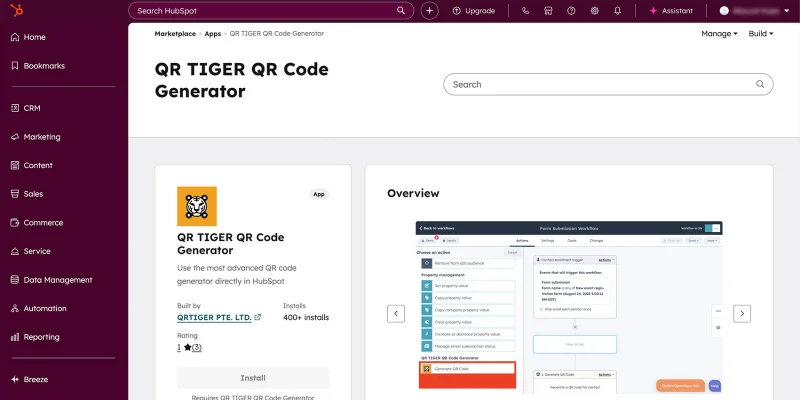
This setup works through QR TIGER’s HubSpot integration.
1. Log in to HubSpot.
2. Open the Marketplace and search for QR TIGER HubSpot QR code generator.
3. Select the app and click Install.
4. In a new tab, log in to your QR TIGER account.
5. Go to My Account > Settings > Plan and copy your API key.
6. Return to HubSpot and paste the API key.
7. Click “Connect app”.
8. When you see the confirmation message, the integration is complete.
How to create trigger-based workflows in HubSpot with QR codes?
Step 1: Create a HubSpot form for your QR campaign
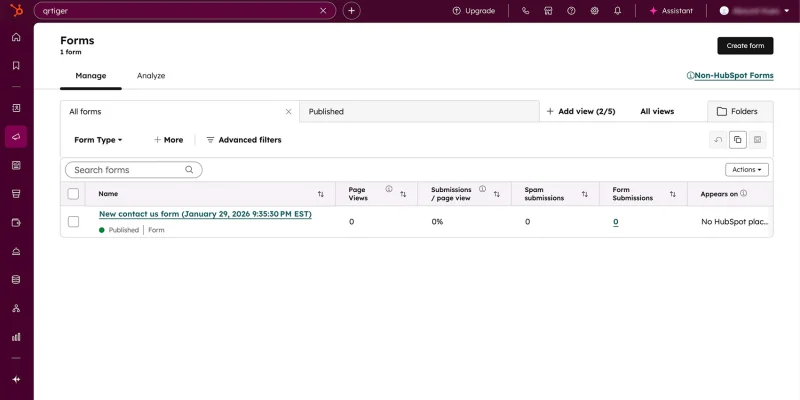
This form acts as one of the main automation triggers.
1. In your HubSpot dashboard, go to Marketing > Forms.
2. Click “Create form”.
3. Choose your form type, then click “Next”.
4. Select a template or start from blank.
5. Add required fields (Names, Email, etc.).
6. Add a hidden field (Optional but recommended):
a. QR Campaign Source
b. Event Name
c. QR Campaign Type
7. Click review and update.
Note: The hidden field also supports HubSpot QR code lead capture after submission.
Step 2: Choose the destination URL for your QR code
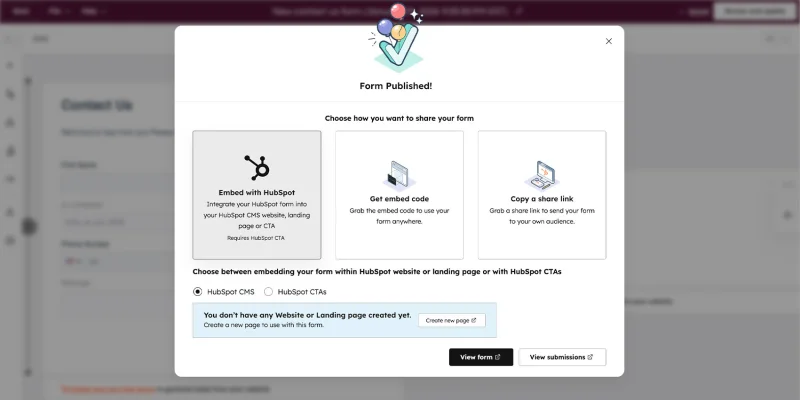
After creating your HubSpot form, you need a destination URL for your QR code, such as:
- Website page with embedded HubSpot form
- HubSpot landing page
- The standalone form share URL
Copy the final URL and paste it into your QR code.
Step 3: Create a custom contact property
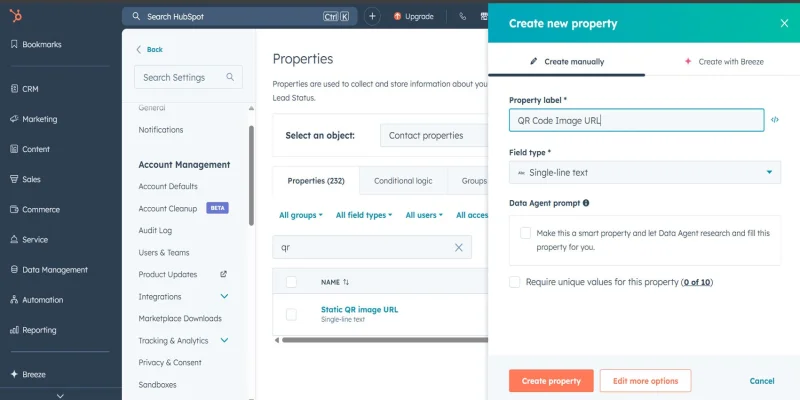
Before generating the QR code, create a contact property first.
1. Go to “Settings”.
2. Select “Properties” under “Data Management”.
3. Click “Create property”.
4. Choose “Contact” as the object.
5. Set the details:
a. Property label = QR Code Image URL
b. Field type = Single-line text
6. If needed, click “Edit more options” to access full property settings.
7. Click “Save”.
This property stores the generated QR code link in the contact record.
Step 4: Generate the QR code
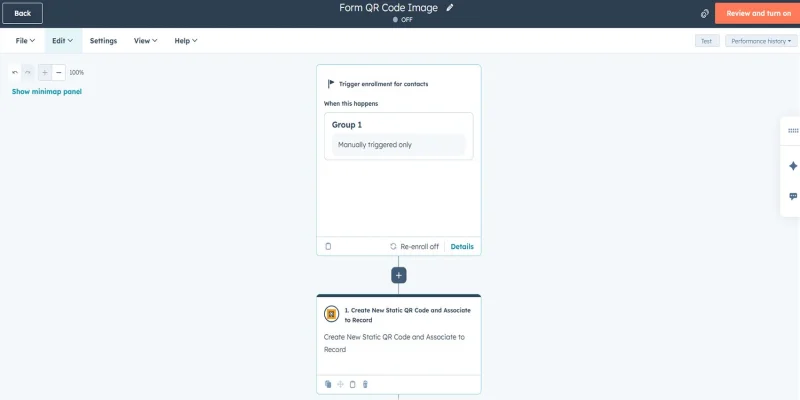
QR codes are now generated using HubSpot workflows.
- Create a new workflow and set the trigger.
- Select “Contact” as the record type, and add an action.
- Search and select “QR TIGER QR Code Generator”.
- Choose “Create New Static QR Code and Associate to Record”.
- Enter your form or landing page URL.
- Choose the property where the QR code should be associated.
- Click “Save”.
- Add another action
- Under “CRM”, choose “Edit record”.
- Retain the “Record type” as “Contact”.
- Select the contact property you created in “Property to edit” field (e.g., QR Code Image URL).
- In the “Change type” select “Replace”.
- For “Choose a value”, select “QR Image”.
- Save the workflow and turn it on.
- Click “Enroll”, select a contact, and run the workflow manually.
- After the workflow runs, go to “View”, then open “Action logs”.
- Select the contact, then check “Action outputs” to get the QR code link.
Note: You can also view the QR code in the contact record under the QR Code Image URL property.
Step 5: Create a contact-based workflow
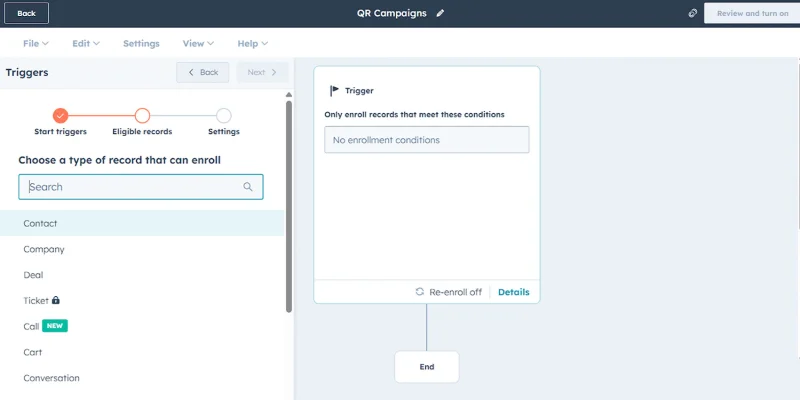
This is where your HubSpot QR code workflow integration starts turning submissions into automated actions inside your CRM.
Let’s move to setting up marketing automation:
- Go to Automation > Workflows.
- Click “Create workflow”.
- Select “From scratch”.
- Inside the trigger box, select “Met filter criteria”.
- Choose “Contact”.
- Rename the workflow.
Step 6: Set the correct enrollment triggers
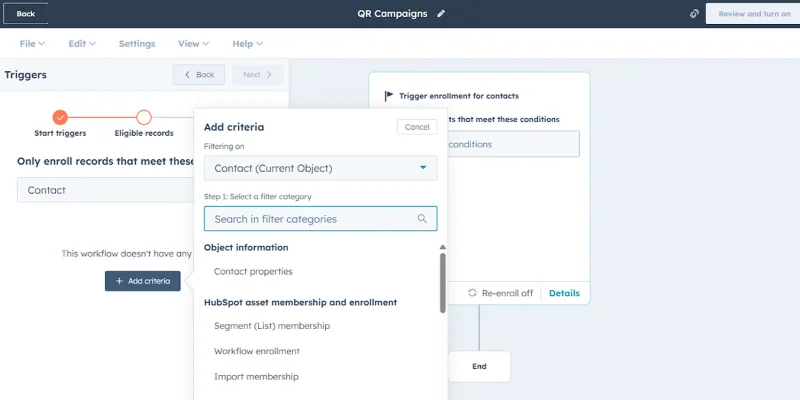
This is the key part. Use one of the verified HubSpot workflow triggers:
Option A: Form submission trigger (most reliable)
- Enrollment trigger → Form submission
- Choose your QR campaign form
This means anyone who submits that form enters the workflow.
Option B: Property-based trigger
If you used a hidden field like: “QR Campaign Source = Trade Show 2026”
You can use: Property equals “Trade Show 2026”
This works if the form updates that property.
Option C: List-based trigger
- Create an “Active List”
- Filter: Form submission equals your QR form
- Use that list as workflow enrollment
Workflow enrolls contacts who become members of the active list. This adds flexibility for larger campaigns.
Step 7: Build the automation actions
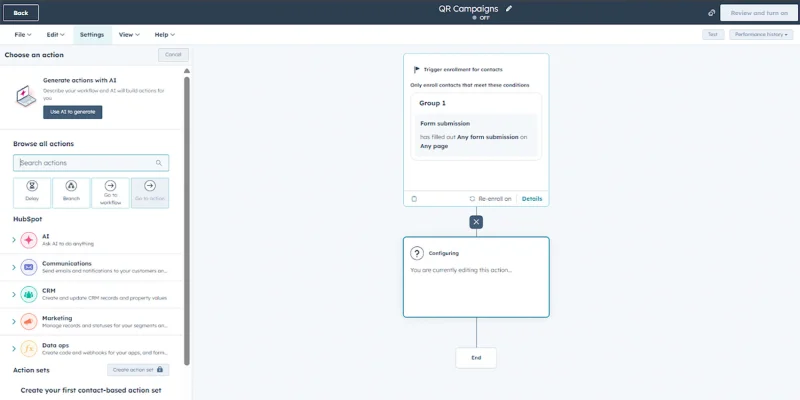
Now add HubSpot workflow actions after submission.
You can safely use:
- Send automated email
- Create an internal task
- Send internal notification
- Assign contact owner
- Delay actions
- AND/OR branches based on form answers
Example flow:
- Form submitted
- Send a thank-you email
- Wait 2 days
- Send follow-up offer
- If contact clicked email → Notify sales
All of this is fully native to HubSpot.
For advanced use cases like triggering workflows from external apps or auto-generating QR codes from CRM data, extend your setup using the QR codes API.
Step 8: Enable re-enrollment (Optional)
jpg_800.jpeg "Enabling re-enrollment in HubSpot workflow")
If you want repeat submissions to trigger again:
- Turn on re-enrollment
- Select “Form submission” as the re-enrollment condition
Note: Use this carefully. You don’t want duplicate messaging.
Step 9: Test the workflow
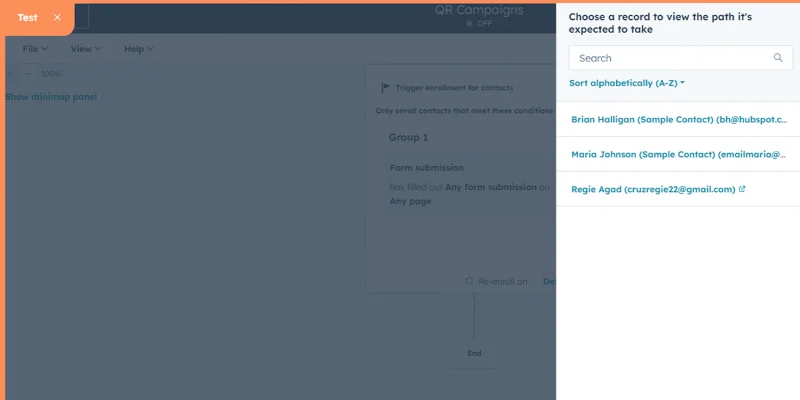
Before activating anything, test it first.
Option 1: Use HubSpot’s built-in Test feature
Inside the workflow:
- Click “Test”.
- Select a contact record.
- Run the simulation.
HubSpot will show how that contact moves through the workflow.
Check for:
- Correct enrollment trigger
- Proper email timing
- Accurate branching logic
- Task or notification creation
This verifies internal logic.
Option 2: Perform a real submission test
This validates the full experience.
- Scan using a QR code scanner on any mobile device.
- Fill out the form.
- Confirm the contact record updates.
- Check if the workflow enrolls the contact.
This makes sure the entire chain works:
QR scan → Form submission → Contact update → Workflow enrollment
If this fails, the issue is usually:
- Wrong form selected in trigger
- Property mismatch
- Workflow not published
Step 10: Review and turn on the workflow
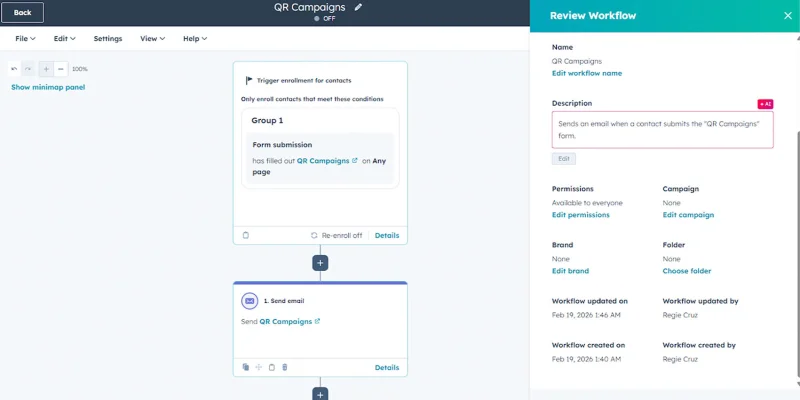
Once testing looks correct, activate it.
- Click Review and publish.
- Reconfirm enrollment triggers.
- Double-check re-enrollment settings.
- Review all delays and actions.
- Confirm internal notifications are assigned properly.
- Click “Turn on”.
Your automation is now live. From here forward, every qualifying form submission from your QR campaign will automatically trigger your HubSpot workflow.
Segmenting contacts based on QR campaign data
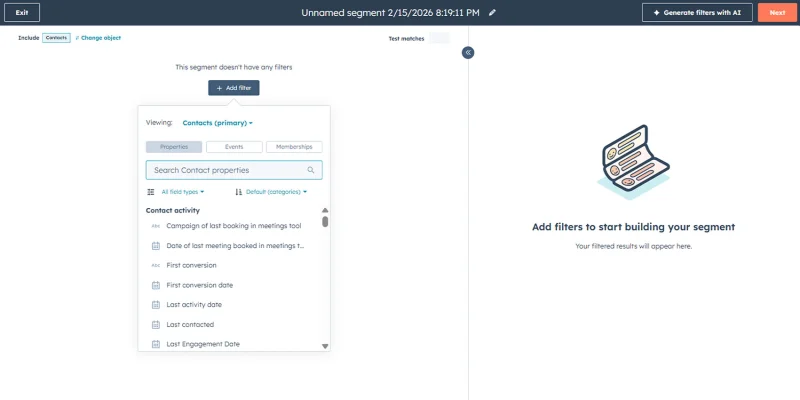
QR codes send visitors to specific landing pages. Segmentation happens after the form submission.
Many teams compare HubSpot workflows vs sequences during planning. Workflows handle automation with branching logic, while sequences focus on direct sales outreach.
You can build segments using:
- The name of the HubSpot form submitted.
- A hidden field like “QR Campaign Source”.
- A campaign value stored in a contact property.
This keeps follow-ups specific. No generic follow-ups.
Create segment
- Navigate to CRM > Segments.
- Click “Create segment”.
- Choose “Contact”.
- Add your filters (form submission, property value, campaign name).
- Review and click “Save and process segment”.
Active segments update automatically when a contact submits the form.
Add QR campaign-based filters
Use verified HubSpot data, such as:
- Form submission equals “Event Booth Form”
- QR Campaign Source equals “Flyer 2026”
- Lifecycle stage equals Lead
Save the segment
Once saved, the list updates automatically. New contacts who submit the QR form are added to the list. No manual tagging required.
Use the segment in workflows
This segment can now be used as:
- A workflow enrollment trigger
- A conditional branch inside a workflow
- A suppression list
This allows reuse across campaigns without changing the QR code.
Sending automated follow-ups after scan form submissions
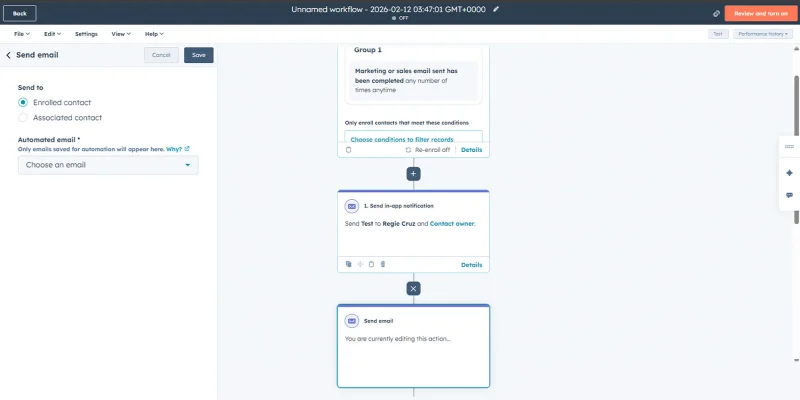
Once a visitor submits the form linked to your QR code, HubSpot can automate the rest.
Workflows can:
- Send an email within minutes
- Create internal tasks
- Delay messages for pacing
- Send SMS if SMS tools are connected
Example: Scan > Form submitted > after 10 mins > send product guide > after 2 days > send demo invite
This sequence is fully native to HubSpot.
Add an email action
- Open your workflow.
- Make sure the enrollment trigger is set to Form submission.
- Click + Add action.
- Choose Send email.
- Select a pre-built HubSpot email.
Pro Tip: Match the email content to the QR destination. Product scans deserve product follow-ups.
Add delays (If needed)
Delays prevent overwhelming the contact.
Examples:
- Wait 10 mins before first email
- Wait 2 days before follow-up
Add SMS action (If available)
SMS requires:
- HubSpot SMS feature enabled
- Or a connected SMS integration
If available:
- Add an SMS action
- Keep messages short and time-aware
Example:
“Thanks for registering. Here’s your guide.”
Alerting sales teams inside HubSpot
High-intent submissions should trigger alerts.
Workflow can notify sales via:
- Internal email notifications
- Task creation
- Contact owner assignment
Define what triggers a sales alert
Choose a clear signal that indicates buying intent:
Example:
- Form submitted equals “Pricing Request Form”
- QR Campaign Source equals “Product Demo Page”
- Contact selects “Request a Call” on the form
These actions show direct interest. They justify notifying sales immediately.
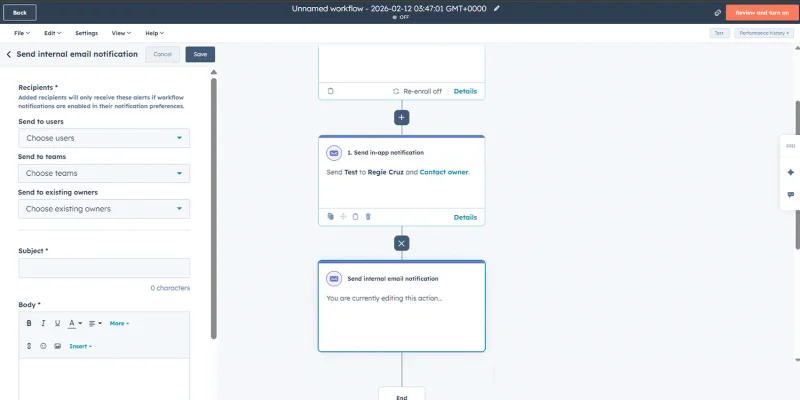
Add an internal notification action
Now it’s time to alert the team.
1. Click the (+) icon under the trigger.
2. Select “Send internal email notification
3. Fill in the fields:
a. Choose the recipient
b. Write a clear subject line
c. Add details like contact name, email, company, and source
4. Insert personalization tokens such as:
a. Email
b. First name
c. Last name
d. Phone number
This gives your sales team context. They won’t need to open multiple tabs to know what’s happening.
Review and turn it on
1. Click “Review and turn on.
2. Double check:
a. Trigger conditions
b. Notification recipients
c. Email content
3. Then click “Turn on workflow”.
Creating conditional paths based on the scan source
Not all submissions mean the same thing. HubSpot allows branching logic using the data from the QR code:
1. Form name
a. The name of the HubSpot form submitted through the QR landing page.
b. Example: “Event Registration Form” vs “Product Demo Request Form”.
c. Helps form represents a different QR campaign or purpose.
2. Campaign property
a. A property you set via hidden fields or manual tagging
b. Example: “QR Campaign = Trade Show 2026”
c. Helps distinguish contacts even if multiple QR codes point to the same form
3. Hidden fields
a. Fields that users do not see but store campaign information
b. Examples:
i. QR Source = Flyer
ii. Campaign Type = Product Launch
c. Useful when the same form serves multiple QR campaigns
Each path can trigger different actions. Same workflow but smarter logic.
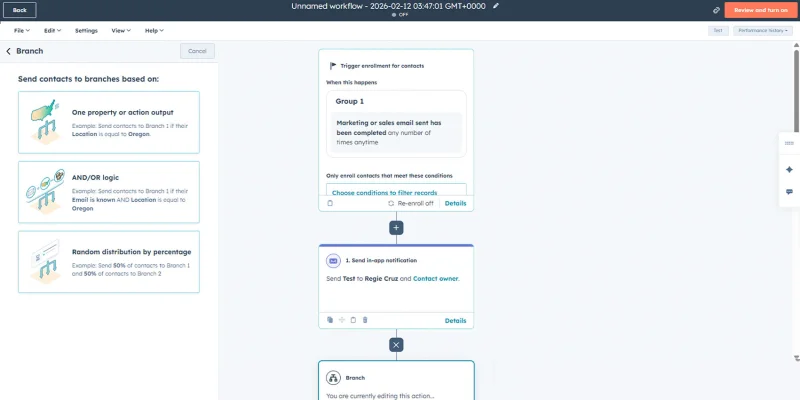
Add a branch
1. Open the workflow linked to the QR form.
2. Click Edit > Add action, or just click the (+).
3. Select “Branch”.
4. Choose condition type:
a. Pick “One property or action output” if you test a single field.
b. Pick “AND/OR logic” if you combine rules.
5. Select one of the properties identified above:
a. Form submission → Form equals “Event Registration Form”.
b. Campaign property → Campaign equals “Trade Show 2026”.
c. Hidden field value → QR Source equals “Flyer”.
Define actions for each path
Each branch can trigger:
- Different emails
- Different SMS messages
- Different sales alerts
Example:
- Event scan = send recap email
- Product scan = send demo invite
Test each path
Use HubSpot’s test feature. Confirm each condition triggers the right action.
Turn QR code scans into action with HubSpot workflows
QR codes do more than send people to a page. With HubSpot QR code integration, each form submission triggered through the QR codes can start automation instantly.
Emails are sent automatically, your team gets notified right away, and sales reps see new tasks waiting for them.
This only works well if you use the best QR code generator for HubSpot, such as QR TIGER. With the right software and setup, every submission turns into a clear next step.
If you have further questions about QR TIGER’s HubSpot integrations, tools, and more, connect with us at [email protected] and talk with our experts.
FAQ
Can a QR code trigger an action?
Yes. The scan sends users to a tracked link or form. HubSpot records the submission. Workflows then run actions like alerts, tagging, or lead assignment.
How to manually trigger a workflow in HubSpot?
Open an active workflow. Click Enroll. Search and select a contact or record. Confirm enrollment to start the actions.
Which QR code generator integrates with HubSpot?
QR TIGER QR Code Generator integrates with HubSpot. The app lets you create and send QR codes directly inside HubSpot workflows and contacts.