How to Set Up HubSpot QR Code Tracking Attribution

QR codes bring people from print and events into your funnel. A scan starts the journey, yet many teams lose track of where leads and revenue came from. HubSpot QR code tracking attribution fixes this by connecting each QR scan to contacts, deals, and campaign results.
With a HubSpot QR code generator, you can standardize campaign links and manage QR campaigns at scale while keeping attribution organized.
In this guide, you will learn how to pass QR code data into HubSpot, capture campaign details automatically, and build reports that show what worked. The goal is simple: turn every scan into clear, trackable performance across your QR campaigns.
Table of Contents
How to configure HubSpot QR code tracking attribution for campaigns
Define what data each submission carries before you build workflows.
Step 1: Set up HubSpot QR code integration
This setup connects HubSpot and QR TIGER through API QR code integration.
- On HubSpot, install QR TIGER.
- In a new tab, sign in to your QR TIGER account.
- On your Account settings, go to Plan and copy the API key.
- Return to HubSpot and paste the API key.
- Click “Connect app.”
Once the confirmation message appears, the integration is active.
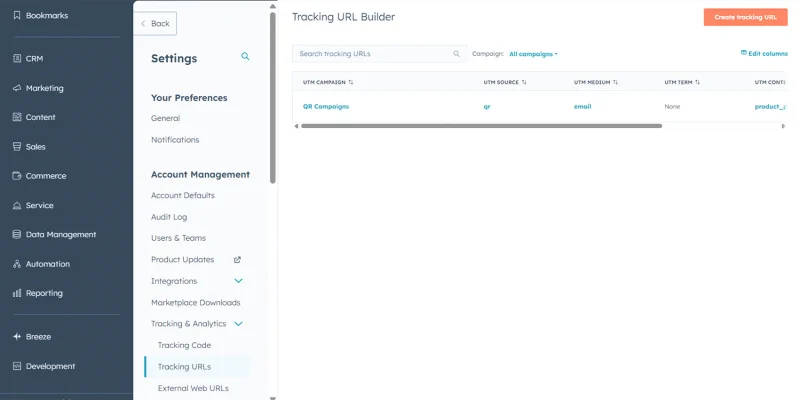
Step 2. Create a trackable link
- Click the “Settings” icon in the top navigation bar.
- Go to the “Tracking and Analytics” dropdown.
- Select “Tracking URLs”.
- Click "Create tracking URL" on the upper right.
Step 3. Add campaign parameters
Fill in these HubSpot tracking parameters:
- URL: Paste the URL where your QR code sends users.
- UTM campaign: Name of the campaign you want HubSpot to group traffic under. Use one clear name for all materials under the same campaign. Example: summer_sale
- Source: Where the traffic comes from. For QR campaigns, choose “Other campaigns”. This helps HubSpot classify the visit correctly.
- UTM source: This field fills automatically based on the Source you select. No need to edit unless you want a custom label. For QR campaigns, use “qr”.
- UTM medium: Defines the traffic channel or method used to promote the link. Examples: social media post, email, referral
- UTM term: Use for ads or keywords. For QR campaigns, you can leave this blank since HubSpot ad tracking focuses more on paid channels.
- UTM content: Use when you have multiple QR code channels for a campaign. Examples: booth_banner, product_packaging, store_display
Save and copy the URL
Click “Create,” and you can copy the “Short URL” or the “Copy tracking URL”.
Step 4. Make a property
1. Go to “Settings”, then find and select “Properties”.
2. Create a new property.
3. Make sure “Contact” is selected as object.
4. Add the details:
a. Property label = QR Code Image URL
b. Field type = Single-line text
5. Click “Edit more options” to access additional settings.
6. Click “Save”.
This property will store the generated QR code link.
Step 5. Create a QR code
1. Go to “Automation”, then “Workflows” to create a new workflow.
2. Set the trigger and select “Contact” as the record type.
3. Add an action:
a. Search and select “QR TIGER QR Code Generator”, then choose “Create New Static QR Code and Associate to Record”.
b. Enter your form or landing page URL and select your contact property.
c. Click “Save”.
4. Add another action:
a. Under “CRM”, choose “Edit record”.
b. Record type = Contact
c. Property to edit = QR Code Image URL
d. Change type = Replace
e. Choose a value = QR Image
5. Save the workflow and turn it on.
6. Run it by clicking “Enroll” and select a contact.
7. After the workflow runs, open “Action logs” or the contact record to get the QR code link.
Using custom properties for QR attribution
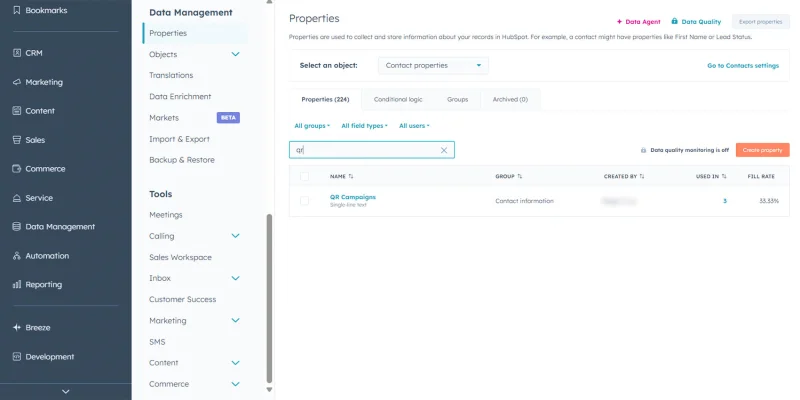
The default HubSpot fields often miss offline context. Add custom properties to improve HubSpot lead attribution across offline touchpoints.
Create custom properties
1. Open the Properties settings
- Click the “Settings” icon in the top navigation bar.
- Under “Data Management”, select “Properties”.
2. Choose the correct object
- On the “Select an object” dropdown, select “Contact properties”.
- QR scans create contacts first, so QR attribution starts at the contact level.
3. Select or create a property group
- At the properties page, click “More”.
- Select “Groups”.
- Click “Create group”.
- Enter the group name. Example: QR Campaigns
- Save the group.
To return to the properties page, click “More” > “Properties”.
4. Create a new property
- Click “Create property”.
Fill in the fields like this:
- Property label = QR Campaign Name
- Field type = Select Single line text
For the “Data Agent prompt” and “Require unique values” options, QR attribution doesn’t need either, so just leave them unchecked.
If you need more setup options, click “Edit more options”.
- Confirm object type = Contact.
- Choose a Group.
- Add a short description if needed.
- On the “Rules” tab, leave default settings enabled. Allow all characters and spaces unless your team uses strict naming rules.
- Click “Create property” to save.
Add hidden fields to forms
Hidden fields capture QR campaign data without requiring users to fill additional form fields.
1. Open your form editor
- Go to Marketing, then select “Forms”.
- Find the form connected to your QR landing page.
- Hover over the form name.
- Click “Edit”.
2. Add your QR properties to the form
- Inside the form editor, click the Add (+) button.
- On the “Fields”, select “Single-line text”.
- Search and select the property name you created earlier. Example: QR Campaigns
3. Make the field hidden
- Click the field inside the form preview.
- Under the field options panel, turn on “Hidden field”.
4. Update the form
- Click the “Review and update” button.
- You may see warnings such as enabling reCAPTCHA or adding a data privacy field. These are optional and do not stop the form from saving.
- Review the Form details section before updating.
- Confirm the correct marketing campaign is selected if you are using one.
- Check that “Form logic” and “On submit” action match your setup.
After reviewing the form details, click "Update” to have the live form reflect your changes and start capturing HubSpot QR code tracking attribution data.
If you want a deeper walkthrough on capturing contacts from QR submissions, read our guide on HubSpot QR code lead capture to see how forms and QR workflows connect.
5. Add values through the tracking link
Edit your existing tracking link and append your custom parameters to it.
Example: if your tracking link is:
https://yourportal.share-na2.hsforms.com/FORM_ID?utm_campaign=261572289-QR%20Campaigns&utm_source=qr&utm_medium=email&utm_content=product_packaging
Add the property internal name (e.g., qr_campaigns) and your own custom parameter (e.g., event_booth).
Your final tracking link becomes:
https://yourportal.share-na2.hsforms.com/FORM_ID?utm_campaign=261572289-QR%20Campaigns&utm_source=qr&utm_medium=email&utm_content=product_packaging&qr_campaigns=event_booth
Pro Tip: Always check the internal name in the property before building your link. Do not assume the format, since later edits to the label do not change the internal name.
Keep your custom HubSpot tracking parameter values consistent across all QR placements to ensure filtering and reporting stay accurate.
6. Test your setup
- Open the final tracking link in a new tab.
- Submit the form once.
- Open the new contact record in HubSpot.
- Check the QR properties and confirm the values filled automatically.
Tracking QR-driven contacts and deals
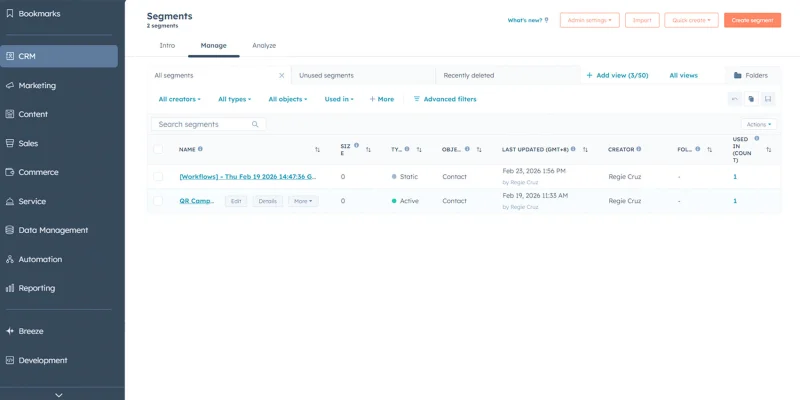
You need a way to separate QR leads from other traffic. UTM tracking in HubSpot has several filters because each one tracks a different part of your campaign link.
Here is what each one means and when to use it for HubSpot QR code tracking within your campaign filters.
- UTM Source: Shows where the traffic came from. Use this to identify QR scans. Example value: qr
- UTM Medium: Shows the channel type. Use this only if you want to separate QR traffic by channel. Example values: email, social, print
- UTM Campaign: Groups traffic under one campaign name. Use this when you want a list for a specific promotion.
- UTM Content: Identifies placement or variation. Useful for comparing different QR placements.
- UTM Term: Usually used for paid ads or keywords. You do not need this for most QR campaigns.
- UTM ID: Internal tracking ID from HubSpot. Not required for basic QR attribution.
For minimum setup:
UTM Source = qr
Optional but recommended:
- UTM Campaign = your campaign name
- UTM Content = placement label
This keeps your QR segment accurate and helps teams track marketing campaigns from offline channels without adding unnecessary filters.
Build a QR contact segment
1. Open Segments
- Click CRM > Segments (Lists).
2. Create a new segment
- Click “Create segment”.
- Under “Choose who you’d like to segment”, select “Contacts”.
- Click “Next”.
3. Add your QR filters
- Click “+ Add filter” in the segment builder.
4. Use the correct filter source
- Use the “Viewing” dropdown to switch to “Contact create attributions (associated)” when selecting UTM filters.
5. Add a source filter
- Search and select “UTM Source”.
- Choose “is equal to any of”, which allows flexible matching and future updates while keeping one clean filter.
- Type “qr”, then press “Enter” to add the value.
6. Add a campaign filter
- Click “Add filter” again inside Group 1.
- Search and select “UTM Campaign” from the list.
- Choose “is equal to any of”.
- Enter the exact campaign value from your final tracking link.
Example final tracking link:
https://yourportal.share-na2.hsforms.com/FORM_ID?utm_campaign=261572289-QR%20Campaigns&utm_source=qr&utm_medium=email&utm_content=product_packaging&qr_campaigns=event_booth.
The UTM Campaign value is 261572289-QR Campaigns, where %20 represents a space.
7. Add a content filter
- Click “Add filter” again inside Group 1.
- Search and select “UTM Content” from the list.
- Choose “is equal to any of”.
- Enter your placement value from the tracking link.
Example: product_packaging
Keep all three filters in “Group 1” using “AND” so the segment only includes contacts from your QR campaign, source, and placement. This works well for sales alerts or highly targeted reporting.
Pro Tip: Use “OR” only if you want to include multiple campaigns or placements in one segment. Create a new filter group for advanced logic only.
8. Exclude contacts option
Leave this option turned off unless you want to remove internal users, test leads, or existing segments from the audience.
Create a tagging workflow
1. Open workflows
- Go to Automation > Workflows.
- Click Create workflow.
- Select “From scratch”.
- Inside the trigger box, select “Met filter criteria”.
- Choose “Contact”.
2. Add a QR form trigger
- Use the “Contact (Current Object)” filtering
- Search “Form submissions”, under “Step 1: Select a filter category”.
- Select your QR Campaigns form.
- Choose “Contact has filled out form”.
3. Add a QR source trigger
- Click + Add criteria inside Group 1 so both rules use AND logic.
- Switch Filtering on to “Contact create attributions”.
- Search “UTM Source”.
- Set the condition to “is equal to any of”.
- Type “qr”, then press enter to add value.
AND logic means contacts must submit the QR form and come from “qr” traffic before entering the workflow.
4. Add actions
- Click the “+” icon below the trigger.
5. Tag the contact
- Under CRM actions, select Edit record.
- Record type = Contact.
- Property to edit = (e.g., QR Campaigns).
- Change type = Replace.
- Choose a value = any label you want your workflow to tag (e.g, event_booth).
6. Assign contact owner
- Click the “+” icon again.
- Under CRM actions, select “Rotate record to owner”.
- HubSpot user property = “Contact owner”.
- Choose “Specific users” if you want a round robin assignment.
- Select the users who will receive QR leads.
Optional: Turn on Overwrite if the contact has an existing owner, only if you want to replace current assignments.
- Then, click “Save”.
7. Notify sales
- Add another action by clicking the “+” icon again.
Here are two options:
Option 1: Send internal email notification
- Select “Send internal email notification” under “Communications”.
- Choose users, teams, or the existing contact owner.
- Add subject, for example: New QR Lead Assigned
- Use Insert to add contact tokens.
- Add Contact name.
- Add QR Campaigns property.
- Add Email or Phone if needed.
- Click Save.
Option 2: Create a task for sales follow-up
1. Select “Create task” under “CRM”.
2. Set task details.
3. Title example: Follow up with QR lead
4. Type = To do.
5. Set due date or keep “Immediately”.
6. Add notes and insert the Contact name and QR Campaigns property.
Default association links the task to the enrolled contact automatically.
7. Click “Add another association” only if you want to attach the task to a Deal or Company.
8. For “Add to shared task queue”, select a queue if your team works from a shared sales task list.
9. Leave empty if tasks go directly to owners.
10. For “Priority”, choose High if QR leads are time sensitive.
11. Leave as None if you do not prioritize tasks.
12. Set “Assign task” to Contact owner or choose a specific user.
13. Then, click "Save".
8. Save and turn on
- Click “Review and turn on” at the top right corner.
- Check enrollment settings.
- Click “Turn on workflow”.
Pass QR data into deals
1. Create a deal workflow
- Go to Automation > Workflows.
- Click Create workflow > From scratch.
- Select “Met filter criteria”.
- Choose “Deal” workflow.
2. Set the trigger
- Click “Add criteria”.
- Make sure the Filtering on shows Deal (Current Object).
- Under “Object information”, select “Deal properties”.
- Search and click “Deal stage”.
- Choose “is any of”.
- Select the exact pipeline stage where deals start tracking.
- Click “Next”.
- Leave Re-enroll off unless you want the same deal to enter again every time the stage changes back to this value.
- Then, click “Save and continue”.
You now move to the workflow canvas, where you add the action that copies the QR Campaign property from the contact to the deal. This keeps a consistent HubSpot QR code tracker structure across contacts and deals.
If you want a clearer view of how QR submissions trigger automation, review this HubSpot QR code workflow integration guide.
Building HubSpot dashboards for QR campaigns
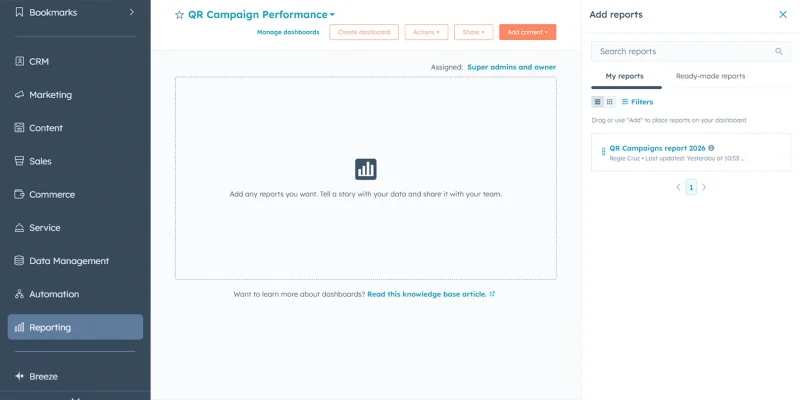
Dashboards turn raw scans into visible performance data and improve marketing campaign tracking across offline and online sources.
Suggested reports:
- Contacts created by QR Campaign Name.
- Deals influenced by QR Channel.
- Revenue by UTM Campaign.
- Conversion rate from QR traffic.
Here are the steps:
Create a dashboard
1. Go to Reporting > Dashboards.
2. Create a new dashboard name. Example: QR Campaign Performance
3. Choose who can access the dashboard.
a. If only you or admins should edit, select Limited to super admins and Owner only.
b. If your team needs access, select Allow everyone to view or Allow everyone to view and edit.
c. If you want control, choose Assign teams and users.
Add reports
1. Create a new report from your dashboard
- Click “Add content” then select “Create report”.
- Choose “Custom report” builder.
- Click “Next”.
2. Select data source reports
- Primary data source = Contacts
- Turn on “Add more data sources only if you need other data (e.g., Deals).
- Click “Next”.
3. Build the report
- On the left panel, search for the campaign name (e.g., QR Campaigns).
- Drag QR Campaigns into the X axis.
- Under “Default measures, drag (Count) contacts into the Y axis.
- Leave “Break down by” empty unless you want another layer like Deal stage.
4. If you want to add a data source inside the builder
- Click the small pencil icon (Edit data sources) beside the data source panel.
- Find and select Deals in the list.
- Keep Contacts as the primary source if you want contact-level reporting.
- Click “Apply”.
Tip: If Deal fields do not appear after adding Deals, refresh the builder once.
5. Add fields to the report
- Deal amount: Drag to “Y axis” if you want revenue totals.
- Deal stage: Drag to “Break down by” to view pipeline distribution per QR campaign.
- Close date: Drag to “Compare by” if you want trends over time.
Examples:
Revenue by QR campaign
X axis: QR Campaigns
Y axis: Sum of Deal amount
Deals by stage
X axis: QR Campaigns
Break down by: Deal stage
Y axis: Count of deals
Revenue trend
Compare by: Close date
Y axis: Sum of Deal amount
Note: The Y axis only accepts one measure at a time. So you cannot place 2 fields in the same chart. If your goal is conversion, then use separate reports.
5. Add filters
- Click the Filters tab beside Configure.
- Keep Include data if it matches set to “ALL of the filters below.”
- Click “Add filter,” then search for your campaign (e.g., QR Campaigns).
- Click “QR Campaigns” under Inactive filters.
- Set the condition to “is known”.
- Click "Apply filter".
This removes contacts or deals that have no QR value.
6. Add UTM Source filter
Search for one of these properties under Contacts:
- First touch converting campaign: Use when you want the original QR visit that created the contact.
- Last touch converting campaign: Use when you want the most recent QR interaction.
- Latest traffic source: This equals the newest channel value. Set condition is any of, then enter “qr.”
- Latest traffic source drill-down 1 or drill-down 2: Use if your QR parameter is stored deeper.
For example, if you choose “Latest traffic source drill-down 1”.
1. Set the condition to “is any of”.
2. Type “qr” and press Enter to add.
3. Click Apply.
This setup means QR Campaigns must exist and UTM Source must be =qr. This results in the No value bar disappearing. Your chart will begin grouping data under real QR campaign names instead of blank values.
Leave the formula fields section empty and continue with:
4. Click Save report.
5. Enter report name.
6. Select “Add to existing dashboard”.
7. Choose a QR Campaign Performance.
8. Then click “Save & add”.
“Formula fields” are only used if you want to create calculated metrics, for example: Conversion rate, Revenue per QR campaign, or Custom percentage formulas.
Note: If your chart still shows No value, the issue is not the filter. The QR Campaigns property may still be empty on contacts. Verify your tagging workflow writes event_booth or your campaign value into QR Campaigns.
Measuring ROI across print, retail, and events
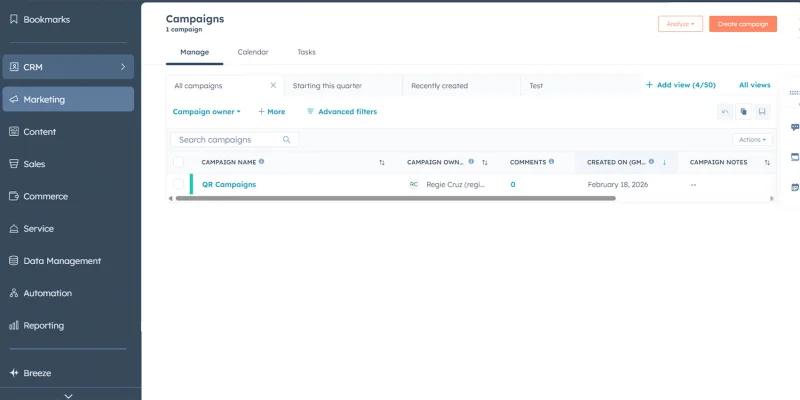
ROI depends on linking cost with revenue. HubSpot marketing attribution improves campaign visibility across reports.
Process:
- Add a Campaign Budget property in HubSpot Campaigns.
- Associate QR-driven contacts with the campaign.
- Use Attribution Reports to view influenced revenue.
Example:
- Flyer prints generate 200 contacts.
- 20 become deals.
- Revenue appears in HubSpot campaign analytics once deals close.
Focus metrics:
- Cost per contact
- Cost per deal
- Revenue influenced
Here are the steps:
Set campaign cost
- Go to Marketing > Campaigns
- Open the QR campaign you created.
1. Add Budget
- Under “Campaign budget”, click “Create budget item”.
- Then, fill in the budget item information.
- Enter name, description, and the planned cost.
- Click “Save”.
2. Add Spend
- Under “Campaign spend”, click “Create spend item”.
- Then, fill in the spend item information.
- Enter name, description, set date, and the real expense.
- Click “Save”.
Note: Do not add currency symbols or commas. And if you have multiple expenses, create separate budget items rather than combining them into one.
Associate assets with the campaign
- Still inside the QR campaign record.
- Select the Assets tab between Attribution and Tasks.
- Click “Add assets” on the left side.
Choose items connected to your funnel, such as:
- Form
- Tracking URL with UTM
- Landing Page
- Workflow
Contacts attach automatically when they submit the associated form or use the tracking URL.
Note: Do not add unrelated assets.
Track revenue from QR campaigns
- Go to Reporting > Reports.
- Click “Create” and select “Create report”.
- Choose the Attribution report.
- Click “Next”.
- Select “Revenue attribution.”
- Choose your QR Campaign under the Campaign filter.
Set filters:
- QR Campaigns is known
- Latest Traffic Source Drill Down 1 = qr
Add these fields to the report:
- Deal amount
- Deal stage
- Close date
- QR Campaign Name
Note: Deals and Revenue data sources in the Attribution report builder are only available under Marketing Hub Enterprise. If your account runs a lower tier or free trial, only Contacts attribution appears, and revenue level reporting stays locked.
Turn QR activity into actionable reports
Now you know how to set up HubSpot QR code tracking attribution from the first scan up to closed deals and recorded revenue. With clear UTMs, custom properties, and simple workflows, you turn offline traffic into real data you can measure.
Your dashboard shows which QR placements bring leads, which ones move deals forward, and where your budget works best. Pair this setup with the best QR code generator to keep your links organized and easy to update.
Start tracking your QR performance in HubSpot today and turn every scan into clear, measurable results.
If you have questions about QR TIGER’s HubSpot integrations or tools, reach us at [email protected], and our team will help you.

FAQ
Can HubSpot generate QR codes?
HubSpot supports QR codes through app integrations like QR TIGER.
What campaign metrics can be tracked in HubSpot?
Contacts created, traffic source, UTM campaign data, form submissions, deal stage, revenue, conversion rate, and attribution data across channels.
How does HubSpot tracking code work?
HubSpot adds a tracking script to your pages. The script records visits, traffic sources, form activity, and contact behavior, then links actions to contacts and campaigns inside the CRM.