
How to Sync QR Code Data with HubSpot Deals: A Detailed Guide

Did you know syncing QR code data in HubSpot deals links every scan to your sales pipeline? When someone scans and submits a form or page through the QR code, the action updates a contact, triggers a deal, and records activity inside HubSpot.
The process starts with a HubSpot QR code generator, such as QR TIGER, then linking it to your HubSpot forms and workflows. After setup, your HubSpot pipeline records all QR code scan-driven interactions from start to end.
Let us walk you through the steps on how to sync QR code data with HubSpot deals using forms, contact properties, and workflows, the easiest way possible.
Table of Contents
- How to sync QR code data with HubSpot deals
- How to associate QR code scans with existing contacts
- How to create or update deals from QR code activity
- How to log QR code interactions as deal activities
- How to use QR code engagement as a buying-intent signal
- How to report on QR code-influenced revenue
- Turn QR code scans into HubSpot deals
- FAQ about HubSpot QR code integration
How to sync QR code data with HubSpot deals
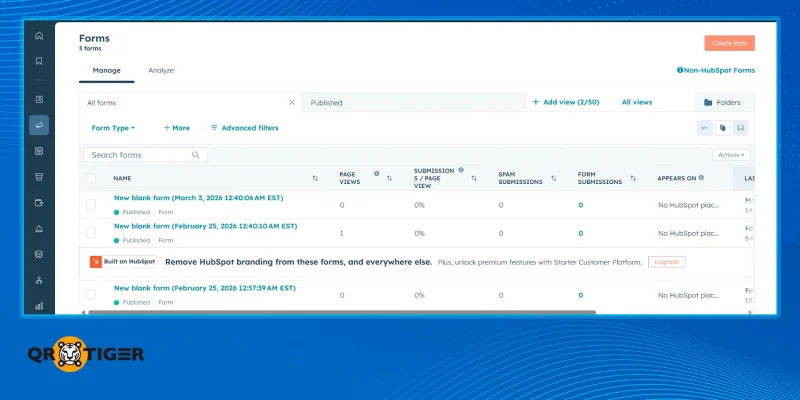
Step 1: Capture QR campaign data with a HubSpot form
1. Go to Marketing > Forms.
2. Click "Create form".
3. Choose "Form editor".
4. Select a template or “Start from blank”.
5. Add Email as a required field. This lets HubSpot identify the contact when the submission is made.
6. Add form fields for QR code campaign tracking, such as:
- QR Campaign Name
- QR ID
- QR Campaign Source
These fields support HubSpot QR code lead capture by storing campaign data during the scan submission.
Step 2: Create contact properties for QR campaign data
- Go to Settings.
- Under Data Management, click “Properties”.
- Choose "Contact" as the object.
- Click "Create property".
- Create the following properties:
QR Campaign Name - Stores the campaign associated with the QR code.
Example:
Property name =Summer Sale
Field type = Single line text
QR ID - Stores the unique QR code identifier used in your QR code project.
Example:
Property name: BOOTH_QR_001
Field type = Single-line text
QR Campaign Source - This stores the campaign name linked to the QR code.
Example:
Property name = Event Booth
Field type = Single-line text
Add these properties to your HubSpot form. Set them as “Hidden” fields so users should not see them.
Step 3: Publish the form landing page
- Embed the form on a landing page or publish it as a HubSpot page.
- Copy the final page URL.
Step 4: Create a property for the QR code image URL
Before generating the QR code, create a contact property where the QR code link will be saved.
1. Go to Settings > Data Management > Properties.
2. Make sure “Contact properties” is selected.
3. Click “Create property”.
4. Set fields:
a. Property label = QR Code Image URL
b. Field type = Single-line text
5. Click “Edit more options” if needed.
6. For the “Group” field, choose an existing group or create a new group.
7. Click “Create property”.
Step 5: Create a QR code using the integrated QR code generator
After completing the QR TIGER HubSpot integration, proceed to:
1. Go to “Automation, then “Workflows”, and create a workflow.
2. Select the trigger and the record type as “Contact”.
3. Add QR TIGER action:
a. Choose “Create New Static QR Code and Associate to Record”.
b. Paste your tracking URL and select your QR Code Image URL property.
c. Save the action.
4. Add Edit record action:
a. Select QR Code Image URL and set the value using Action data, then choose QR Image.
b. Save the action.
5. Review and turn on the workflow.
6. Click “Enroll”, select a contact, and run the workflow.
7. After it runs, open Action logs or the contact record to view the QR code link.
Step 6: Test the contact update
- Scan the QR code and submit the form using an email stored in HubSpot.
- Open the contact record and confirm the form submission appears in the timeline.
Each QR code scan submission now connects with the correct contact record.
How to associate QR code scans with existing contacts
Before you create or update deals, make sure every QR code submission links to a contact already stored in HubSpot. Follow these steps:
1. Prepare your existing contact data
Confirm that contacts exist in HubSpot with valid email addresses. HubSpot uses the email field to match submissions with the existing records.
2. Enable contact updates in form options
Open your form settings and allow submissions from existing contacts. This updates the same contact record instead of creating new ones or duplicates.
3. Publish the form landing page
Embed the form on a landing page or publish it as a standalone HubSpot page. Copy the final URL after publishing.
4. Deploy the QR code in targeted channels
Use QR codes in campaigns where existing contacts scan them, such as email promotions, events, or customer materials.
5. Test using an existing contact email
Scan the QR code and submit the form using an email already stored in HubSpot.
Check the contact timeline to confirm that the submission updated the existing record.
Once complete, each QR code scan submission is attached to the correct contact profile, preparing the data for HubSpot QR code workflow integration.
Note: HubSpot needs a way to identify the scanner. The most reliable method is an email field in the form. If the email matches an existing HubSpot contact, the submission updates that record. If it does not match, HubSpot creates a new contact.
How to create or update deals from QR code activity
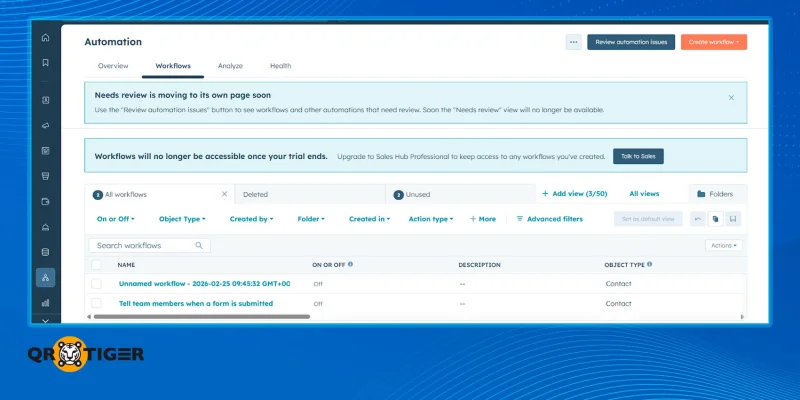
Once contacts are in your system, you can use workflows to manage deals based on QR code behavior. Follow these steps:
Step 1: Open the workflow tool
- Go to Automation > Workflow.
- Select “Create workflow” and choose “From scratch”.
- Click “Met filter criteria.” > Contact.
Step 2: Set your enrollment trigger
- Click “Add criteria” > Form submission”.
- Form submission = QR Campaign form name. Example: Summer Sale
- If you track campaigns using a property, add another filter.
- Click “AND” > Contact property.
- Select your QR Campaign Source or similar field.
- Set the value to the campaign name linked to the QR code.
- Press “Next”.
Step 3: Add a deal creation action
- Click the plus (+) icon.
- Select “Create deals”.
- Enter details like deal name, sales pipeline, and default stage.
Step 4: Update the deal stage automatically
- Add another action and choose “Set property value”.
- Select “Deal stage” and move contacts to the right pipeline stage based on their activity.
Step 5: Assign a deal owner
- Add “Rotate to owner” or “Set property value”.
- Assign deals to a specific sales rep, round-robin team, or region owner.
Step 6: Set deal value based on campaign
- Use an AND/OR branch to check the QR campaign source.
- Add an action to update the Amount property so higher intent campaigns carry higher deal values.
Step 7: Review and turn on the workflow
Click “Review and publish”. Test with a sample submission to confirm that deals were created and updated correctly.
This automation structure supports HubSpot QR code tracking and attribution between campaigns and deals, enabling QR code engagement to flow directly into your sales pipeline.
How to log QR code interactions as deal activities
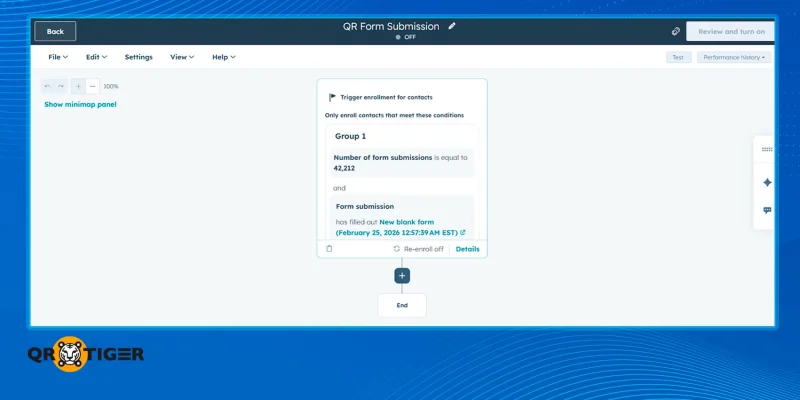
You want every deal to show what the lead scanned and did. Follow these steps inside HubSpot.
Step 1: Open your existing workflow
- Go to Automation > Workflows.
- Open the workflow triggered by your QR form submission.
- Click the plus (+) icon to add a new action.
Step 2: Create notes on the deal timeline
This adds context directly to the deal record.
1. Click "Add action".
2. Select "Create record" or "Create note".
3. Choose Association with Deals.
4. In the note body, insert personalization tokens such as:
- Contact name
- QR campaign name
- Form name
5. Save the action.
Now, whenever someone scans and submits, HubSpot adds a note to the related deal's timeline.
Step 3: Log form submissions on the deal
Form submissions already appear on contact records. You need to associate them with deals.
- In the workflow, add Create association if needed.
- Ensure the contact is associated with a deal.
- Confirm the form used for QR scans is selected as the trigger.
When done, the deal timeline will reflect the QR form submission activity.
Step 4: Track page visits triggered by QR scans
If your QR code links to tracked pages, HubSpot automatically logs visits to those pages.
To use this data in deals:
- Create a contact property like “QR Landing Page Visited”.
- Build a workflow trigger based on the page URL that contains your QR landing page.
- Add an action to update a deal property or create a note.
This shows which specific page the lead visited after scanning.
How to use QR code engagement as a buying-intent signal
Not all QR submissions deserve the same response. You need to define which actions show real interest, then automate around them.
Follow these steps:
Step 1: Define high-intent QR actions
List the scans that signal buying interest. For example:
- QR code linked to a pricing page
- QR code linked to a demo request form
- QR submissions from an event booth or product display
Keep the list short. Focus on actions that show purchase consideration.
Step 2: Create custom contact properties in HubSpot
You need fields to store QR engagement data.
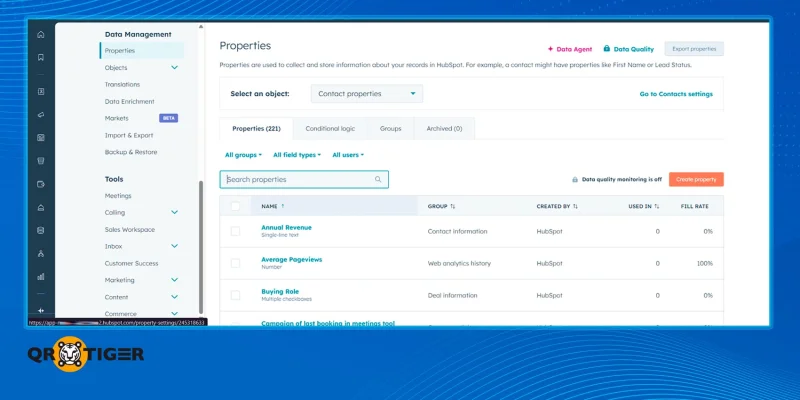
- Go to Settings.
- Under Data Management, click “Properties”.
- Choose "Contact" as the object.
- Click "Create property" and similarly do the following:
QR Engagement Level - This is a contact field that indicates the strength of the lead's interest after a QR interaction.
Property label: QR Engagement Level
Field type: Dropdown select
Option style: Badge (To display value as a colored label inside the contact record)
For “Dropdown options”, add these:
- Low
- Medium
- High
HubSpot workflows read this field, for example, when the value becomes High, triggering automation to alert sales, create tasks, or move deals forward.
QR Submissions - This property stores the number of times a contact submits a QR campaign form. The count helps you detect repeat engagement.
Property label: QR Submission Count
Field type: Number
Number format: Formatted number
5. Save each property.
Note: Leave “Data Agent prompt” unchecked. The property should be filled by workflows or form logic, not by the AI data agent.
Leave “Require unique values” unchecked as well. This allow many contacts to share the same campaign value for HubSpot QR code tracking and reporting.
Step 3: Pass QR data into those properties
Make sure your QR landing page form captures campaign data.
- Add hidden fields to your HubSpot form.
- Map those fields to the custom contact properties you created.
- Link the form page to your QR code for HubSpot campaigns.
- Each submission now updates the contact record with QR activity.
Step 4: Build a workflow using QR engagement as a trigger
Now automate based on intent.
1. Go to Automation > Workflows.
2. Create a "Contact" based workflow.
3. Set enrollment triggers such as:
- QR Engagement Level = High
- QR Campaign Source = Pricing Page
- QR Submission Count is greater than 1
4. Save the tigger.
Step 5: Add sales actions
Once enrolled, define what happens next.
You can:
- Send internal email notification
- Create a follow-up task
- Assign contact owner
- Create or move a deal
This way, QR engagement becomes a structured buying signal.
How to report on QR code-influenced revenue
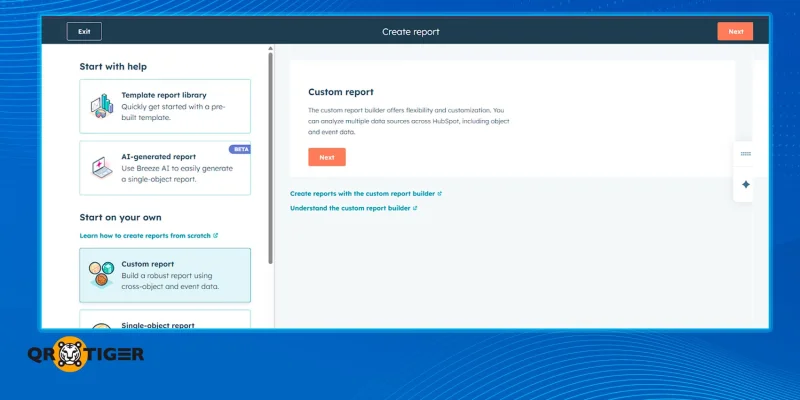
Once your QR code campaign data connects to contacts and deals, you can now start measuring revenue impact through HubSpot QR code tracking attribution reports.
Follow these steps:
Step 1: Go to the reports tool
- Click Reporting > Reports.
- Click "Create report".
- Choose the “Custom report” builder.
Step 2: Select your data sources
- Choose “Deals” as your primary source.
- Add “Contacts” as a secondary source.
- Click "Next".
Step 3: Add relevant fields
In the report builder:
1. Search and add these properties:
- Deal amount
- Deal stage
- Close date
- QR Campaign Source
- Form submission
2. Drag properties into the report canvas:
- Use “Deal amount” as your main metric.
- Use QR Campaign Source as a breakdown dimension.
Step 4: Apply filters
Click "Filters" and refine your data:
- Filter by QR Campaign Source = (Specific campaign name)
- Filter by Form submission = (QR campaign form name)
- Optional: Filter by Deal stage = (Closed Won) to measure revenue only.
This isolates deals influenced by QR scans.
Step 5: Configure metrics
Set up the report to track:
- Number of deals created from QR code campaigns
- Total revenue from QR code-based deals
- Conversion rate from contact to deal
- Conversion rate from deal to closed won
Use:
- Count of deals
- Sum of deal amount
- Funnel or bar chart views for conversion tracking
Step 6: Save and add the dashboard
- Click "Save".
- Name your report clearly, for example: QR Campaign Revenue Report
- Add it to the existing sales dashboard or create a new one for QR tracking.

Turn QR code scans into HubSpot deals
QR code campaigns drive interest. Your sales pipeline needs to capture the outcome of every scan.
Knowing how to sync QR code data with HubSpot deals lets each scan link to a contact record, deal activity, and campaign source inside your CRM. Sales teams see where the lead came from and what action triggered the deal.
The deal timeline also records QR code interactions, providing clear context during follow-ups. This setup turns every engagement into measurable pipeline activity. Contacts update, deals appear in the correct stage. Campaign data stays attached to the revenue it influences.
Pair this workflow with the best QR code generator so every scan flows into HubSpot forms, properties, and automation. Your prints, events, packaging, and retail gain clear attribution with QR codes and HubSpot working side by side.
To learn more about how to use QR codes with HubSpot and other workflow systems, connect with our experts and book a demo today.
FAQ about HubSpot QR code integration
Can scanning a QR code automatically update a HubSpot contact property?
Yes, if the QR code leads to a HubSpot form or landing page with mapped fields tied to contact properties. The scan opens the page, while the form submission updates the contact property and enrolls the contact in a workflow if the trigger is set.
Anonymous scans will not update a specific contact without an identifier like an email, cookie, or login.
How can I automate contact updates in HubSpot with a QR code scan?
Follow these steps:
1. Create HubSpot contact properties for your campaign.
2. Build a HubSpot form or landing page.
3. Add hidden fields or URL parameters.
4. Link your QR code to the form or page.
5. Set a HubSpot workflow trigger.
6. Add action: update contact property (or assign owner, send email, create task, or create deal)
Can HubSpot generate QR codes?
HubSpot does not include a built-in QR code generator. You create the QR code with a QR code generator like QR TIGER, then link the code to a HubSpot page, form, or tracking URL.
How to link deals in HubSpot?
Open the deal record. In the right sidebar, find the Contacts or Companies section. Click Add, search for the record, then click Associate. The deal is now linked to that contact or company.
Can you upload data to HubSpot?
Yes, HubSpot supports manual data uploads through its import feature. Go to Data Management, then Data Integration. Start a new import, choose Advanced imports for all objects, then upload your data file to add records.