
Cómo enviar alertas QR a Slack o Microsoft Teams usando Zapier
 Por Regie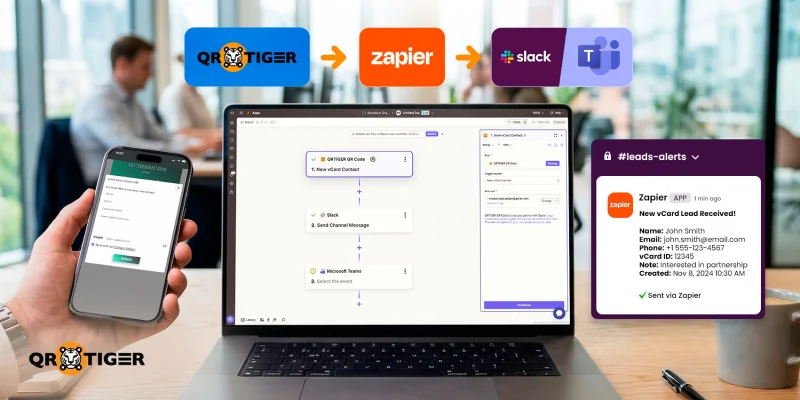
QR TIGER se integra con Zapier para enviar notificaciones en tiempo real a Slack o Microsoft Teams cada vez que alguien escanea un código QR o envía un formulario de contacto vCard.
El flujo de trabajo utiliza un evento QR TIGER como desencadenante y un mensaje de canal como acción. Esto ayuda a los equipos de ventas, soporte y eventos a ver nuevas actividades sin tener que revisar el panel manualmente.
Esta guía muestra cómo configurar el desencadenante, personalizar el mensaje y dirigir eventos de alto valor al canal correcto.
Tabla de Contenidos
- Cómo usar los eventos de QR TIGER como desencadenantes de Zapier
- Pasos para enviar alertas instantáneas a Slack
- Enviando alertas instantáneas a Microsoft Teams
- Personalizar mensajes por campaña o ubicación
- Notificando a los equipos de eventos de alto valor de QR
- Mejorando la velocidad de respuesta
- Convertir eventos de códigos QR en seguimientos más rápidos
- Preguntas frecuentes
Cómo usar los eventos de QR TIGER como desencadenantes de Zapier
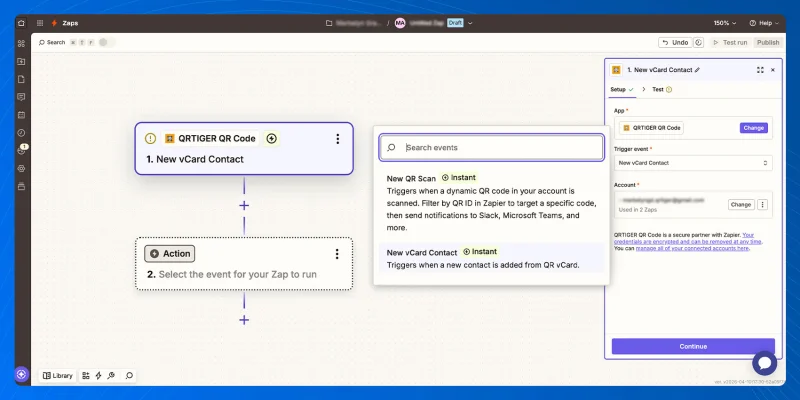
Este flujo de trabajo de Zapier utiliza QR TIGER La aplicación desencadenante. El desencadenante decide qué actividad de código QR inicia la automatización.
Tienes dos opciones principales de activación:
- Nuevo escaneo de código QR Envía una notificación cada vez que alguien escanea tu código QR.
- Nuevo contacto de vCard Envía un mensaje después de que alguien envía detalles a través de un formulario de contacto vCard.
¿Es la primera vez que configuras esto? Ver Integración del generador de códigos QR de Zapier para los pasos de conexión base.
Aquí está cómo configurarlo:
- En Zapier, haz clic en "Crear Zap".
- Haz clic en el menú desplegable "Zap sin título".
- Selecciona "Cambiar nombre" e ingresa un nombre claro para el Zap.
- Haga clic en el campo "Desencadenar".
- Buscar y seleccionar QR TIGER QR Code.
- Elige entre "Nuevo escaneo de código QR" o "Nuevo contacto vCard".
- Ejecuta la prueba del disparador.
- Selecciona un registro de muestra para que Zapier pueda extraer los campos disponibles.
Pasos para enviar alertas instantáneas a Slack
Después del desencadenante, añade una acción para enviar una notificación a Slack cuando se escanea un código QR o cuando se envía un nuevo cliente potencial.
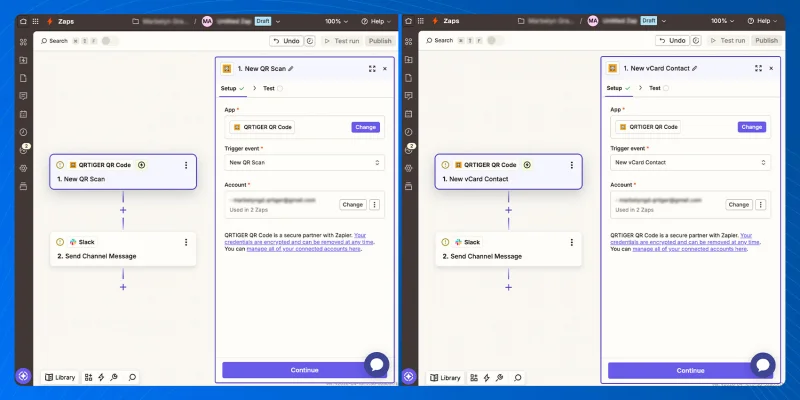
Para equipos enfocados en Zapier y Slackintegración, esta acción envía cada interacción de código QR al canal seleccionado con los detalles que tu equipo necesita. Así es cómo:
Agregar acción
- Haz clic en el icono de más debajo del disparador QR TIGER.
- Buscar "Slack" y seleccionar la aplicación.
- Elige "Enviar mensaje de canal" como evento de acción.
Conecta tu cuenta de Slack
- En "Cuenta", haz clic en "Iniciar sesión" para conectar tu cuenta de inicio de sesión de Slack.
- Aprobar la solicitud de permiso.
- Regresa a Zap y haz clic en "Continuar".
Configurar el mensaje
- Elige el canal.
- Para "Agregar la aplicación de Zapier al canal automáticamente", elige "Sí".
- En el "Texto del mensaje", escribe el mensaje que tu equipo debería recibir.
- Haz clic en el icono (+) para insertar campos QR TIGER desde el disparador.
- Para "Enviar como un bot?", elige "No" para enviarlo a través de tu cuenta conectada.
Tú también puedes:
- Elige "Sí" para "Enviar como un bot?", establece un "Nombre de bot" e "Ícono de bot".
- Incluye un enlace a esta automatización
- Usa "Adjuntar imagen por URL" para agregar un enlace de imagen.
- Utilice "Auto-Expand Links" para controlar las vistas previas de los enlaces.
- Establecer "Vincular nombres de usuario y nombres de canal" en "Sí" para menciones clicables.
- Usa "Programar en" para enviar el mensaje más tarde.
- Usa "Archivo" para adjuntar un archivo.
- Usa "Thread" para publicar dentro de un hilo existente.
Prueba y publica
- Corre una prueba.
- Verifica si el mensaje muestra los detalles correctos.
- Si la prueba funciona, regresa a Zapier y publica el Zap.
Enviando alertas instantáneas a Microsoft Teams
Con la integración de Microsoft Teams, puedes enviar nuevos escaneos de códigos QR y clientes potenciales directamente a tu canal de equipo elegido.
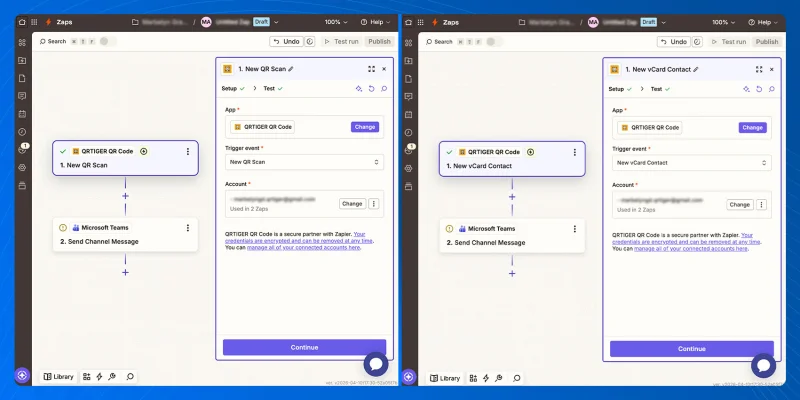
Siga estos pasos para enviar alertas de código QR a Microsoft Teamsy permitir a los miembros verlos de inmediato. Siga estos pasos:
Agregar acción
- Agregar acción bajo el desencadenante QR TIGER.
- Agrega la aplicación Teams.
- Elige el evento de acción "Enviar mensaje al canal".
Conecta tu cuenta
- En "Cuenta", haz clic en "Iniciar sesión".
- Aprueba la solicitud de permiso y luego regresa a Zapier.
- Haz clic en "Continuar".
Configurar el mensaje
- Elige el "Equipo" donde debería aparecer el mensaje.
- Selecciona el "Canal" para la notificación.
- En "Mensaje de texto", escribe el mensaje.
- Haz clic en el icono de más para insertar campos de activación QR TIGER.
- Para "Formato de texto de mensaje", elige "Markdown" para un espaciado más limpio.
- Haz clic en "Continuar".
Prueba y publica
- Corre una prueba.
- Confirma que el mensaje muestre los detalles correctos del escaneo o del cliente potencial.
- Regresa a Zapier y publica el Zap.
Personalizar mensajes por campaña o ubicación
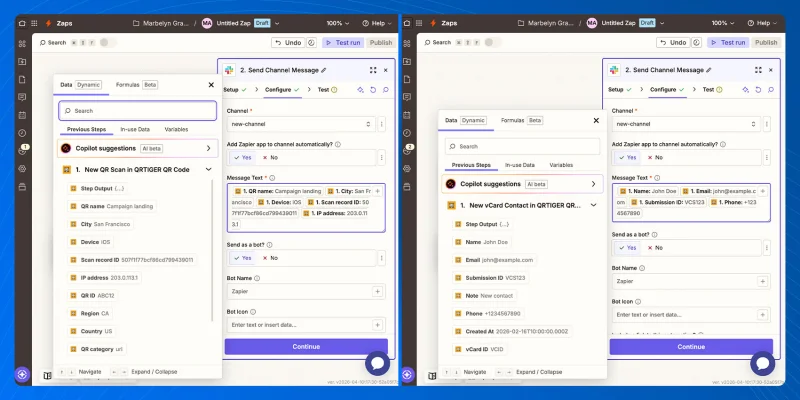
Tu alerta debe mostrar suficiente contexto para que el equipo pueda actuar. Agrega detalles de la campaña, ubicación, dispositivo o contacto en el campo del mensaje.
Para "Nueva exploración de código QR", los campos útiles incluyen:
- nombre de QR
- Ciudad
- Región
- País
- Dispositivo
- Identificación QR
- URL corta
- Escaneado en
Estos campos ayudan a identificar qué campaña, sucursal, stand de evento, paquete o material de tienda impulsó el escaneo.
Para "Nuevo contacto de vCard", los campos útiles incluyen:
- Nombre
- Correo electrónico
- Teléfono
- Identificación de vCard
- Creado en
- Identificación de la presentación
Estos campos ayudan a tu equipo a rastrear qué tarjeta de presentación digital capturó el cliente potencial.
Configuraciones de ejemplo:
- Una notificación de escaneo enfocada en la ubicación podría mostrar el nombre del código QR, la ciudad, el país, el dispositivo y la fecha de escaneo.
- Un contacto centrado en la campaña podría mostrar el Nombre, Correo electrónico, ID de vCard y Fecha de creación.
Notificando a los equipos de eventos de alto valor de QR
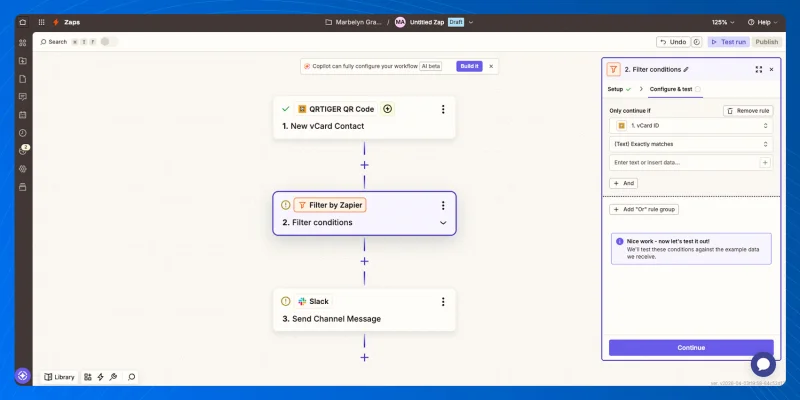
Algunas campañas de códigos QR necesitan atención más rápida. Agrega un paso de filtro antes de la acción del mensaje del canal para enviar eventos prioritarios a un canal de equipo específico.
Para "Nuevo contacto de vCard", utiliza "ID de vCard" para identificar cuál Código QR de vCards debería activar una notificación de prioridad.
Para "Nueva exploración de código QR", use campos como nombre de QR, Ciudad, País, Región, ID de QR, categoría de QR o Escaneado en.
Aquí está cómo configurar el filtro:
Bajo el desencadenador QR TIGER, añade un paso de "Filtro".
En "Solo continuar si", elige el campo que deseas verificar:
Para notificación de plomo = ID de vCard
Para la notificación de escaneo = País, Ciudad, nombre del código QR, categoría del código QR, ID del código QR o Escaneado en
Elige la condición.
Utilice "Coincide exactamente" o "Contiene" para campos de texto.
Utilice "Después", "Antes" o "Igual" para el filtro "Escaneado en".
Ingresa el valor que debería activar la prioridad.
Haz clic en "Continuar" y prueba el filtro.
Agrega la acción de mensaje de canal después del filtro.
Elige el canal de prioridad.
Escribe el mensaje.
Realiza otra prueba, luego publica el Zap.
Este sistema mantiene la actividad general en un canal y envía eventos de alto valor a las personas que necesitan responder primero.
Mejorando la velocidad de respuesta
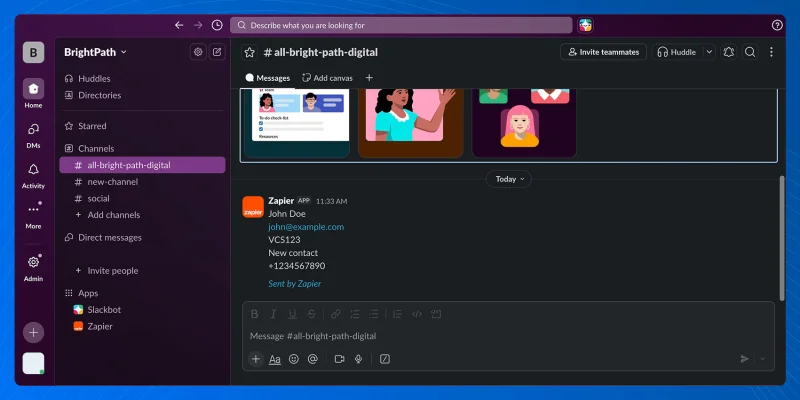
Entre los casos de uso prácticos de Zapier, esta configuración destaca por reducir el retraso entre una interacción con un código QR y una acción de equipo.
Una vez que se ejecuta el Zap, cada alerta proporciona a tu equipo el contexto necesario para decidir el siguiente paso.
- Un equipo de ventas podría hacer seguimiento a un nuevo cliente potencial vCard.
- Un equipo de soporte podría revisar escaneos relacionados con el producto.
- Un equipo de eventos podría rastrear la actividad de los stands o ubicaciones a medida que llegan los escaneos.
Eso ayuda a tu equipo:
- Responde mientras el interés aún esté alto
- Asignar seguimientos más rápidos
- Seguir la actividad de la campaña en vivo
- Mantener alineados los equipos de ventas, soporte y eventos
¿Quieres un registro en vivo de cada cliente potencial de QR en un solo lugar? Aprende cómo sincronizar los datos del código QR en Google Sheets usando Zapier para un seguimiento y reporte más sencillo.
Convertir eventos de códigos QR en seguimientos más rápidos
Ahora tienes un flujo de trabajo claro para enviar alertas de escaneo de códigos QR y contactos vCard a Slack o Microsoft Teams a través de Zapier.
Este setup brinda a tu equipo una visibilidad más rápida y una forma más limpia de monitorear la actividad de los códigos QR sin agregar otra tarea manual al proceso.
Una vez que tu flujo de trabajo de alerta esté activo, cada escaneo o cliente potencial se vuelve más fácil de rastrear, asignar y actuar sobre él.

Preguntas frecuentes
¿Cómo envío alertas a Slack?
Puedes enviar alertas a Slack utilizando una herramienta de automatización como Zapier. Configura un desencadenante, elige Slack como la aplicación de acción y luego envía la alerta a un canal seleccionado.
¿Zapier se integra con Microsoft Teams?
Sí. Zapier se integra con Microsoft Teams y puede enviar mensajes a un canal de Teams elegido cuando se activa un desencadenante.
¿Cómo puedo vincular Zapier a la información de clientes potenciales?
Vinculas Zapier a la información de clientes potenciales configurando tu fuente de clientes potenciales como la aplicación de activación, probando el activador y mapeando los campos de datos disponibles para el siguiente paso de acción. 
Este artículo es solo para fines informativos generales y no constituye asesoramiento legal, financiero u otro tipo de asesoramiento profesional. Para preguntas sobre los productos o servicios de QR TIGER, por favor contacta a nuestro equipo de soporte en [email protected].
Preguntas frecuentes (FAQ)
How do I send alerts to Slack?
Does Zapier integrate with Microsoft Teams?
How do I link Zapier to lead info?
¿Fue útil este artículo?
Maximiza Escaneos con el Mejor Generador de Códigos QR
Únete a miles de marcas globales que utilizan QR TIGER para gestionar enrutamiento dinámico, creación masiva y análisis de atribución profunda.
Comience gratis