
How to Use a QR Code to Enable ADB Debugging on Android 11+
 By Ashley P.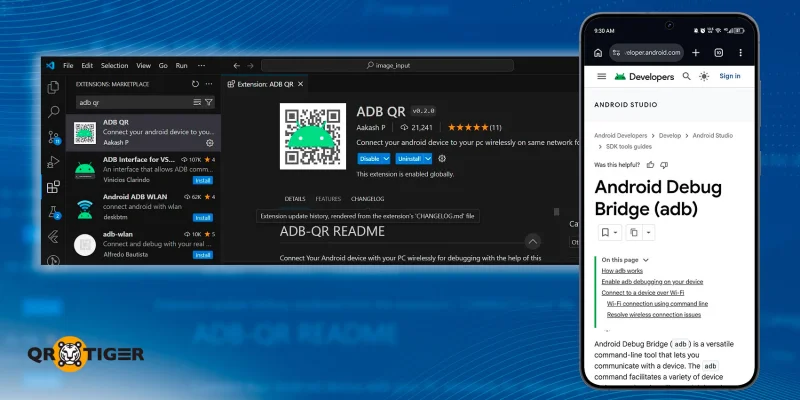
You can now use a QR code in ADB to enable debugging features on Android 11 and higher. It’s an easier, faster, and more convenient way for two devices to communicate.
ADB (Android Debug Bridge) is a command-line tool that developers and advanced users commonly use to interact with Android devices from their computers. It removes the need for a graphical user interface (GUI), so users don’t have to navigate menus to perform tasks.
This article guides you on how to enable QR code on Android for ADB debugging and explains why this method is beneficial and what you can do after it is activated.
Table of Contents
How to connect ADB with QR code?
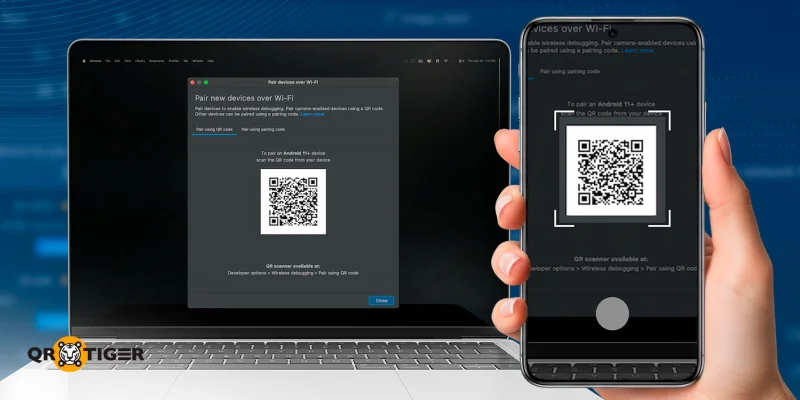
Before you enable ADB with a QR code, you must first confirm the following:
- Your Android device is running on Android 11 or higher.
- Your computer and Android device are connected to the same wireless network.
- You are running the latest version of Android Studio and SDK Platform Tools.
Now, let’s begin.
Enable ADB on the device
1. Download and install Android Studio.
2. Click the More Actions button at the center of the screen.
3. Choose the SDK Manager option.
4. Select the following SDK tools:
- Android SDK Command-Line tools
- Android SDK Platform-Tools
- Google USB Driver
5. Once confirmed, these tools will be installed in “android_sdk/platform-tools/”.
Enable ADB with a QR code over Wi-Fi
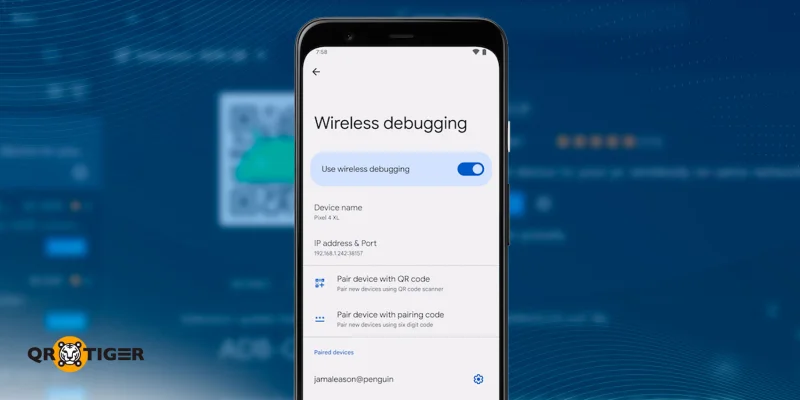
Once your ADB is ready to use, connect your device to your computer. Make sure both devices are using the same Wi-Fi network before performing the following steps:
1. Enable developer options on your Android device.
2. Open Android Studio and move to the Run configurations menu.
3. Select the Pair Devices Using Wi-Fi option. From here, the system’s QR code generator creates a unique ADB QR code displayed in the pop-up window.
4. Before scanning the QR code, open the Wireless debugging menu in your Android device settings.
5. Select the Pair device with QR code option.
6. Scan the ADB pair QR code from step 3.
And just like that, you’ve connected your Android device to your computer.
💡Did you know? A Wi-Fi QR code generator creates QR codes that let devices connect to the wireless network with a single scan.
How do I enable ADB via pairing code?
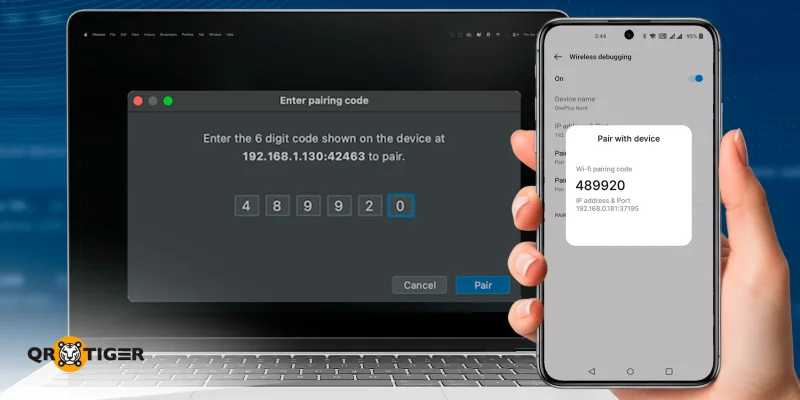
An alternative way to connect your devices via ADB is to use a pairing code. This code consists of numbers generated by your mobile device and must be entered into the computer when prompted.
To pair your device with a pairing code, perform the following steps:
1. Enable developer options on your Android device.
2. Open the Wireless debugging menu in your Android device settings.
3. Select the Pair device with pairing code option. Take note of the six-digit code.
4. Open Android Studio and move to the Run configurations menu.
5. Select the Pair Devices Using Wi-Fi option. From here, select the Pair with pairing code option in the pop-up window.
6. Enter the six-digit code from step 5 and click Pair.
Why should you use a QR code in ADB to enable debugging?
These are a couple of other methods to enable Android Debug Bridge (ADB) on Android devices, but why is the QR code a better way to activate it? These are its perks:
- Scanning a QR code significantly speeds up the pairing process.
- It reduces the likelihood of human errors during connection.
- It requires no additional devices or components.
- It prevents common USB connection problems, such as outdated drivers.
- It removes the risk of malicious attacks from other devices in the same network.
- It enables installing applications across multiple remote devices.
- It allows users to move their device while debugging.
- It leads to a less-cluttered workspace.
What can users do once ADB is enabled?
Once ADB is activated, users gain deeper access to their device, allowing them to perform a wide range of advanced tasks. Below are some of the most common capabilities:
- View connected devices: List all devices connected to the network.
- Connect to a specific device: Establish a connection using a device’s IP address or unique identifier.
- Install and test applications: Sideload apps directly onto the device and run tests without using app stores.
- Transfer files: Move files between your computer and the device, both to and from either system.
- Manage files and directories: Browse, modify, and organize device storage through command-line access.
- Access system information: Retrieve data from various system services for diagnostics or development purposes.
- Generate bug reports: Create detailed reports for troubleshooting and save them locally.
- Capture screen activity: Take screenshots or record the device’s screen directly from your computer.
- Control device power functions: Reboot the device or boot it into different modes as needed.
Takeaway
Scanning a QR code to enable ADB wirelessly on Android 11 and higher makes device pairing faster, simpler, and more reliable than traditional methods, such as USB connections or manual code entry, reducing setup errors.
Once connected, users can debug apps, transfer files, access system data, and control their devices directly from a computer.
Need a dynamic QR code generator?
Using a QR code to connect two devices is just one of the many applications of the technology. You can do more with a good QR code software at hand.
QR TIGER is an advanced QR code generator that offers enterprise-grade solutions and tools, from bulk generation to API integrations, enabling you to create editable, trackable, and branded QR codes.
Sign up for our Freemium plan and start generating three dynamic QR codes for your networking, marketing, and workflow needs.
People Also Ask
What does it mean when ADB is enabled?
Enabling the Android Debug Bridge (ADB) means your computer can communicate with your Android device. This allows you to troubleshoot problems, install apps, and transfer files.
How to enable QR code scanning on Android?
If you’re running Android 8 and above, you don’t need to take any steps to enable QR code scanning. You can simply scan any QR code using your phone’s native camera app.
This article is for general informational purposes only and does not constitute legal, financial, or other professional advice. For questions about QR TIGER's products or services, please contact our support team at [email protected].
Frequently Asked Questions (FAQ)
What does it mean when ADB is enabled?
How to enable QR code scanning on Android?
Was this article helpful?
Maximize Scans with the Best QR Code Generator
Join thousands of global brands using QR TIGER to manage dynamic routing, bulk creation, and deep attribution analytics.
Get Started For Free